33
English
Advanced Features Advanced Features
Media Play (USB)
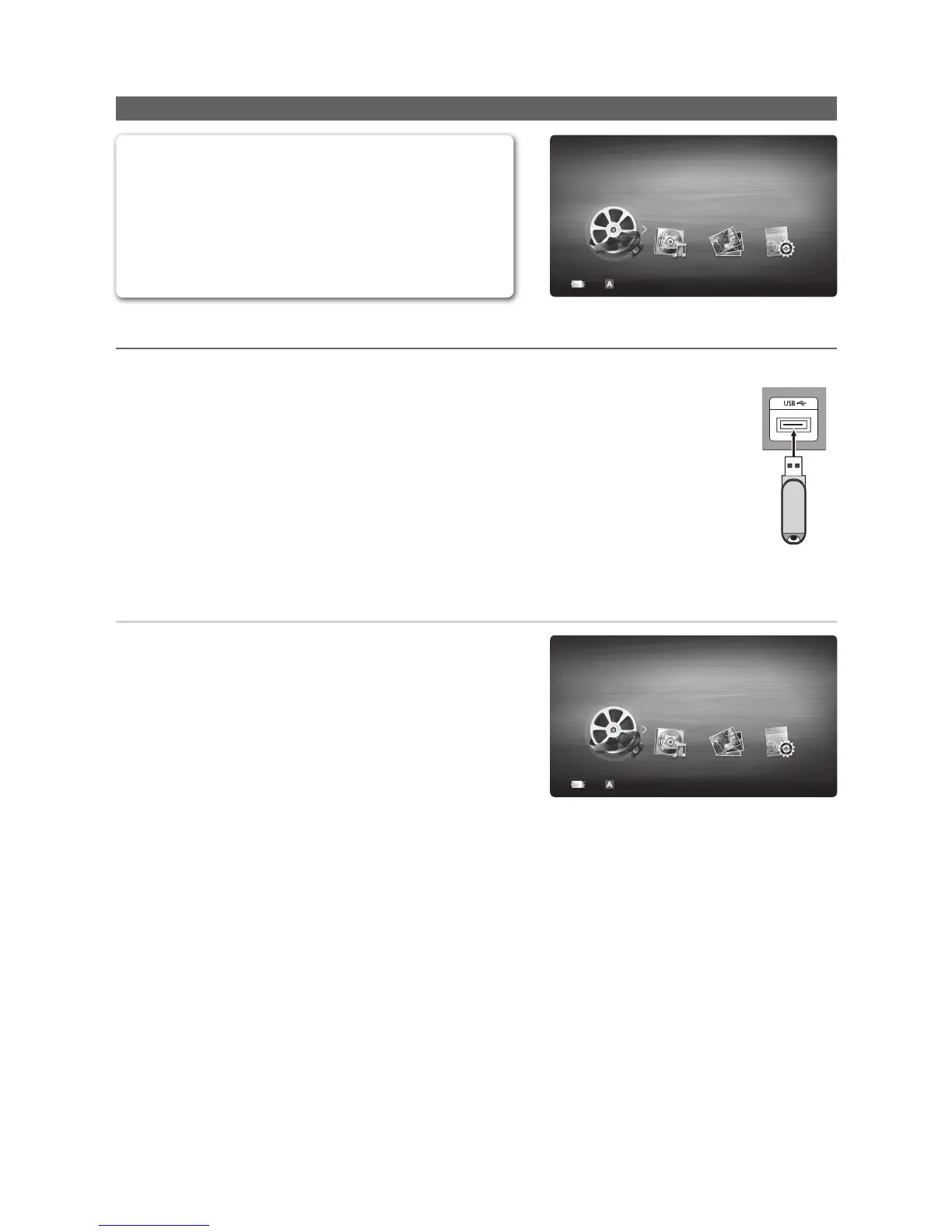
Enjoy video, music and photos fi les saved on a USB Mass
Storage Class (MSC) device.
MENU
m
→ Application → Media Play (USB) → ENTER
E
E
Enter
R
Return
Videos
SUM Change Device
Media Play
¦ Connecting a USB Device
1. Turn on your TV.
2. Connect a USB device containing video,music and photos fi les to the USB jack on the side
of the TV.
3. When the Application selection screen is displayed, press the ► button to select Media
Play (USB), then press the ENTER
E
button.
USB Drive
TV Side Panel
Using the Media Play Menu
1. Press the MENU button. Press the ▲ or ▼ button to select
Application, and then press the ENTER
E
button.
2. Select Media Play (USB), then press the ENTER
E
button.
3. The USB Memory Device name is displayed in the left corner.
✎
The Media Play menu differs depending on the USB Memory
Device connected to TV.
✎
Some devices may not be supported due to compatibility
problems.
4. Press the ◄ or ► button to select an icon Videos, Music, Photos,
Settings then press the ENTER
E
button.
The displayed image may differ depending on the model.
E
Enter
R
Return
Videos
SUM Change Device
Media Play



 To Next Page