23Learn About YourDevice
Multi Window
Multitask by using two applications at the same time.
Apps that support Multi window can be displayed
together on a split screen. You can switch between the
apps and adjust the sizes of their windows.
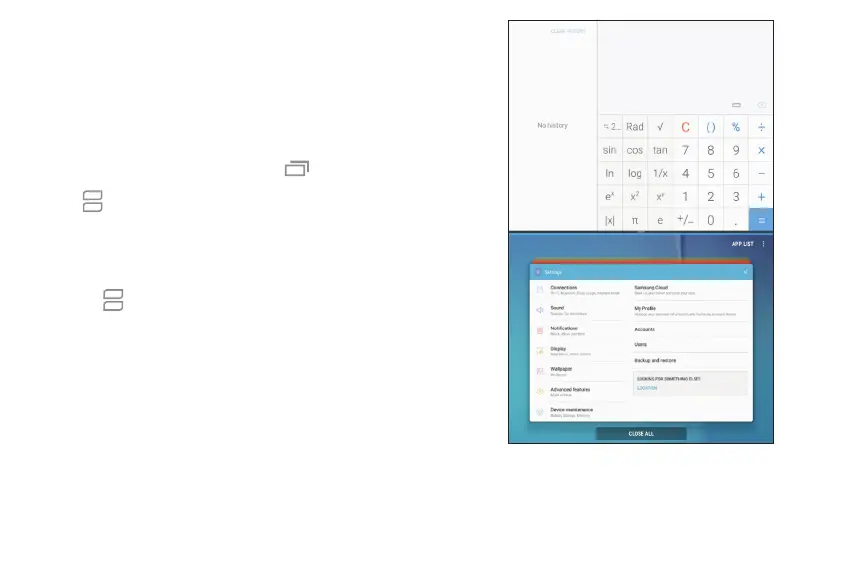
1. From any screen, touch and hold Recent apps.
2. Tap in the title bar to launch an
application in split screen view.
•
Recently opened apps are displayed in the lower
window. Apps that support Multiwindow have
the icon in their title bar.
•
If there are no recently opened apps that
support Multi window, or if you want to launch a
different app, tap App list.
3. Tap an app in the lower window to add it to the split
screen view.
Devices and software are constantly evolving — the illustrations you see here are for reference only.












 To Next Page