EasyManua.ls Logo

Samsung UN50JU650D - 1. Initial Setup; Setup Process Overview; TV Control Methods

Samsung UN50JU650D
27 pages
Print Icon
To Next Page IconTo Next Page
To Previous Page IconTo Previous Page
Loading...
1
e
Initial Setup
When
you
turn
on
your
TV
for the first ti
me.
it immediately starts the
Initial
Setup.
During
Initial
Setup,
connects
to your
home
network, implements
Smart
Hub
agreements.
links
to the
source
of your
live
TV
si
gnal,
and
sets
up
control
of
your
cable
or
satellite
box
.
Information
You
Ne
ed Internet
Ac
ce
ss
Have
the
following
information
on
hand
before
you
turn
on
your
TV
for the first time:
The
TV
mus
t
be
connected to the
Internet
to
use
Your
wireless
network's
password
.
(Make
sure
your network is
on
.)
Your
Postal
or
Zip
code
.
The
name
and
location of
your
cab
le or satellite
provider (if
you
use
one)
.
the
Smart
Features.
If
you
have
a
wireless
network,
confi
rm
that your network router
is
working before
you
start the
in
iti
al
setup
.
If
you
have
a wired
network, connect the
TV's
LAN
port to the network
with
an
Ethernet
cable
before
you
begin
(CAT
7
cable
preferred).
Running Initial
Se
t
up
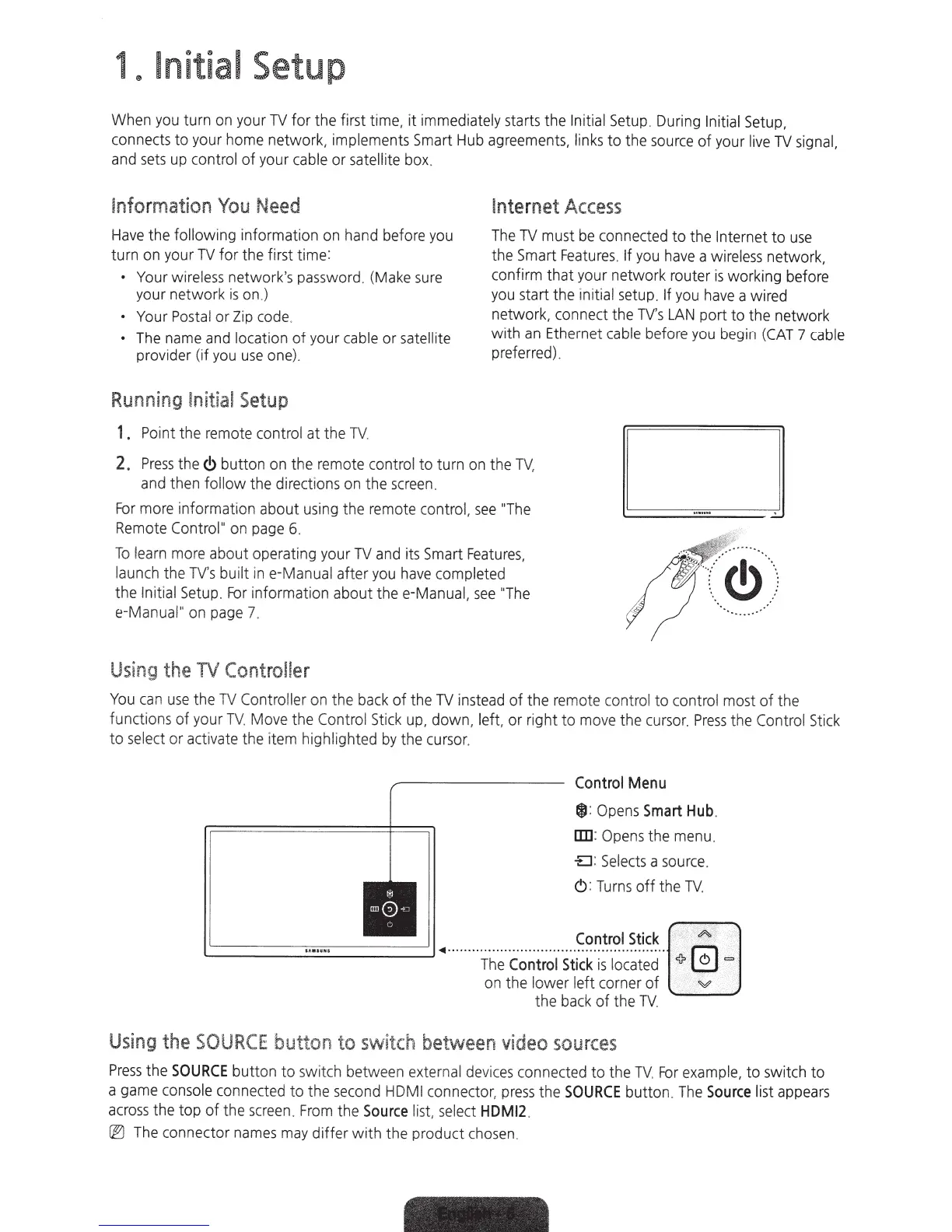
1.
Po
int the
remot
e
control
at
th
e
TV
2.
Press
the
C>
button
on
the
remote
control to turn
on
the
TV
,
and
then
follow
the directi
ons
on
the
screen
.
For
more
informati
on
about
using
the remote
contro
l,
see
"The
Remote
Control"
on
page
6.
To lea
rn
more about operating
your
TV
and
its
Smart
F
eatures
,
l
aunch
the TV's built
in
e-Manual after
you
have
completed
the
Initial
Setup
.
For
information about
thee-Manual,
see
"The
e-M
anua
l"
on
page
7.
Usin
g
the
TV
Controller
...:...
You
ca
n
use
the
TV
Controller
on
the
ba
ck
of
the
TV
i
nstead
of
the
remote
cont
ro
l
to control most of the
functions of your
TV.
Move
the
Control
Stic
k
up,
down,
left, or right to mo
ve
the
cursor
.
Press
the
Control
St
i
ck
to
select
or
ac
ti
vate
the item h
ig
h
li
ghted
by
the
cursor
.
Control
Menu
lil!)
:
Op
e
ns
Smart
Hub
.
!Ill
Opens
the
menu
.
£1
:
Selec
ts
a
source.
<!)
:
Turn
s
off
th
e
TV
.
...__
__________
_.
·········
:r
h~C~~i;.;l
Sti~~~:i:~~i~~·r.,
.
;
·
E
·
:
I.=.]
on
the lower
left
co
rner
of
.
·x
"¥'
.
••
..
•·••
the
ba
ck
of the
TV
.
Us
ing
the
SO
UR
CE button to switch between
video
source
s
P
res
s
the
SOURCE
button to switch betw
ee
n
ext
ern
al
devi
ce
s co
nn
ected to the
TV
.
For
exa
mple,
to switch to
a
game
console
co
n
ne
cted to the
second
HDMI
connector,
press
the
SOURCE
button.
The
Source
list
appears
across
the top of the
sc
reen.
Fr
om the
Source
list, select
HDM12
.
(EJ
The
connector
nam
es may di
ff
er with the p
ro
du
ct c
ho
s
en
.

Related product manuals