EasyManua.ls Logo

Samsung VP-D101 - User Manual

Samsung VP-D101
9 pages
Print Icon
To Next Page IconTo Next Page
Loading...
Features .....................................................2
Notes and Safety Instructions....................3
Getting to Know Your Camcorder ..........4
Playback..............................................7
Basic Recording............................................8
Maintenance .......................................8
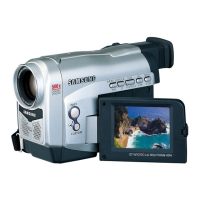
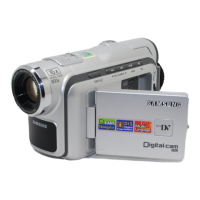
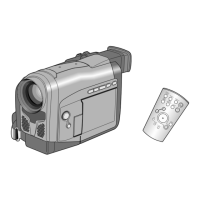
Digital Video Camcorder
VP-D101(i)/D102D(i)/D103(i)/D105(i)
Troubleshooting ..................................9
* Samsung Electronics’ Internet Home Page
United Kingdom http://www.samsungelectronics.co.uk
£¥‹º≥∏̺ (D103) 1/4/05 10:28 AM Page 1

Other manuals for Samsung VP-D101

Questions and Answers

  • S
    Susan BlankenshipAug 15, 2025
    What to do if Samsung VP-D101 battery is almost discharged?
    • D
      Danielle AdamsAug 16, 2025
      If the battery pack of your Samsung Camcorder is almost discharged, replace it with a charged one or a new one. If you want to record, release the protection. If the issue persists, eject the tape, set the camcorder to OFF, detach and reattach the battery. If still unresolved, contact your local service representative. Alternatively, leave the camcorder for at least two hours in a dry warm room.
  • B
    baileybrandonAug 18, 2025
    What to do if there is not enough memory to record on Samsung VP-D101?
    • J
      Jay Fuller IIAug 18, 2025
      If your Samsung Camcorder shows there is not enough memory to record, you can either change to a new Memory Card or erase recorded images from the current one.
  • H
    haley18Aug 21, 2025
    Why my Samsung VP-D101 can not record?
    • M
      Mr. John HamptonAug 21, 2025
      If your Samsung Camcorder can not record, format the Memory Card or change to a new Memory Card.
  • J
    Jason MartinAug 25, 2025
    Why Samsung VP-D101 Camcorder can not playback?
    • E
      ecunninghamAug 25, 2025
      If your Samsung Camcorder can not playback, format the Memory Card or insert a Memory Card recorded on this camcorder.
  • E
    Emily MoraAug 27, 2025
    What to do if my Samsung VP-D101 Camcorder says there is no Memory Card?
    • A
      Anna CarrAug 27, 2025
      If your Samsung Camcorder says there is no Memory Card, insert a Memory Card.
  • M
    Mary NelsonAug 30, 2025
    What to do if there are no images recorded on the Samsung VP-D101 Memory Card?
    • C
      Christy CostaAug 30, 2025
      If there are no images recorded on the Memory Card of your Samsung Camcorder, record new images.
  • D
    Dr. Jonathan Murphy MDSep 2, 2025
    What to do when Samsung VP-D101 is progressing FILE COPY?
    • M
      Melissa WoodsSep 2, 2025
      When your Samsung Camcorder is progressing FILE COPY, wait until copying has been finished. Alternatively, you can press the stop button.
  • M
    marksalinasSep 5, 2025
    What to do when Samsung VP-D101 is progressing MEMORY FORMAT?
    • J
      Jackson CurtisSep 5, 2025
      When your Samsung Camcorder is progressing MEMORY FORMAT, wait until formatting has been finished.
  • K
    Kevin SchwartzSep 8, 2025
    What to do when trying to delete a protected image on Samsung VP-D101?
    • L
      Lauren CaldwellSep 9, 2025
      If you are trying to delete a protected image on your Samsung Camcorder, cancel the protection of the image.
  • K
    Katie WeberSep 12, 2025
    What to do when Samsung VP-D101 Camcorder is progressing FILE DELETE?
    • B
      Brittney MurraySep 12, 2025
      When your Samsung Camcorder is progressing FILE DELETE, wait until the deletion has finished.

Summary

Features

MULTI OSD LANGUAGE

Allows selection of OSD language among English, French, German, Spanish, Italian, Polish, and Dutch.

Digital data transfer function with IEEE1394

High-speed data transport for transferring moving and still images to a PC for editing.

USB Interface for digital image data transfer

Enables image transfer to PC via USB without an add-on card for specific models.

PHOTO

Captures an object as a still image with sound while in Camera mode.

Digital zoom

Allows magnification of an image up to 900 times its original size.

Your TFT LCD

High-resolution colour TFT LCD for clear, sharp images and immediate playback review.

Digital Image Stabilizer (DIS)

Compensates for handshake to reduce unstable images, especially at high magnification.

Various digital effects

DSE allows adding special effects to films for a unique look.

Back Light Compensation (BLC)

Compensates for bright backgrounds to improve subject visibility during recording.

Program AE

Adjusts shutter speed and aperture for optimal scene/action recording.

NIGHT CAPTURE

Enables recording subjects in dark environments.

Digital Still Camera function (VP-D103(i);D105(i) only)

Records and plays back standard still images using a Memory Card.

MPEG Recording (VP-D103(i);D105(i) only)

Records video onto a Memory Card in MPEG format.

MULTI MEMORY CARD SLOT (VP-D105(i) only)

Supports Memory Card, MMC, and SD card usage.

Notes and Safety Instructions

Notes regarding moisture condensation

Advises on preventing condensation by acclimatizing the camcorder to temperature changes.

Notes regarding CAMCORDER

Details precautions against high temperatures, moisture, and getting the camcorder wet.

Notes regarding the battery pack

Instructions on battery charging, power preservation, and fitting the battery pack.

Battery Pack Lifespan and Disposal

Information on battery end-of-life and disposal as chemical waste.

Notes regarding the Video Head Cleaning

Recommends regular video head cleaning using a dry-type cassette for clear pictures.

Note regarding the LENS

Warns against pointing the lens directly at the sun to prevent CCD damage.

Notes regarding electronic viewfinder

Advises against pointing the viewfinder at the sun to prevent internal damage.

Notes regarding Record or Playback using the LCD

Explains LCD display characteristics and usability in sunlight.

Notes regarding the hand strap

Instructions for adjusting the hand strap for steady filming and avoiding damage.

Getting to Know Your Camcorder

Front & Left View

Identifies key components and controls on the front and left side of the camcorder.

Accessories Supplied with camcorder

Lists essential accessories that should be supplied with the digital video camera.

Basic Accessories

Details the list of basic accessories included with the camcorder.

Optional Accessories

Lists optional accessories available for purchase to enhance camcorder functionality.

Left Side View

Details components and function buttons on the left side of the camcorder.

Right & Top View

Identifies controls and ports on the right and top surfaces of the camcorder.

Rear & Bottom View

Details components and ports on the rear and bottom of the camcorder.

Remote Control

Explains the layout and functions of the remote control.

Playback

Playback on the LCD

Practical guide for viewing tapes using the camcorder's LCD screen.

Playback on a TV monitor

Steps for connecting the camcorder to a TV for playback.

Connecting to a TV which has Audio;Video input jacks

Instructions for connecting via AUDIO/VIDEO cable to TVs with input jacks.

Connecting to a TV which has no Audio and Video input jacks

Guide for connecting through a VCR to TVs without direct input jacks.

Notes on Playback

Provides important notes regarding S-VIDEO cable usage and audio output during playback.

Basic Recording

Connect a Power source

Connects the camcorder to a power source, either battery or AC adapter.

Insert a cassette

Guides the user on how to properly insert a cassette into the camcorder.

Remove the LENS CAP

Instructs to remove the lens cap before starting the recording process.

Set the power switch to CAMERA

Guides on setting the power switch to the CAMERA position for recording.

Set mode switch to TAPE

Instructs to set the mode switch to TAPE for recording.

Ensure STBY is displayed

Verifies that the camcorder is in Standby mode, ready for recording.

Check image and battery level

Advises checking the desired image and sufficient battery level for recording.

Start recording

Instructions on pressing the START/STOP button to begin recording.

Stop recording

Instructions on pressing the START/STOP button again to end recording.

Maintenance

Cleaning the Video Heads

Procedures for cleaning video heads to ensure normal recording and clear pictures.

Notes on Maintenance

Provides notes on checking picture quality after cleaning and contacting service if issues persist.

Troubleshooting

Diagnosis Display

Lists common diagnosis displays and their meanings for troubleshooting.

Moisture Condensation

Explains the 'DEW' display and steps to take if moisture condenses inside the camcorder.

Diagnosis Display in M.REC;M.PLAY mode (VP-D103(i);D105(i) only)

Details specific diagnosis displays for Memory Card operations and their solutions.

Samsung VP-D101 Specifications

General IconGeneral
BrandSamsung
ModelVP-D101
CategoryCamcorder
LanguageEnglish

Related product manuals