EasyManua.ls Logo

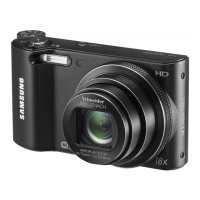
Samsung WB700 - User Manual

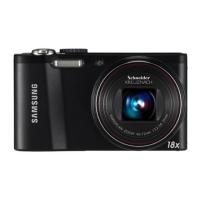
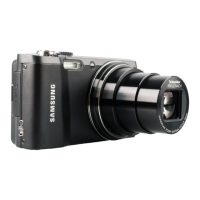
Samsung WB700
130 pages
Print Icon
To Next Page IconTo Next Page
Loading...
This user manual includes detailed usage
instructions for your camera. Please read
this manual thoroughly.
Basic troubleshooting
Quick reference
Contents
Basic functions
Extended functions
Shooting options
Playback/Editing
Settings
Appendixes
Index
User Manual
WB700/WB710
Ä Click a topic

Table of Contents

Other manuals for Samsung WB700

Questions and Answers

  • D
    David BennettAug 10, 2025
    Why are my Samsung WB700 photos blurred at night?
    • J
      jasmine02Aug 10, 2025
      If your Samsung Digital Camera photos are blurred when shooting at night, it could be due to the camera slowing the shutter speed to allow more light. To resolve this, you can: * Select Night in s mode. * Turn on the flash. * Set ISO sensitivity options. * Use a tripod to prevent camera shake.
  • V
    vwadeAug 15, 2025
    What to do if subjects are too dark in Samsung WB700 photos because of backlighting?
    • D
      Daniel RobinsonAug 16, 2025
      If subjects are too dark in your Samsung Digital Camera photos due to backlighting, it's likely because the light source is behind the subject or there's high contrast between light and dark areas. Try to avoid shooting towards the sun. You can also select Backlight in s mode, set the flash option to Fill in, adjust the exposure, or set the metering option to Spot if a bright subject is in the center of the frame.
  • A
    Aaron ThomasAug 22, 2025
    Why are my Samsung WB700 Digital Camera photos blurred?
    • F
      frymckenzieAug 22, 2025
      If your Samsung Digital Camera photos are blurred, it may be because you are capturing photos in low light conditions or holding the camera incorrectly. Use the OIS function or half-press the shutter button to ensure the subject is focused. You can also use the d mode.
  • M
    Mrs. Elizabeth ChungAug 28, 2025
    How to fix red eye on Samsung Digital Camera?
    • J
      Jennifer JensenAug 28, 2025
      If the subject’s eyes appear red in your Samsung Digital Camera photos, set the flash option to Red-eye or Red-eye Fix. If the photo has already been captured, select Red-eye Fix in the edit menu.
  • N
    noah40Sep 2, 2025
    What to do if Samsung WB700 Digital Camera photos have dust spots?
    • M
      Mark UnderwoodSep 2, 2025
      If your Samsung Digital Camera photos have dust spots, it may be due to dust particles in the air. Turn off the flash or avoid capturing photos in a dusty place. Also, consider adjusting the ISO sensitivity options.

Summary

Health and Safety Information

Warning-Situations That Could Cause Injury

Precautions to avoid injury to yourself or others, including warnings about disassembly and flash usage.

Caution-Situations That Could Cause Damage

Precautions to avoid damage to the camera or other equipment, covering battery handling and charger safety.

Basic Troubleshooting Guide

Basic Functions of the Camera

Camera Layout and Controls

Identifies and explains the camera's buttons, ports, and key components.

Inserting Battery and Memory Card

Step-by-step guide on how to insert the battery and memory card correctly.

Charging Battery and Powering On

Instructions for charging the battery and turning the camera on for the first time.

Performing Initial Setup

Guides the user through the initial camera setup process.

Capturing Photos

Basic steps for capturing photos, including using Smart Auto mode.

Zooming Functionality

Explains how to use the zoom feature for close-up photography.

Reducing Camera Shake (OIS)

Instructions on how to use Optical Image Stabilization to minimize blur.

Extended Functions for Photography

Using the Smart Auto Mode

Automatically adjusts settings based on scene detection for effortless shooting.

Using Scene Modes

Utilizing preset scene modes like Beauty Shot for specific photographic situations.

Using the Program Mode

Allows manual control over most settings except aperture and shutter speed.

Aperture, Shutter Priority, and Manual Modes

Explains how to control exposure by adjusting aperture or shutter speed.

Using the DUAL IS Mode

Reduces camera shake using Optical and Digital Image Stabilization.

Shooting Options and Settings

Playback and Editing Features

Transferring Files to Your Computer

Camera Settings Menu

Appendixes

Camera Specifications

Samsung WB700 Specifications

General IconGeneral
Sensor Resolution14.2 MP
Optical Zoom18x
Digital Zoom5x
Display Size3.0 inches
Image StabilizationOptical
ISO Sensitivity80-3200
Battery TypeSLB-10A
TypeCompact
Screen Size3.0 inches
Sensor TypeCCD
Effective Pixels14.2 MP
Shutter Speed8 - 1/2000 sec
LCD Resolution230, 000 dots
Storage MediaSD/SDHC/SDXC
Video Resolution1280 x 720 (720p)

Related product manuals