EasyManua.ls Logo

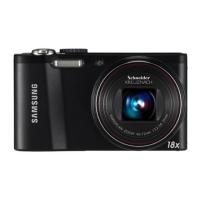
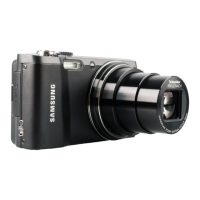
Samsung WB750 - User Manual

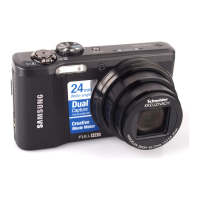
Samsung WB750
145 pages
Print Icon
To Next Page IconTo Next Page
Loading...
This user manual includes detailed usage
instructions for your camera. Please read
this manual thoroughly.
Basic troubleshooting
Quick reference
Contents
Basic functions
Extended functions
Shooting options
Playback/Editing
Settings
Appendixes
Index
User Manual
WB750
Ä Click a topic

Table of Contents

Questions and Answers

  • K
    Kevin MccannAug 10, 2025
    Why are my subjects too dark in Samsung WB750 Digital Camera photos?
    • A
      Ariel HillAug 11, 2025
      If your subjects are appearing too dark, it's likely due to backlighting, where the light source is behind the subject or there's a strong contrast between light and dark areas. To resolve this, avoid shooting directly into the sun. You can also try selecting Backlight in s mode, setting the flash option to Fill in, adjusting the exposure, or using Spot metering if your subject is in the center of the frame.
  • D
    Dustin KingAug 18, 2025
    How to fix blurred photos at night with Samsung WB750 Digital Camera?
    • C
      Colleen SimpsonAug 18, 2025
      Blurred photos at night occur because the camera slows the shutter speed to capture more light, making it difficult to hold the camera steady. To fix this, select Night in s mode. Also you can turn on the flash, set ISO sensitivity options, or use a tripod to stabilize the camera.
  • A
    Amanda BlakeAug 25, 2025
    What to do if my Samsung Digital Camera photos are blurred?
    • E
      Emily YorkAug 26, 2025
      Blurring in photos can happen in low light or if the camera isn't held correctly. Use the OIS function or half-press the shutter button to ensure the subject is focused. You can also use the d mode.
  • J
    joshua44Sep 1, 2025
    How to prevent red eye in Samsung Digital Camera photos?
    • J
      Jesse WashingtonSep 2, 2025
      Red eye happens when light from the camera flash reflects in the subject's eyes. Set the flash option to Red-eye or Red-eye Fix.

Summary

Troubleshooting Camera Issues

Subject Red-Eye Correction

Resolving red-eye issues in photos.

Blurred Photos Troubleshooting

Troubleshooting blurred photos due to lighting or camera shake.

Night Shooting Clarity

Tips for clear photos when shooting in low light.

Backlighting Exposure Fix

Correcting exposure for backlit subjects.

Basic Camera Functions

Battery and Memory Card Insertion

Proper insertion of battery and memory card.

Powering On and Charging

Steps for charging battery and powering on the camera.

Initial Setup Configuration

Initial camera settings configuration upon first use.

Taking Photos

Basic guide to taking photos.

Using the Zoom Feature

How to use the zoom feature for close-up shots.

Extended Camera Functions

Smart Auto Mode Guide

Automatic camera setting adjustments for various scenes.

Aperture, Shutter, Manual Modes

Controlling exposure via aperture, shutter speed, or both.

Movie Mode Recording

Recording videos with various settings and features.

Shooting Options and Settings

Resolution and Quality Settings

Adjusting image resolution and JPEG quality.

Camera Focus Adjustment

Adjusting camera focus for sharp images.

Face Detection Feature

Camera automatically detects and focuses on faces.

Brightness and Color Tuning

Fine-tuning image brightness, contrast, and color.

Applying Photo Effects and Adjustments

Applying creative filters and image adjustments.

Playback and Editing Photos;Videos

Viewing Photos and Videos

Navigating and viewing stored photos and videos.

Photo Editing Tools

Modifying photos using various editing tools.

Transferring Files to Windows PC

Copying files from camera to Windows PC.

Transferring Files to Mac PC

Copying files from camera to Mac PC.

Camera Settings Configuration

Accessing Camera Settings Menu

How to navigate and access camera settings.

Appendixes and Specifications

Error Message Solutions

Common error messages and their solutions.

Pre-Service Troubleshooting

Troubleshooting steps before seeking professional help.

Samsung WB750 Specifications

General IconGeneral
BrandSamsung
ModelWB750
CategoryDigital Camera
LanguageEnglish

Related product manuals