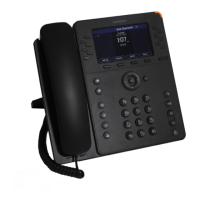
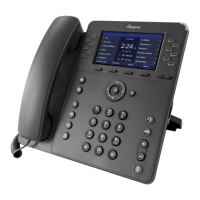
The Sangoma P-Series IP Phones are a range of communication devices designed for seamless integration with Sangoma Unified Communication platforms such as Asterisk, Business Voice, Business Voice Plus, Switchvox, PBXact, and CommUnity phone systems. This user guide provides comprehensive information on setting up, configuring, and utilizing the P-Series models, including the P310, P315, P320, P325, P330, P370 IP phones, and the PM200 Attendant Console, particularly when a Sangoma Configuration Server is not in use. For users integrating with Switchvox or the Digium Phone Module for Asterisk (DPMA), additional resources are available on the Sangoma website.
Function Description
The Sangoma P-Series IP Phones serve as robust endpoints for voice communication within a unified communication environment. They are designed to provide high-quality audio and a range of features that enhance productivity and collaboration. The phones support multiple SIP accounts, allowing users to manage several lines simultaneously. Depending on the model, they offer various display sizes and types, from backlit color displays to multi-point touch IPS glass displays, ensuring clear visibility and intuitive interaction.
Key functions include making and receiving calls, managing call logs, and accessing contacts. The phones support advanced call features such as call forwarding, hold, transfer (assisted and unassisted/blind), and three-way conferencing. For quick access to frequently dialed numbers or contacts, rapid dial keys are available, with some models supporting virtual BLF (Busy Lamp Field) keys through a page key.
Connectivity is a core aspect of the P-Series. All models feature Ethernet connectivity, with some offering Gigabit Ethernet for high-speed network access. Built-in Bluetooth and Wi-Fi (2.4/5G) connectivity are available on higher-end models, enabling wireless headset support and flexible network deployment. USB ports are included for headset support and expansion modules, further extending the phone's capabilities.
The PM200 Attendant Console, an expansion module, enhances the P-Series phones by providing additional rapid dial keys and a dedicated display, ideal for receptionists or users who manage a high volume of calls and need quick access to multiple extensions.
Usage Features
The P-Series phones are designed for ease of use, with a focus on intuitive navigation and accessible features. Upon powering up, the phone initializes by attempting to obtain an IP address and VLAN membership information via DHCP and LLDP-MED, and then seeks a configuration server. If automatic configuration is not successful, users can manually set network information through the phone's interface or the Web User Interface (WebUI).
The phone's main menu, accessed via the navigation button, provides access to various settings and applications. Users can configure network settings, manage SIP accounts, and access phone applications like Call Log, Forward Calls, Bluetooth, Contacts, Parked Calls, Call Queues, and Status.
- Call Management: Making a call involves picking up the handset or pressing a line key, then dialing the number. Calls can also be initiated from the Contacts app or Call Log. Receiving calls is straightforward, with options to answer via softkey or handset, ignore, or manage multiple incoming calls. The Redial button allows for quick redialing of the last number called.
- Hold and Transfer: During an active call, the Hold button places the call on hold, indicated by a flashing line key. Calls can be resumed by pressing the flashing line key or the Resume softkey. Transferring calls can be done in two ways: assisted transfer, where the user speaks to the recipient before transferring, and unassisted (blind) transfer, which directly transfers the call.
- Conferencing: The Conference softkey facilitates three-way calls, allowing users to add another participant to an active call or merge an existing call on hold.
- Contacts and Call Log: The Contacts app provides rapid dialing, direct voicemail access, and status information for other phone users. The Call Log app displays a history of received, dialed, and missed calls, with filtering options for easy navigation.
- Call Forwarding: The Forward Calls app allows users to automatically redirect incoming calls to another number, with options to set or turn off forwarding.
- Bluetooth/Wireless Headset (on supported models): This feature enables the use of Bluetooth wireless headsets. Users can activate Bluetooth, search for devices, and pair them, with audio automatically routing to the wireless headset once connected.
- Status Management: Users can update their phone status (e.g., Do Not Disturb, Available) via the Status softkey, which affects how incoming calls are handled.
- Voicemail: A dedicated Voicemail button provides direct access to the voicemail system configured for the phone.
Maintenance Features
The P-Series IP Phones offer several features to ensure optimal performance and facilitate troubleshooting and updates.
- Firmware Upgrades: Firmware can be updated through two primary methods. The recommended approach is via the UC software platform, which automatically updates phones connected to a properly configured Sangoma UC system. Alternatively, users can manually upgrade firmware by downloading files from the Sangoma website and uploading them through the phone's WebUI. This manual method is typically used when the phone is in a factory default state or after a factory reset.
- Configuration Management: The phones can be configured using XML-formatted configuration files downloaded from a PBX server or by manually entering settings via the WebUI. The WebUI is accessible through a web browser using the phone's IP address and administrator credentials (default: admin/789). It's important to note that the WebUI is locked once the phone has been provisioned to a Sangoma UC platform, requiring a factory reset to regain access.
- Resetting and Restarting:
- Factory Reset: This option, found in the Main Menu, clears all configuration information, including accounts and contacts, and restores the phone to its factory default state. This is often necessary to unlock the WebUI for manual configuration or troubleshooting.
- Reconfigure: Also in the Main Menu, this option prompts the phone to obtain its configuration again without removing the current settings until a new configuration is successfully acquired. This can also be triggered from the Asterisk command line interface for unsupported UC platforms.
- Restart: This option reboots the phone using its current configuration, which can help resolve minor issues without altering settings.
- Network Settings: The phone provides detailed network settings, allowing users to manually configure IP addresses, netmasks, gateways, DNS servers, and VLAN information if DHCP fails or if specific network requirements exist. Ethernet port modes (e.g., 10Mb/s Half Duplex, Gigabit Full Duplex) can also be adjusted for both LAN and PC ports.
- Quality of Service (QoS): Users can set priority values for Voice DSCP and SIP DSCP to ensure call quality, although LLDP-returned values will override manual settings.
- Logging: The Logging tab in the WebUI provides access to network logging (SYSLOG) settings, allowing technical support to gather diagnostic information by setting log levels (Error, Warning, Information, Debug) and specifying an IP address and port for the log server. This is primarily a troubleshooting tool and should only be altered under the guidance of Sangoma Technical Support.
- Tech Support Tools: A dedicated Tech Support (TS) section in the phone's settings offers various utilities for diagnostics. These include enabling/disabling remote access for technical support, connecting to tech support with a password, configuring proxy settings, and network utilities like Ping, Traceroute, Nslookup, and mDNS Services listing. There's also an option to enable Boot Up Debug Mode, which requires a phone restart. These tools are intended for use under the direction of Sangoma Technical Support.
- Ringtone Management: The Ringtones tab in the WebUI allows users to upload custom WAV files as ringtones, in addition to the pre-loaded tones. This feature enables personalization of the phone's audio alerts.
- Preferences: The Preferences tab offers extensive customization options, including language/locale, time format, idle screen display (logo image, wallpaper, small clock), call answering behavior (headset answer, ring headset only, electronic hook switch type), display settings (brightness, contrast, backlight dimming, missed calls notification), and sound volumes (ringer, speaker, handset, headset). These settings allow users to tailor the phone's operation to their specific needs and environment.

 Need help?
 General

 To Next Page