Photo & Video Playback 39
Using the Playback Menu
English
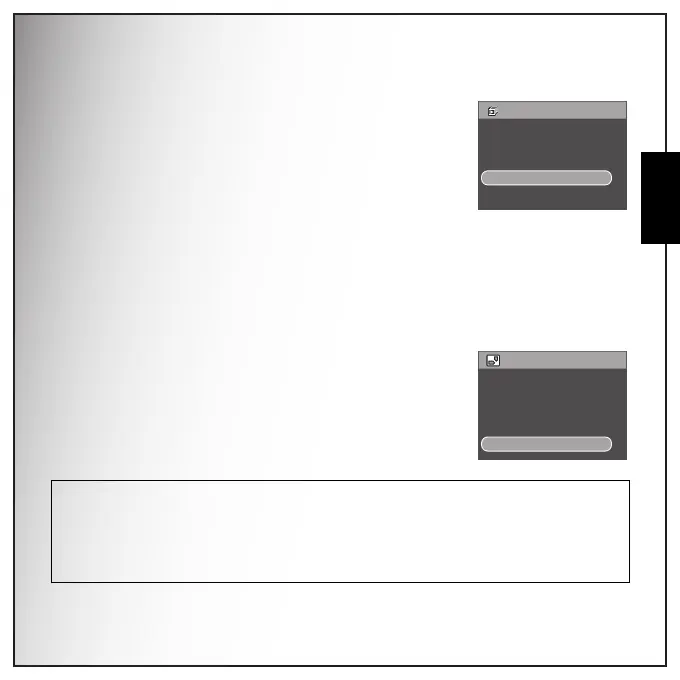
Slideshow
The Slideshow function allows you to view all stored photos in a
continuous sequence.
To view a slideshow:
1. Press the MENU button to select Slideshow from the menu, then
press the OK button to enter the Slideshow function.
2. Press the Up/Down navigation buttons and the OK button to
select from the available options:
• START: Select to start the slideshow.
• INTERVAL: Select to set the interval time between each photo during the slideshow. Use the
Up/Down navigation buttons to set a value in seconds. The default setting is 5
seconds.
• LOOP: Select to enable/disable a continuous loop of the slideshow. Select On or Off (default)
from the submenu.
• EXIT : Select to exit to the main menu.
Resize
The Resize function allows you to change the image resolution.
To resize a photo:
1. Press the MENU button to select RESIZE from the menu, then
press the OK button to enter the Resize function.
2. Press the Up/Down navigation buttons and the OK button to
select the resize ratio you require: 6M, 4M, 2M, 1M, VGA and EXIT.
3. Select EXIT to return to the main menu.
Note: It is only possible to scale-down image resolutions. If the current image resolution is VGA, this menu item is
disabled in the Resize submenu.
• This function only supports native pictures
• Cropped images cannot be resized
• If there is not sufficient storage space, images cannot be resized
• If the SD/SDHC card is locked, images cannot be resized
• VGA image cannot be resized
SLIDESHOW
START
INTERVAL:5 SEC
LOOP:OFF
EXIT
RESIZE
4M
2M
1M
VGA
EXIT


 To Next Page