EasyManua.ls Logo

SATO TC408 - User Manual

SATO TC408
80 pages
Print Icon
To Next Page IconTo Next Page
Loading...
TC Series
User's Manual
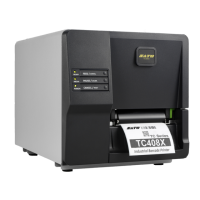
TC408
TC408X

Table of Contents

Questions and Answers

  • T
    Thomas PorterAug 14, 2025
    Why is media calibration out of range for sensor detection on my SATO TC408 Barcode Reader?
    • D
      Dalton Quinn MDAug 15, 2025
      If media calibration is out of range for sensor detection on your SATO Barcode Reader, ensure media is loaded correctly and the media sensor is located under the media.
  • A
    andersonnicoleAug 18, 2025
    What to do if my SATO TC408 Barcode Reader says 'Memory full'?
    • C
      Christopher ValentineAug 18, 2025
      If your SATO Barcode Reader shows 'Memory full', review the graphics and soft fonts sent from the host device. Use the application software to delete any that are no longer needed.
  • J
    Joel RossAug 20, 2025
    What to do if my SATO Barcode Reader says 'Media out'?
    • M
      Michael AdamsAug 21, 2025
      If the SATO Barcode Reader displays 'Media out', you need to supply the media roll.
  • B
    Brian ThomasAug 25, 2025
    What to do if the media is uninstalled or used up in my SATO TC408?
    • M
      Melissa HobbsAug 25, 2025
      If your SATO Barcode Reader shows 'Media is uninstalled or used up', load new media into the printer.
  • H
    Heather BrownAug 28, 2025
    What to do if the ribbon is uninstalled or end-of-ribbon occurred in my SATO Barcode Reader?
    • J
      Jessica SawyerAug 28, 2025
      If your SATO Barcode Reader shows 'Ribbon is uninstalled or end-of-ribbon occurred', load a new ribbon into the printer.
  • D
    Derek CrawfordAug 31, 2025
    Why is my SATO TC408 Barcode Reader miss-detecting the gap, and how do I fix it?
    • R
      rgrantAug 31, 2025
      If you encounter a 'Miss-detected gap' error with your SATO Barcode Reader, check the media path and the position of the label sensor. For continuous media, verify the application and driver settings, ensuring continuous media is selected.
  • D
    Debra EnglishSep 3, 2025
    What causes a 'Serial IO error' on my SATO TC408 and how can I resolve it?
    • T
      Tina ClarkSep 3, 2025
      If your SATO Barcode Reader displays a 'Serial IO error', check the baud rate, format, or protocol settings between the host device and the printer to ensure they match.
  • C
    charlesherringSep 6, 2025
    What to do if the cutter failed on my SATO TC408?
    • A
      Adam MooreSep 6, 2025
      If you are experiencing issues with the cutter on your SATO Barcode Reader, examine the media and the connection between the cutter and the main board.
  • T
    Teresa MatthewsSep 10, 2025
    How to fix a 'Ribbon sensor error' on my SATO TC408?
    • P
      Peter AndersonSep 10, 2025
      If your SATO Barcode Reader shows 'Ribbon sensor error', replace the ribbon sensor.

Summary

1. Introduction

Proprietary Statement

Contains proprietary information of SATO CORPORATION for use and maintenance.

Product Improvements

Describes SATO CORPORATION's policy of continuous product improvement and subject to change.

Liability Disclaimer

States SATO CORPORATION's efforts to ensure accuracy but disclaims liability for errors or damages.

Document Icons

Explains icons used in the manual for notes, cautions, and warnings.

2. Getting Started

Unpacking Printer

Instructions for unpacking and initial inspection of the printer.

Package Contents

Lists all items included in the printer package.

Printer Overview

Provides a visual overview of the printer's front panel and its components.

Front View

Details the components visible on the front of the printer, including LEDs and buttons.

Rear View

Details the ports and power switch located on the rear of the printer.

Interior View I

Shows internal components of the printer, including DIP Switch and media guides.

Interior View II

Shows internal components like the print head, media shaft, and sensors.

Connecting Power Cord

Step-by-step guide on how to safely connect the printer's power cord.

Loading Media

Preparing Media

Notes on handling media rolls and preparing them for loading.

Placing Media Roll

Instructions for opening the printer and positioning the media roll.

Sensor type

Explains how to select and adjust media sensors based on media type.

Loading Ribbon

Preparing Ribbon

Instructions for preparing ribbon core adaptors and ribbon rolls.

Placing Ribbon Rolls

Steps for opening the printer module and placing ribbon rolls.

3. Printer Operations

LED Indicators

Describes the meaning of the READY, MEDIA, and RIBBON LED indicators.

Buttons

Explains the functions of the FEED, PAUSE, and CANCEL buttons.

Media Calibration

Procedure for calibrating the label sensor for accurate media detection.

Printing a Configuration Report

Guide to printing a report that shows printer settings and quality.

DIP Switch

Resetting to Factory Default Settings

4. Communications

Interfaces and Requirements

Overview of available interface options (RS-232, USB, Parallel) and their requirements.

USB Interface Requirements

Specific requirements and benefits of using the USB interface.

Serial Interface Requirements

Details on RS-232 serial port connection and cable requirements.

Parallel Interface Requirements

Details on Centronics parallel port connection and cable requirements.

Communicating with Printer

Information on using Seagull drivers for communication with the printer.

Installing a Plug and Play printer driver (for USB only)

Step-by-step guide for installing the USB printer driver.

Installing a Printer Driver (for other interfaces except USB)

Step-by-step guide for installing drivers for Parallel or Serial interfaces.

5. Troubleshooting

LED Diagnosis

Explains how to interpret LED blinking patterns to diagnose printer issues.

Media Problems

Troubleshooting steps for common media-related issues like detection or jams.

Ribbon Problems

Troubleshooting steps for ribbon-related issues.

Other Problems

Troubleshooting for non-media/ribbon issues like serial communication errors.

Printer Status

Details on printer status indicators and their meanings.

Transmission Problems

Solutions for issues related to data transmission between the host and printer.

Recovery

Steps to recover the printer after a problem is resolved.

Printer Maintenance

Printer Maintenance

General guidelines for maintaining the printer's performance and longevity.

Cleaning Print Head

Detailed instructions and cautions for cleaning the printer's print head.

Cleaning Interval

Recommendations for how often to clean the print heads.

Cleaning Material

Information on appropriate cleaning materials and precautions.

Cleaning Direction

Specific instructions on the correct method for cleaning the print head.

Cleaning Roller

Instructions for cleaning the printer's rollers.

Cleaning Media Compartment

Instructions for cleaning the area where media is loaded.

6. Product Specification

General Specification

Provides overall technical specifications for the TC408 and TC408X printers.

Fonts, Barcodes, and Graphics Specification

Printer Programming Language SDPL

Details on fonts, barcodes, and graphics supported by the SDPL language.

Printer Programming Language SEPL

Details on fonts, barcodes, and graphics supported by the SEPL language.

Printer Programming Language SZPL

Details on fonts, barcodes, and graphics supported by the SZPL language.

Interface Specification

USB Interface

Describes the USB connector pin assignment and interface.

Serial Interface

Describes the RS232 serial connector pin assignment and interface.

Parallel Interface

Describes the Centronics parallel connector pin assignment.

Auto Polling

Explains the printer's capability to communicate with multiple PCs simultaneously.

Connection with Host

Wiring diagrams and instructions for connecting the printer to host systems.

7. Index

Rotary Cutter and Guillotine Cutter Installation

Step-by-step guide for installing the rotary and guillotine cutter accessories.

Rotary Cutter and Guillotine Cutter Settings

Instructions on configuring cutter settings within the printer driver.

Rotary Cutter with Paper Jam

Procedure for clearing paper jams from the rotary cutter.

Guillotine Cutter with Paper Jam

Procedure for clearing paper jams from the guillotine cutter.

SATO TC408 Specifications

General IconGeneral
TypeBarcode Reader
ModelTC408
ConnectivityUSB
Resolution4 mil
Operating Temperature0°C to 50°C
Storage Temperature-20°C to 60°C
Humidity5% to 95% (non-condensing)
Drop Specification1.5 m
Supported Symbologies1D: UPC/EAN/JAN, Code 39, Code 128

Related product manuals