PROCESSING DOCUMENTS USING THE OCR WIZARD 37
P
ROCESSING
DOCUMENTS
USING
THE
OCR W
IZARD
The OCR Wizard takes you through six settings panels, guiding you to
make settings for your document and then launching automatic
processing. Context-sensitive help is available for all Wizard panels. The
OCR Wizard can run only when there is no document open in
OmniPage Pro.
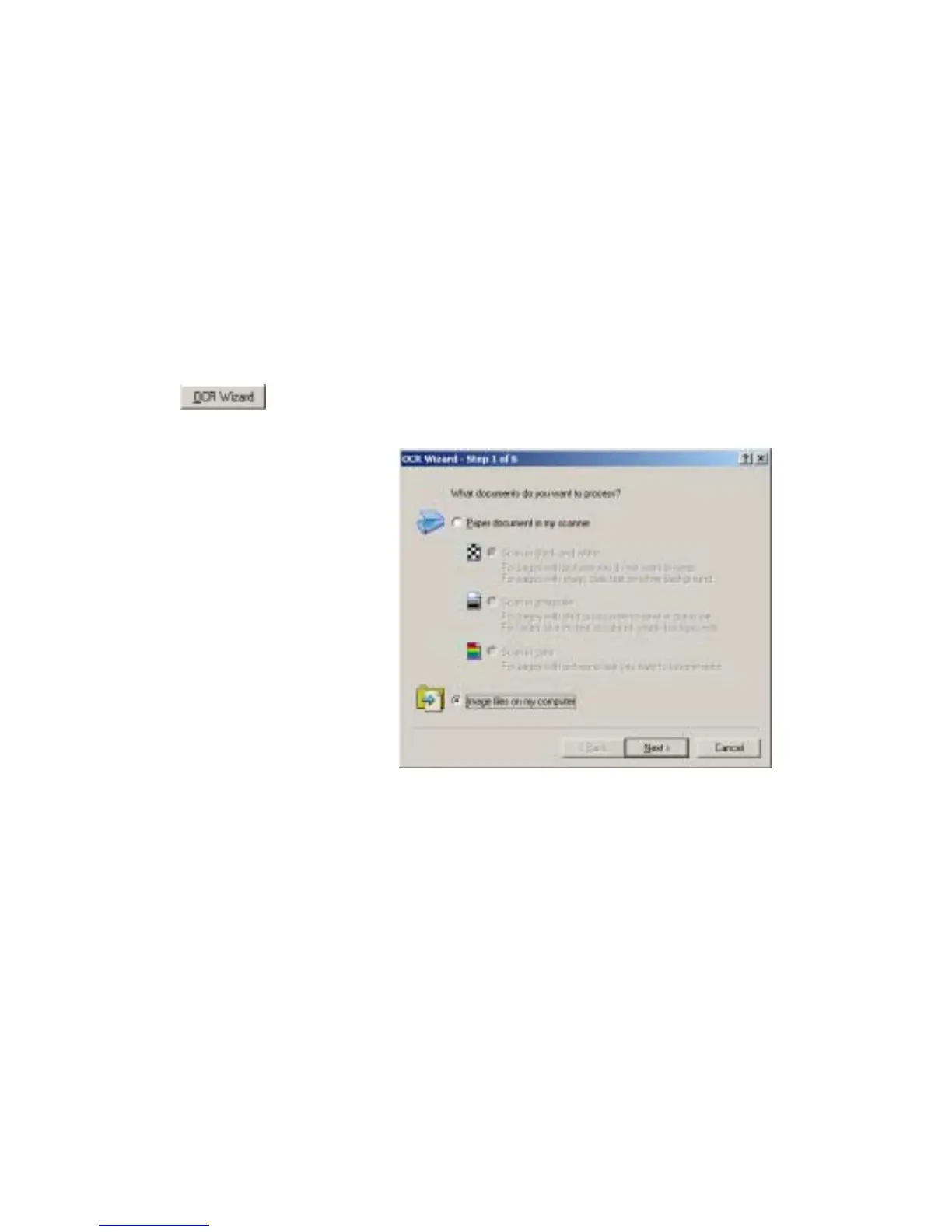
Click the OCR Wizard tab in the OmniPage Toolbox and click the
Wizard button to see the first wizard screen:
1.
The first panel lets you define your document source: scanner or
image file. For more information, see the section Defining the source
of page images. Answer the questions in the first screen and click Next.
2.
The second panel asks you to describe the layout of the input
document, to assist the auto-zoning. For more information, see the
section Describing the layout of the document.



 To Next Page