Just GOO It!: A Tutorial 19
A new male face appears on the Image Canvas.
BTo control how a face is generated:
1. Click the Eyes Feature control to disable it.
2. Click the Randomize button.
All the features on the face, except the eyes are replaced
randomly.
Lesson 2: Adding Features
All the features on a face in the FUSION Room can be replaced by a
feature stored in the GOO library. The library for a particular feature
is accessed by moving your cursor over a tool in the Face palette.
The Face palette contains the six tools that control each of the features
on the face: Head, Mouth, Eyes, Nose, Hair and Facial Hair.
BTo replace a feature using the Face tools:
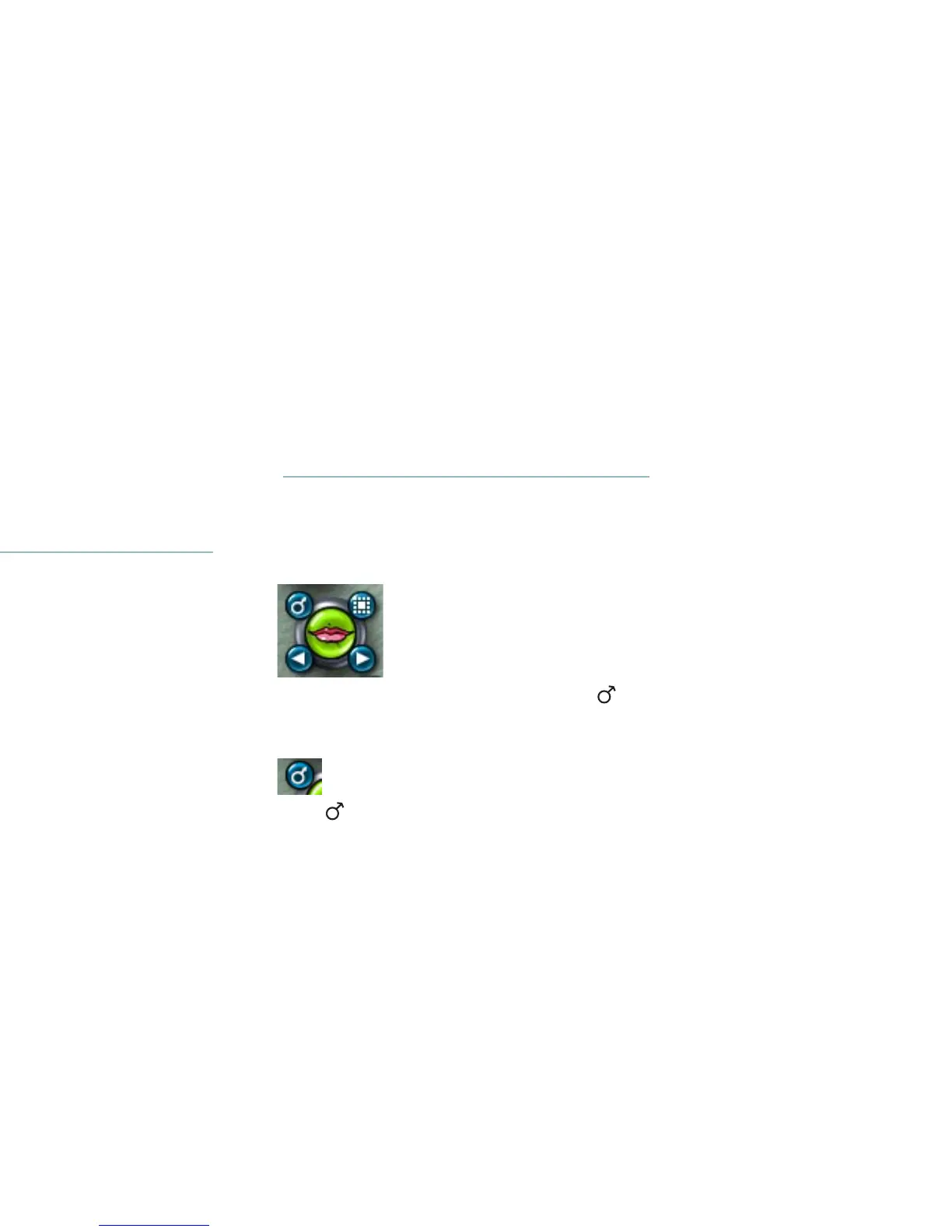
1. Drag your cursor over the Mouth tool. Four little controls, called
Library controls, appear around the tool.
2. Click the upper-left library control to display the.......symbol.
This tells SuperGOO that you want to add a female mouth.
A male symbol indicates that you want to add a male mouth.
A randomly generated male face.
The Head Feature control on the Mutator.
The Mouth tool with its Library controls displayed.
The Gender library control



 To Next Page