98
SCUF VANTAGE 2 – PRODUCT GUIDE – ENGLISH
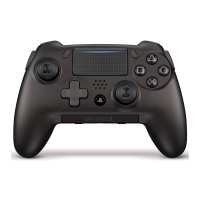
Your SCUF Vantage is either dual mode Wireless
(Bluetooth™) / Wired (USB) or a Wired only model.
Please follow the appropriate set-up instructions
for your device.
Pairing your controller with
your PS4™
This operation is performed
only once, when you are
using the SCUF Vantage
Controller for the first time.
1 Turn on your PS4™
System (pressing the
PS Button on your SCUF
Vantage will not turn on
the console).
2 Slide the Wireless/Wired
Switch on your SCUF
Vantage to the right
(Bluetooth™).
USB MODE
– To play in Wired mode,
slide the Wireless/Wired
Switch to the left (USB).
– Connect the cable to the
Micro-USB port in the
back of the controller.
– Connect the other end
of the cable to one of
the USB ports on your
PS4™ console.
– Press the PS Button on
your SCUF Vantage.
BLUETOOTH™ MODE
Wireless models only
– To play wirelessly, slide
the Wireless/Wired
Switch to the right
(Bluetooth™).
CHARGING
Your SCUF Vantage
Controller should be
charged via the PS4™
System. Using any other
power source could
result in damage to
your controller.
– Connect the cable to the
Micro-USB port in the
back of the controller.
– Connect the other end
of the cable to a USB port
on your PS4™ System.
– When the battery is
charging, and the
controller is not in
use, the light bar will
turn orange.
– Expected charge time is
approximately 21/2 hours.
– Expected battery life up
to 20 hours depending
on use. If the Removable
Vibration Modules are
active, expected battery
life will decrease.
3 Using another controller
already connected to your
PS4™, select: Settings
> Devices > Bluetooth™
Devices from the PS4™
System Menu.
4 Press the PS Button on
your SCUF Vantage to
activate it.
5 Press and hold the Share
Button and the PS Button
simultaneously on your
SCUF Vantage until the
Light Bar begins to flash.
6 Place the controller close
to the PS4™ System and
wait for “SCUF Controller”
to appear in the device list.
7 Using the connected
controller, select “SCUF
Controller” from the
PS4™ System List,
and press the “X” button
and when prompted,
select “Yes.”
8 The LED on the SCUF
Vantage will illuminate
for 3 seconds and then
turn off, indicating
successful pairing.
Notes:
1. If pairing is unsuccessful, repeat steps 4 through 8.
2. If you slide the mode switch to the left (USB) while pairing, your SCUF Vantage will exit pairing mode.
3. If you do not have another controller already connected to your PS4™, you can alternatively download the PlayStation™
Second Screen Application on your smartphone. Available on the Apple App Store and Google Play Store for Android.
4. Pressing and holding the Share button and the PS Button simultaneously once your SCUF Vantage has been paired will delete the existing pairing.
CONTROLLER
SET-UP
WIRELESS/WIRED MODEL
CONTROLLER SET-UP
CONTROLLER SET-UP
Note: If your controller is already paired, you do not need to pair
it again when switching to Wireless (Bluetooth™) mode.
Note: If you would like to play while charging your controller,
switch to Wired mode.


 To Next Page
 Loading...