9
7. INSERT FILAMENT
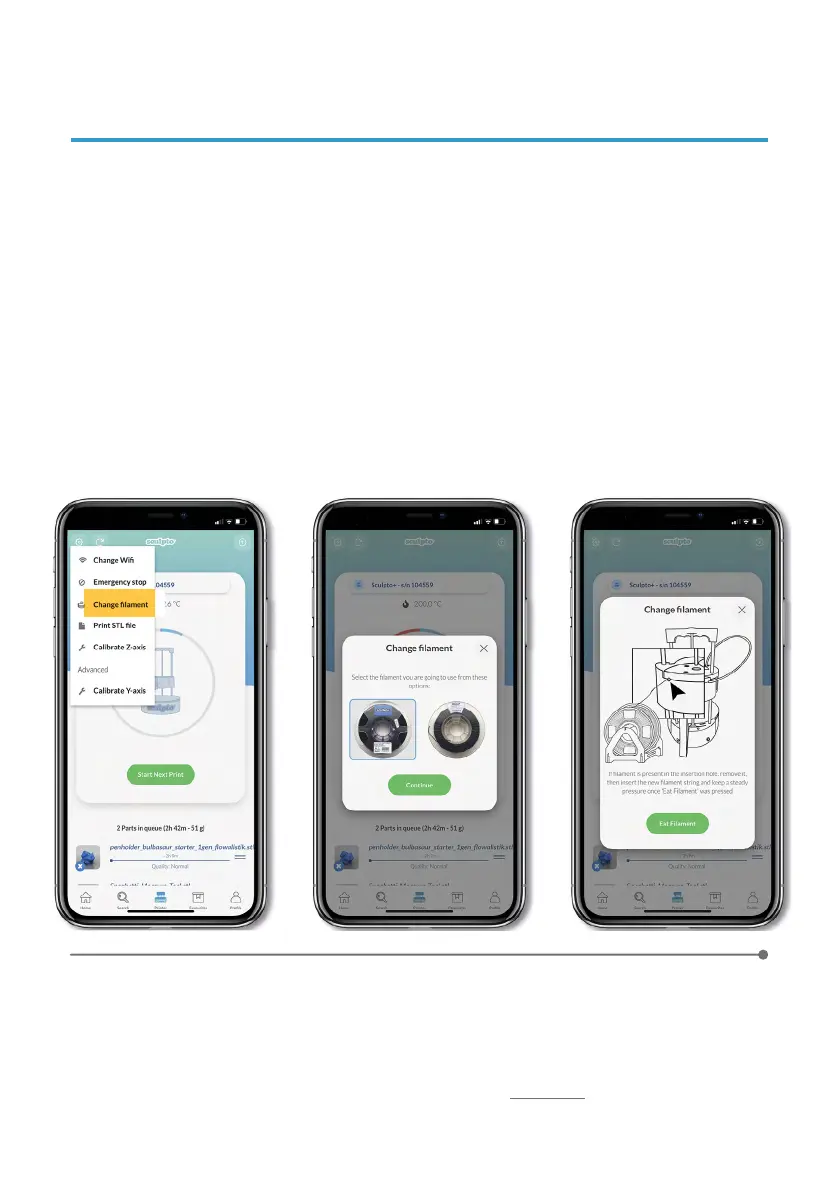
Follow the instructions in the App carefully.
Wait until the nozzle reaches 190º C. It can take up to 90 seconds.
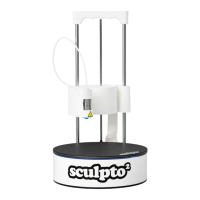
Assemple the filament holder t hat c omes w ith t he S culpto a nd p lace t he
filament on the filament holder near the printer but in a position that allows
the filament spool to run freely.
Press the Tools icon i n the upper left corner in the printer m enu and p ress
Change Filament.
1
2
4
Choose the type of filament you are placing. IMPORTANT! Choose the type of
filament based on how the see through plastic spools looks like.
3
5
If you want to
Change filament simply follow Step
2 to
5.
If you want to simply
remove
the filament follow Step 2 to
4. When the app asks you to
insert filament in the hole, simply press “X” in the upper right corner of the dialogue box to
exit the “Change” filament process
For a full video setup guide please click here


 To Next Page