57
Time & Date
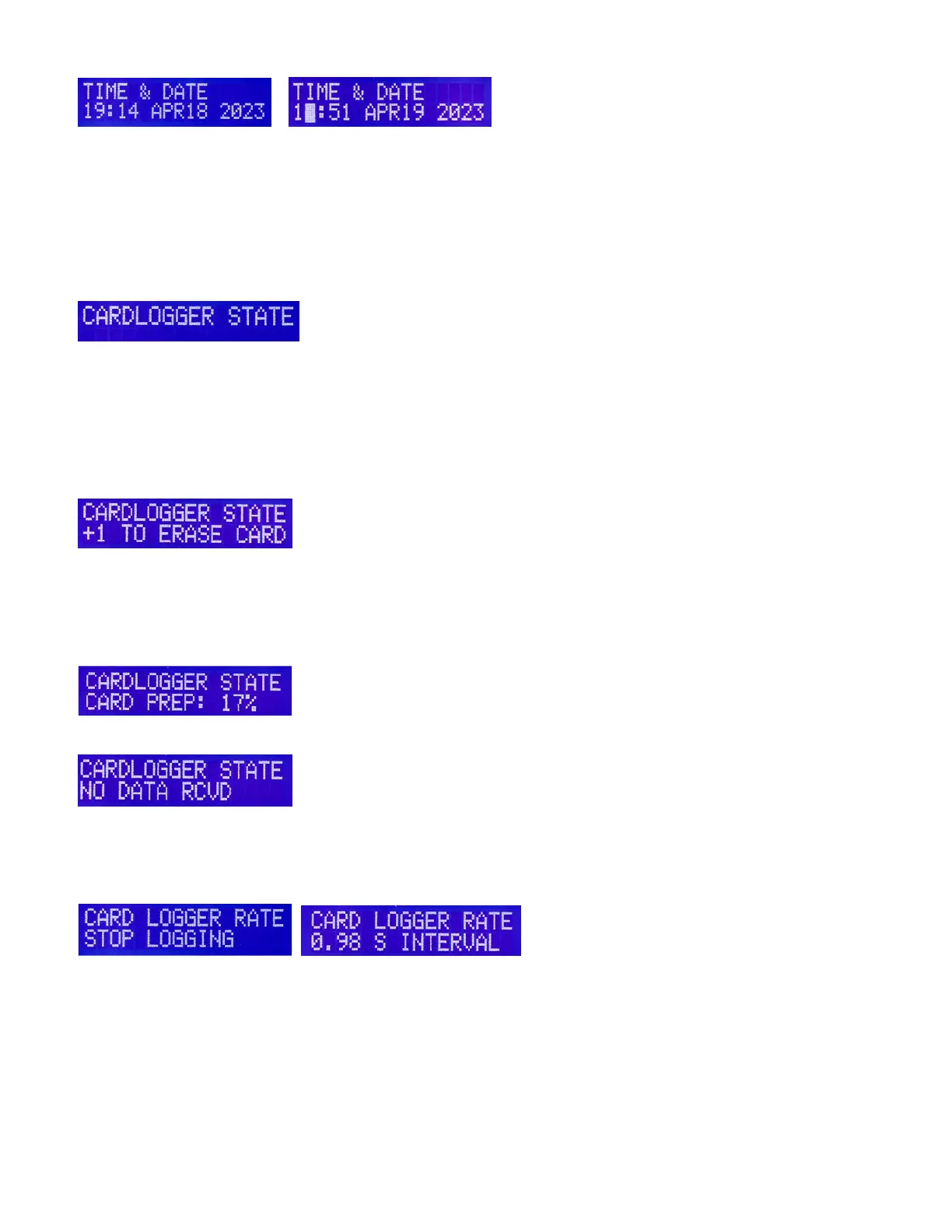
In order to properly synch the data logging files, use this screen to set the time and date. Use the +key to
enter Time Date Set mode, the cursor will appear, then ues +, - and arrow keys to adjust time and date
numbers and month. Press the << key to save time and date data and exit Time Date Set mode. Time
and Date data is used to provide a time/date stamp for the SDS Logger.
Card Logger State
The SDS programmer talks to the SDS Card Logger and in the programmer there are two windows
related to the SDS Logger unit. Card Logger State and Card Logger Rate.
Displays the status of the logger, and most commonly the amount of space in percentage remaining on
the memory card. Memory percentage will take many hours to change even by 1%. Also indicated will be
if the card is not installed fully or has its lock switch engaged, or is full. The SDS Logger yellow LED will
also flash 3 times for no card, 4 times for locked card. Cards have a mechanical switch on the side which
needs to be pushed toward the connection contacts. Beware some card switches are loose and can
move into the lock position when inserting them, common with micro adapter style cards. Using a full size
card non-adapter type is best. 32GB is the maximum card size compatible with the SDS Logger.
This message indicates the Data Logging files are not present on the memory card. Empty datalogging
files are placed onto a new card. Once logging begins, then the files get populated as data gets received.
Also you will have the yellow Wait LED on the Card Logger flashing 1 pulse repeatedly. Press the + key
on the programmer to begin formatting the card. Warning, any files on the card will be erased
immediately!
You should see the formatting process progress. This should take around 100-120 seconds.
No Data Rcvd message indicates the Card Logger is not connected to the SDS ecu or the SDS logger is
not powered on.
Card Logger Rate
When the logger is active, you should have the green Log LED illuminated and the programmer screen
should say Logging. If you have a solid Yellow LED and no green then the logging rate is set to Stop
Logging. Press + key to change rate and begin logging data and the green LED should light up and the
yellow LED turn off.
You can change the data logging rate in the window below using the + and – buttons. Rate choices are
.065, .262, .49, .98, 1.96 seconds or Stop Logging. For normal use, .98 is usually sufficient. .065 setting
may be useful for troubleshooting.


 To Next Page
 Loading...