Seagate Central User Guide 7
3. Private Folders
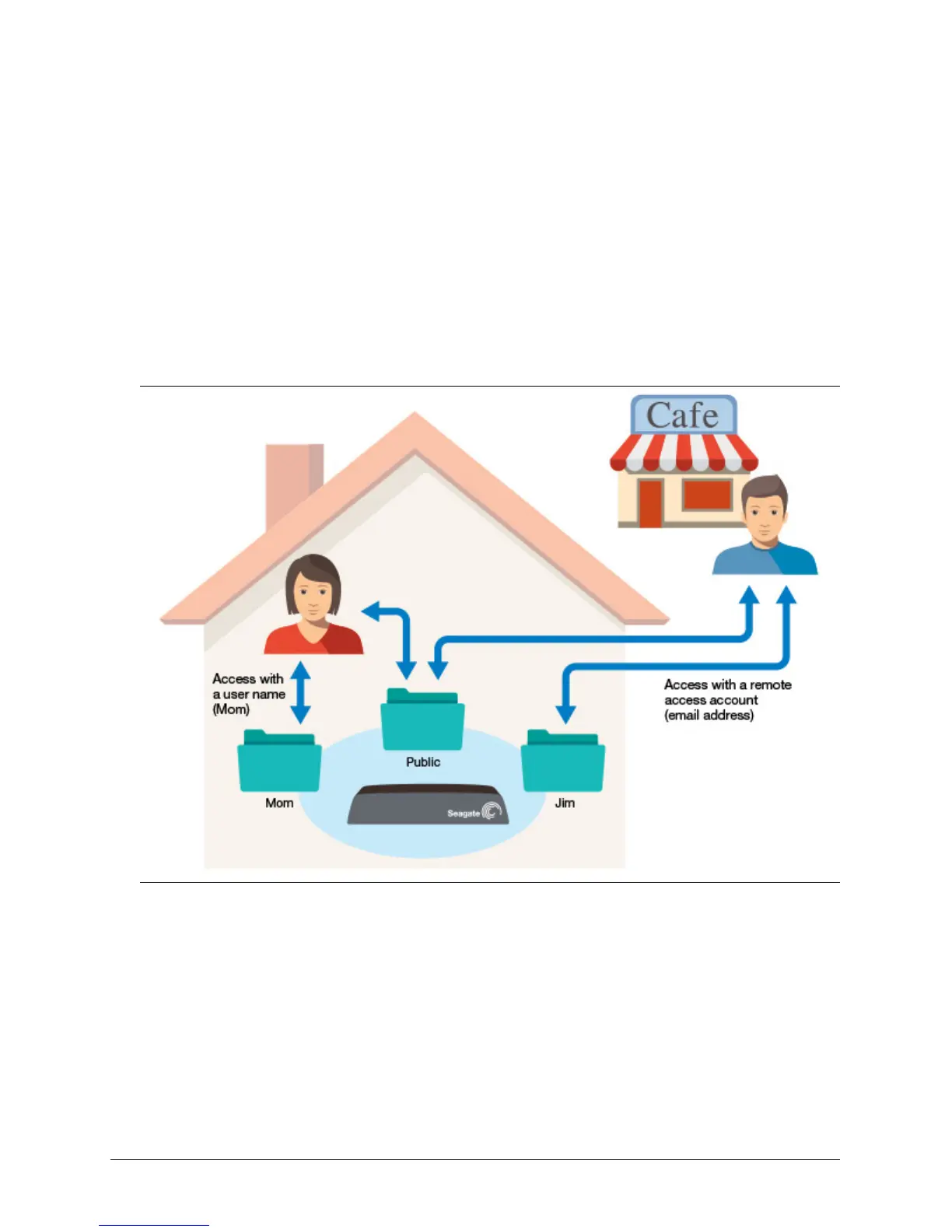
Seagate Central comes with a Public folder. Use the Public folder for content that can be
shared with everyone on the home network and with anyone who has a remote access
account on the device.
A private folder is created with a user account. Use a private folder for personal content that
you don’t want to share with others. Only the person who knows the account name and
password can access the private folder at home. If an email address is associated with the
folder, the person can access the folder remotely.
You cannot access content stored in a private folder with the Seagate Media app, DLNA
Certified devices, or iTunes.
Create a private folder
When you set up your Seagate Central device, you created an administrative account. Use
the administrative account to create a user account and generate a private folder.
1. Display the Seagate Central device.


 To Next Page