
 Need help?
Do you have a question about the Seagate Hub 8 TB and is the answer not in the manual?
Lists all items included in the product packaging for initial setup and verification.
Specifies the necessary hardware and software configurations for the drive to function correctly.
Details the available connection ports on the Seagate One Touch with Hub for connecting to a computer.
Outlines the compatible operating systems required for proper operation of the device.
Indicates the recommended amount of free storage space needed on the computer for software installation.
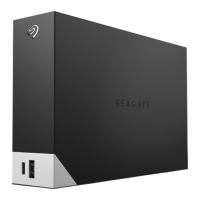
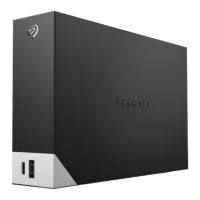
Describes the front panel layout and features of the Seagate One Touch with Hub device.
Details the rear panel connections and ports of the Seagate One Touch with Hub device.
Step-by-step instructions for connecting the power adapter and supplying electricity to the drive.
Guides on how to establish a physical connection between the drive and your computer using a USB cable.
Instructions for the initial software setup, including registering the device and installing utilities.
Guides users on how to begin the setup process for Windows and Mac operating systems.
Explains the procedure for registering the Seagate One Touch with Hub for support and warranty.
Instructions on how to download the Seagate Toolkit software for enhanced functionality.
Provides steps for installing the Seagate Toolkit application on your computer.
Explains how to use the Toolkit to password-protect the device with Seagate Secure 256-bit encryption.
Details how to create customized backup plans for data protection on Windows systems.
Guides on creating a synchronized folder for automatic file updates between the drive and computer.
Discusses factors like compatibility and performance when selecting a file system format for the drive.
Explains the benefits of exFAT for cross-platform compatibility between Windows and macOS.
Details NTFS file system advantages for Windows users focusing on performance.
Covers macOS file systems like HFS+ and APFS for optimized performance on Apple devices.
Directs users to external resources for additional information on file system format comparisons.
Provides guidance on the process of formatting the storage drive for different file systems.
Instructions for safely ejecting the drive from a Windows computer using the system tray icon.
Step-by-step guide to safely eject the drive using the Finder window on a Mac.
Method to safely eject the drive by dragging its desktop icon to the Trash on a Mac.
Addresses common issues faced by all users, such as slow file transfers or connection problems.
Troubleshooting steps for slow data transfer speeds, including cable checks and port usage.
Solutions for connecting the drive to computers equipped only with USB-C ports.
Advice on using the drive with a USB hub, including potential issues and powered hub recommendations.
Information regarding the use of longer USB cables and potential compatibility issues.
Solutions for common file transfer error messages, including FAT32 naming issues and sleep mode disconnections.
Specific troubleshooting for Windows users regarding drive recognition issues.
Steps to diagnose why the drive icon is not visible in Windows File Explorer or Device Manager.
Specific troubleshooting for Mac users regarding drive recognition issues.
Solutions for when the drive icon is missing from the Mac desktop or not mounting.
Information regarding compliance with China's regulations on hazardous substances in electronic products.
Details compliance with Taiwan's requirements for restricting hazardous chemical substances in electronic equipment.


 To Next Page
 General