2. Setting Up GoFlex Home – Windows Step 3: Installing the Software
FreeAgent® GoFlex™ Home User Guide (Version 2) 14
Step 3: Installing the Software
1. Power on your computer, then insert the GoFlex Home Installation CD.
Note: If you are setting up GoFlex Home on a computer or device without a CD-ROM drive, go to
www.seagate.com/goflexhomesupport to download the installation software.
2. When the Welcome screen opens, choose a language, then click OK.
A setup wizard opens.
TIP: If the Setup wizard doesn’t open automatically, open Explorer, navigate to the CD,
then double-click SeagateDashboardSetup.exe.
3. Follow the on-screen instructions to install the Seagate Dashboard and Memeo Instant
Backup software applications.
4. When the installation is complete, click Finish, then continue with "Step 4: Setting Up GoFlex
Home".
Step 4: Setting Up GoFlex Home
TIP: Before you continue, make sure you have a pen and paper handy to keep track of the
names and passwords you need to create during setup.
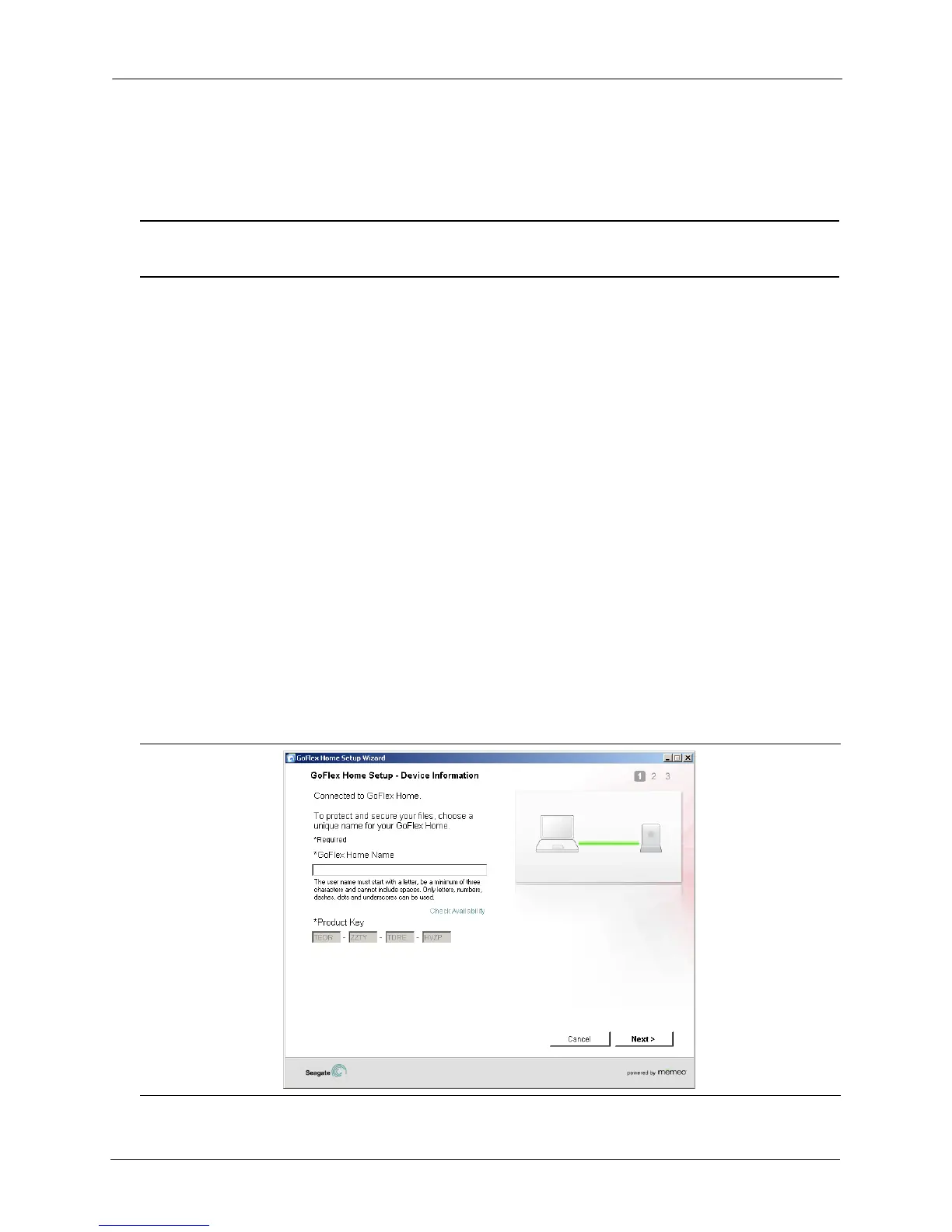
When the software is installed, the setup wizard opens automatically. This may take a few
moments.
The wizard finds and connects your computer to GoFlex Home, then the Device Information
screen opens.
Figure 7: Adding Device Information



 To Next Page