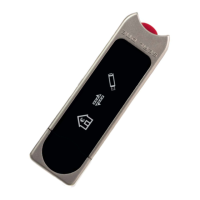
3.1 Seal One with Microsoft
®
Windows
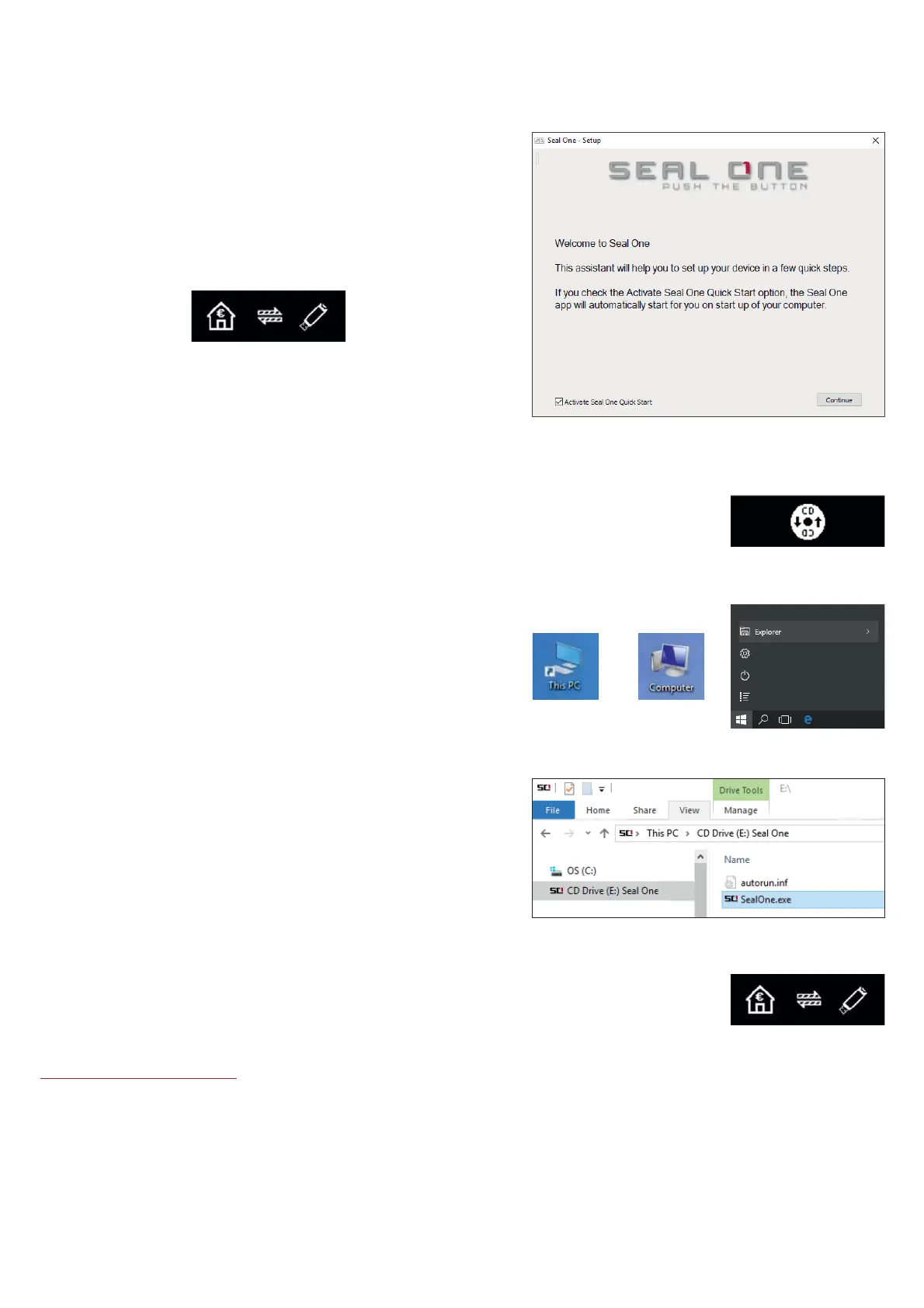
$VHWXSZL]DUGZLOODSSHDURQDSSOLFDWLRQVWDUWXSZKHQDQHZGHYLFHLVGHWHFWHG
7KHZL]DUGJXLGHV\RXWKURXJKWKHFRQÛJXUDWLRQRI\RXU
Seal One device. The quick start option can be enabled
in this menu. During the installation, you can rotate the
display if the screen is upside down.
If the wizard has been completed successfully, the fol-
lowing is shown on the display of your device.
N.B. The animation of the arrows is moving.
3.1.1 The CD Symbol remains permanently on the Display of Seal One device
By default, the application launches directly from the Seal One device when you
connect it to your PC / laptop via USB. When the application does not start
automatically after connecting via USB (e.g. auto start is disabled), you must start
the application manually.
Open “This PC” or “Computer“ on your desktop or in the
start menu, option “Explorer”
Seal One device is mounted as a virtual CD-ROM. Start
the program by double clicking the application icon labeled
“SealOne”.
$IWHUWKHDSSOLFDWLRQKDVEHHQVWDUWHGVXFFHVVIXOO\WKHIROORZLQJPHVVDJHZLOO
appear on the display of your Seal One device. Your Seal One is ready for use.
$OWHUQDWLYHO\\RXFDQDOVRGRZQORDGDQGVWDUWWKH6HDO2QHDSSOLFDWLRQIURPWKHIROORZLQJZHEVLWH
www.seal-one.com/start


 To Next Page
 Loading...