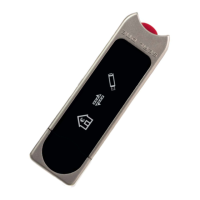
3.2 Seal One with macOS
®
$IWHUFRQQHFWLQJ\RXU6HDO2QHGHYLFHWR\RXU0DFWKH&'V\PEROVKRZQRQWKH
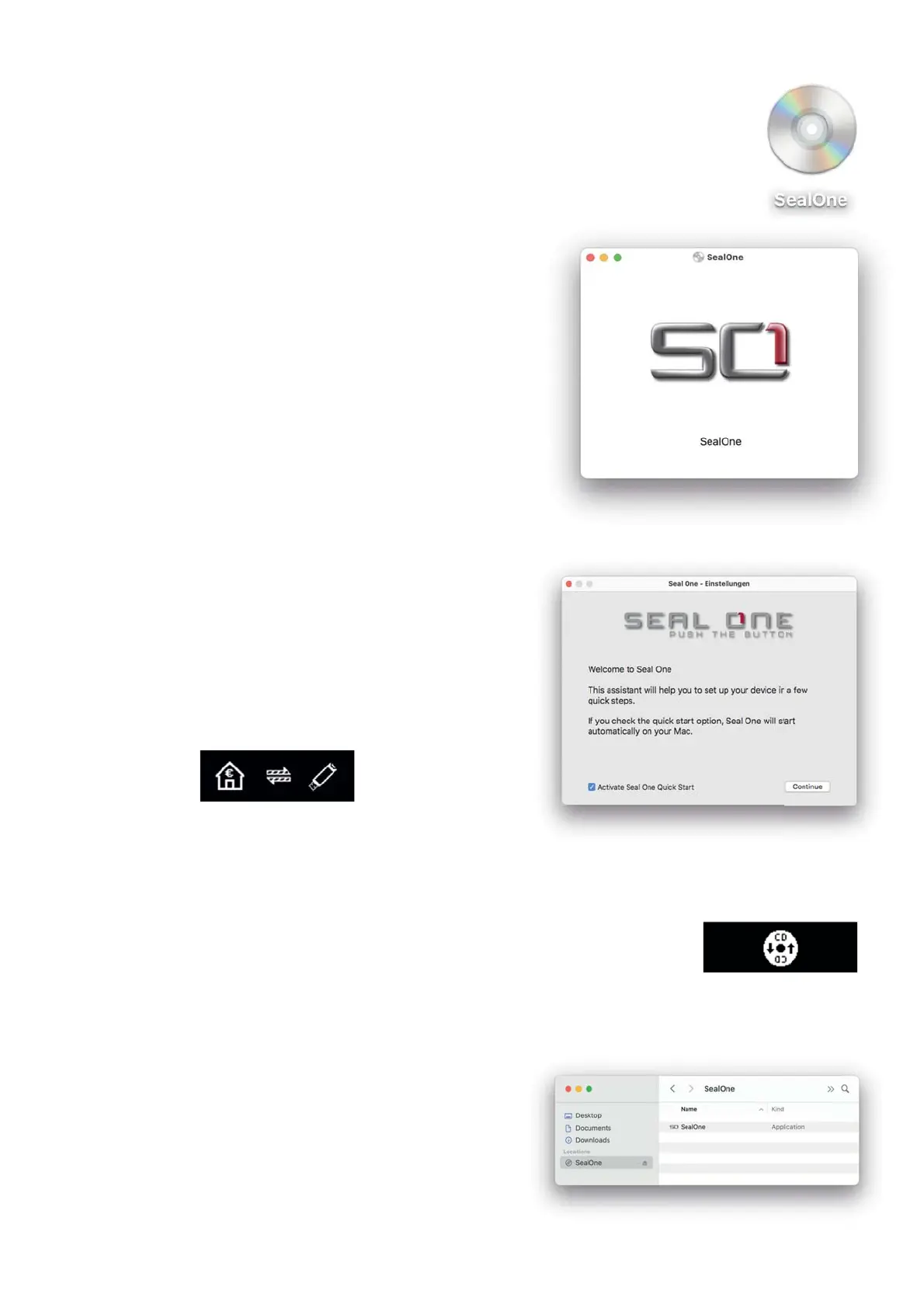
right will appear on your desktop. Double-click on the CD icon.
Start the Seal One application with another double-click on
the Seal One application icon.
$VHWXSZL]DUGZLOODSSHDURQDSSOLFDWLRQVWDUWXSZKHQDQHZGHYLFHLVGHWHFWHG
7KHZL]DUGJXLGHV\RXWKURXJKWKHFRQÛJXUDWLRQRI\RXU
Seal One device. The quick start option can be enabled in
this menu. During the installation, you can rotate the display
if the screen is upside down.
If the wizard has been completed successfully, the following
is shown on the display of your device. The device is ready
for use.
N.B. The animation of the arrows is moving.
3.2.1 The CD Symbol remains permanently on the display of Seal One device
The CD symbol will appear and persist on the display of your Seal One device if
the Seal One application is not currently running. In this case, you will need to
manually start the application.
3GDQDØ@QDØSVNØV@XRØSNØRS@QSØSGDØ@OOKHB@SHNMØ
%HQRSØNOSHNM
The Seal One application is located on the device and
can be executed there using the “Finder“. To do this, click
on the CD drive “SealOne“ and then double-click on the
“SealOne“ application.


 To Next Page
 Loading...