2DBNMCØNOSHNM
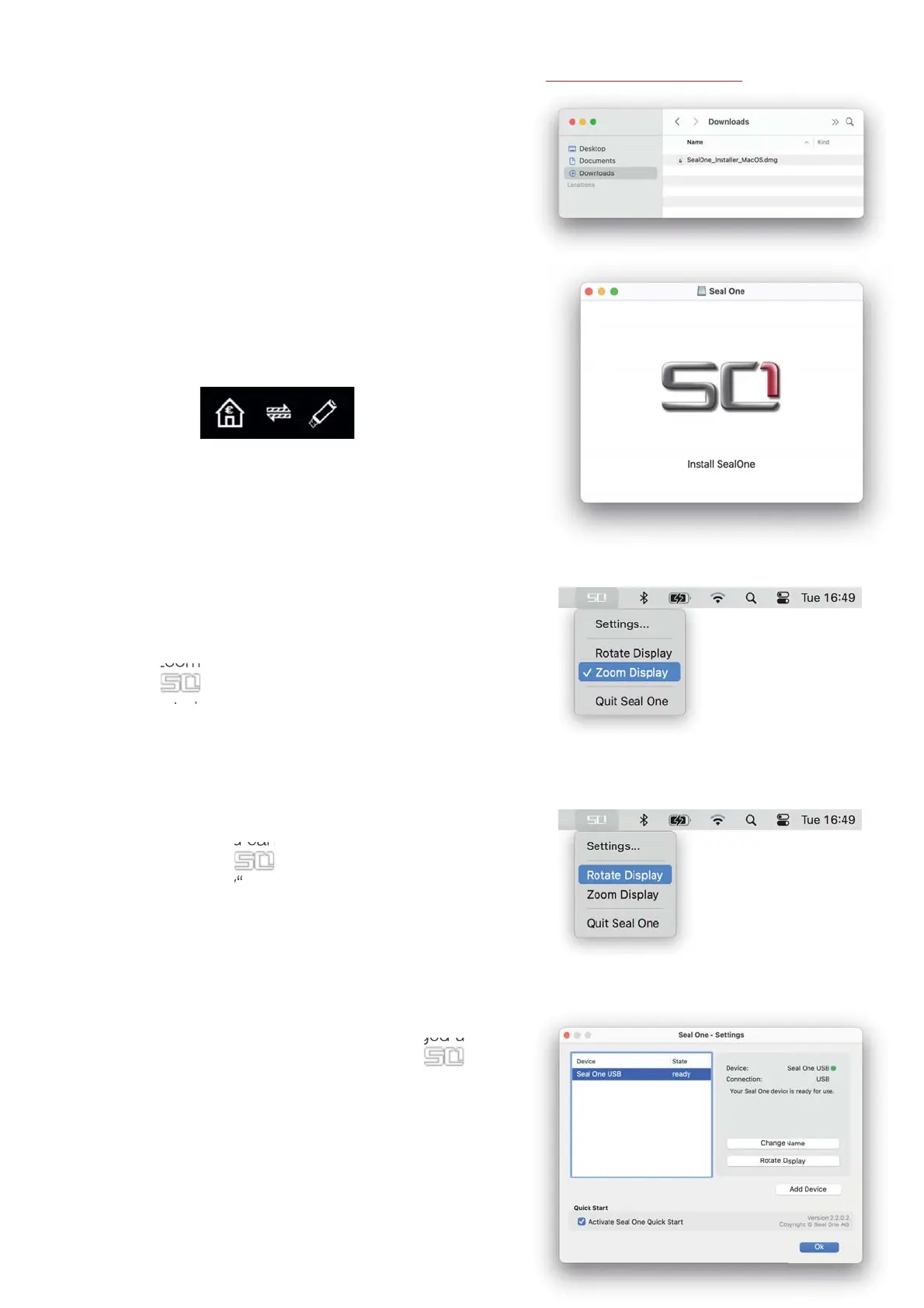
Download the Seal One application from the following website: www.seal-one.com/start
$IWHUGRZQORDGRSHQWKH6HDO2QHLPDJHZLWKDqGRXEOH
click“. The image is then automatically mounted and the
“SealOne_Installer_MacOS“ can be started.
Start the Seal One application with another double-click on
WKH6HDO2QHDSSOLFDWLRQLFRQ$IWHUWKHDSSOLFDWLRQKDVEHHQ
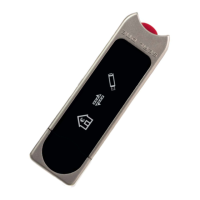
started successfully, the following message will appear on the
display of your Seal One device. Your Seal One is ready for
use.
N.B. The animation of the arrows is moving.
3.2.2 Zoom Display
If the default font size of the display data on the Seal One
device’s screen is too small for you, you have the option
to enlarge the font size. You can enable / disable display
zoom via the “Zoom Display” dropdown menu option by
clicking on the symbol on the taskbar.
N.B. When lines to be shown are larger than the screen
size, the text will be displayed as a horizontally scrolling ticker.
3.2.3 Rotate Display
It may occur that displayed text of the Seal One device is
shown upside down. You can change the display orien-
tation by clicking on the symbol on the taskbar, and
selecting „Rotate display“.
3.2.4 Settings - macOS
The settings for your Seal One device are managed under
the “Settings” dropdown menu option (click the sym-
bl in the menu bar to display the full menu).
$YDLODEOHVHWWLQJVLQFOXGHFKDQJLQJWKHGHYLFHpVQDPHDQG
enabling Quick Start.


 To Next Page
 Loading...