SecuRam Systems Inc. USA Page 3
Code” to complete the process. The system automatically selects the next available ID#,,
however if you would like to set a code of another ID#, simply use the UP/DN buttons to
scroll to the desired ID#.
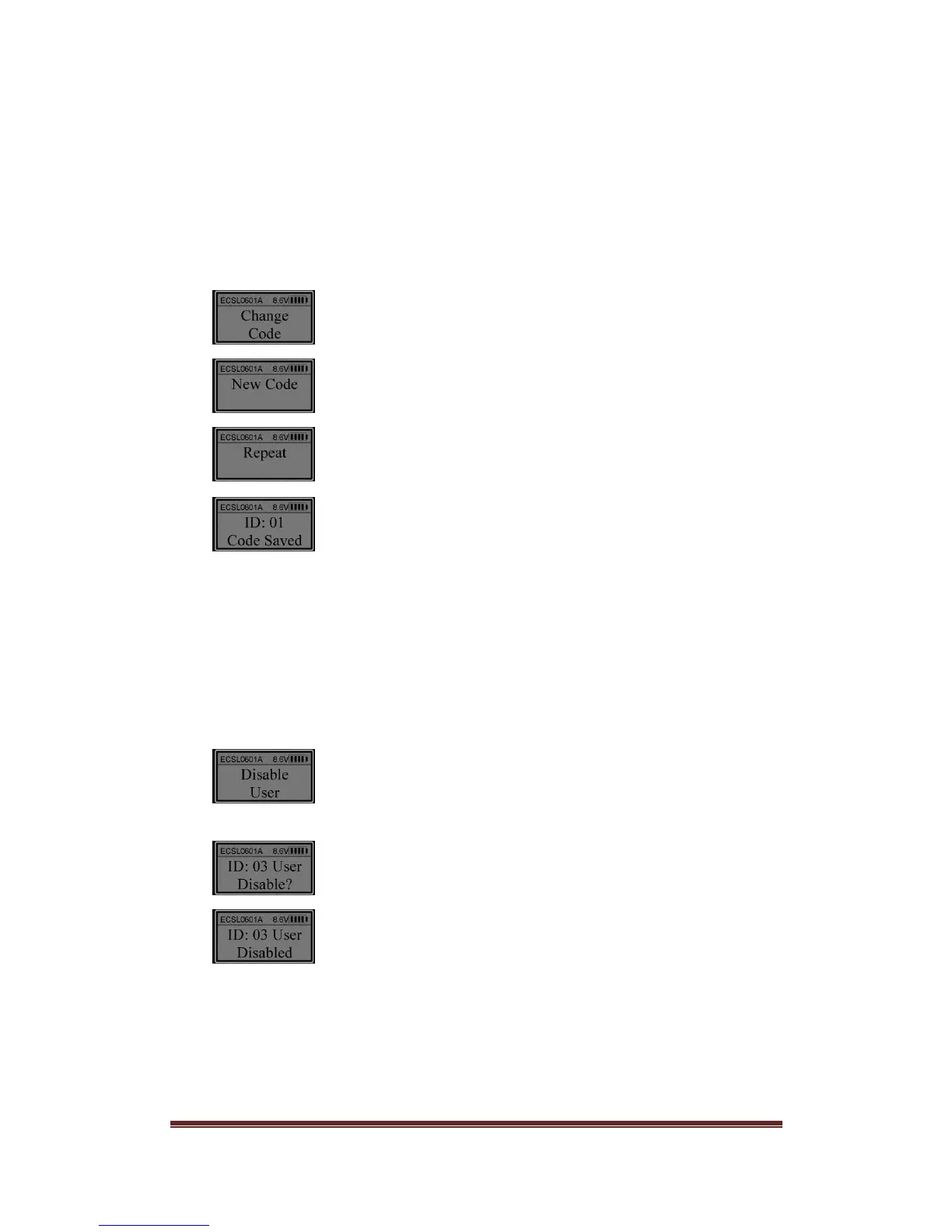
4. Change code
Unlock with the enrolled code to be changed. When the LCD shows “Select Menu”, press
“▲” or “▼” and select “Change Code”.
Press “Menu/OK”.
Enter a code (6 digits).
Enter the same code again (6 digits).
5. Disable user
This function allows a Manager to temporarily disable a USER code without
deleting it permanently. This may be used while an employee is on vacation and
then “enable” the code after the vacation.
Unlock using a Manager code. When the LCD shows “Select Menu”, press “▲” or “▼” to
select “Disable User”.
Press “Menu/OK”. Press “▲” or “▼” to select the ID No. to be disabled (e.g. ID 03).
Press “Menu/OK”.
Now the user (ID No. 03) is disabled.
Note: Managers cannot be disabled.
6. Enable User
Unlock using a Manager code. When the LCD shows “Select Menu”, press “▲” or “▼” and
select “Enable User”.


 To Next Page