3
5. A Quick Look at Your Remote Control
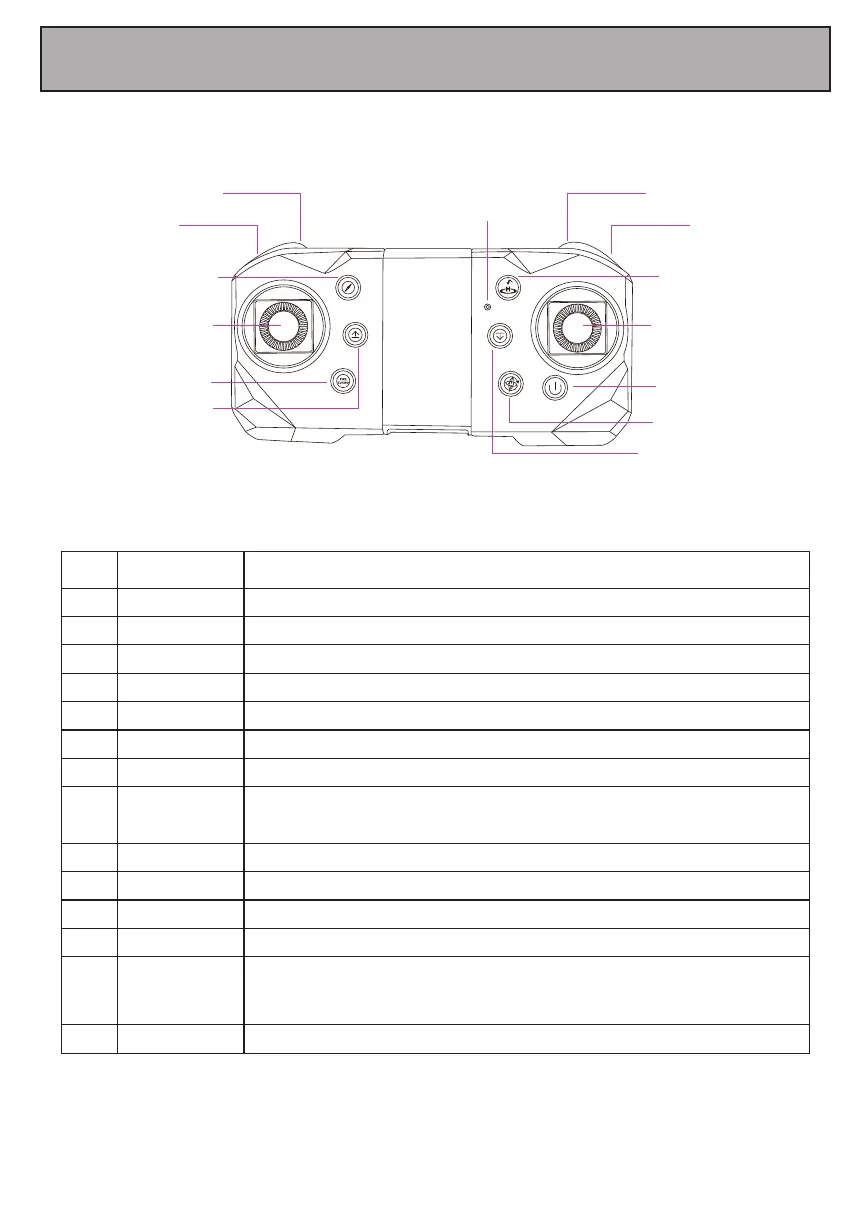
Adjust how fast the drone accelerates in response to movement of the control sticks.1 Speed
Name# Function / Effect
Press for take photos.2 Camera
Press for take video, press again to quit video.3 Video
Press for 3D flips and rolls.4 Flip Button
Moves your drone up and down, or turns your drone left and right.5 Left Control Stick
Press to enter or exit headless mode.6 Headless Mode
Press for one key return function.7 One Key Return
When blinking intermittently, the remote needs to be
synchronized with the drone. Once the remote is
synchronized with your drone, it will blink more rapidly.
8
Power
Indicator
Press for auto taking off one height and hove there.9 Auto take off
Press for auto landing until the motor stop.10 Auto Landing
Moves your drone forward & backward, or shifts your drone to the left and right.11 Right Control Stick
Stabilizes the drone while it is turning left or right, or tilting forward or backwards.12 Fine Tuning Key
Long Press to power on or power off your drone.14 Power Button
When they drone continue to flying to one direction
without control the joystick, put the drone on the ground
again and press this button to calibrate the gyroscope to let
it fly stable.
13 Calibrate
1. Speed
2. Camera 3. Video
4. Flip Button
5. Left Control Stick
6. Headless Mode
7. One Key Return
8. Power Indicator
9. Auto take off
10. Auto Landing
11. Right Control Stick
12. Fine Tuning Key
13. Calibrate
14. Power Button


 To Next Page