120
Lower Threshhold:
45
Starting Point:
915
Upper Threshold:
910
10
36 14
120
Lower Threshhold:
36
Starting Point:
910
Upper Threshold:
910
14
36 14
Page 9
METRONOME INPUT
The Quartz accepts an external click track via the 1/8" (standard headphone size) metronome input. If you find the Quartz
isn’t receiving the click, accurately you may need to configure it. To configure:
1) Switch off your Quartz V2.
2) Plug in your metronome but don’t start it.
3) Hold down the Preset/Edit knob and power up the Quartz. Release when you see “Lower Threshold”, “Starting
Point” and “Upper Threshold”.
4) The values in the white bar represent the audio signal from your metronome. The large number represents the
tempo calculated from the metronome. At the moment the white bar will just be displaying the noise level of your
signal because you haven’t started the metronome yet.
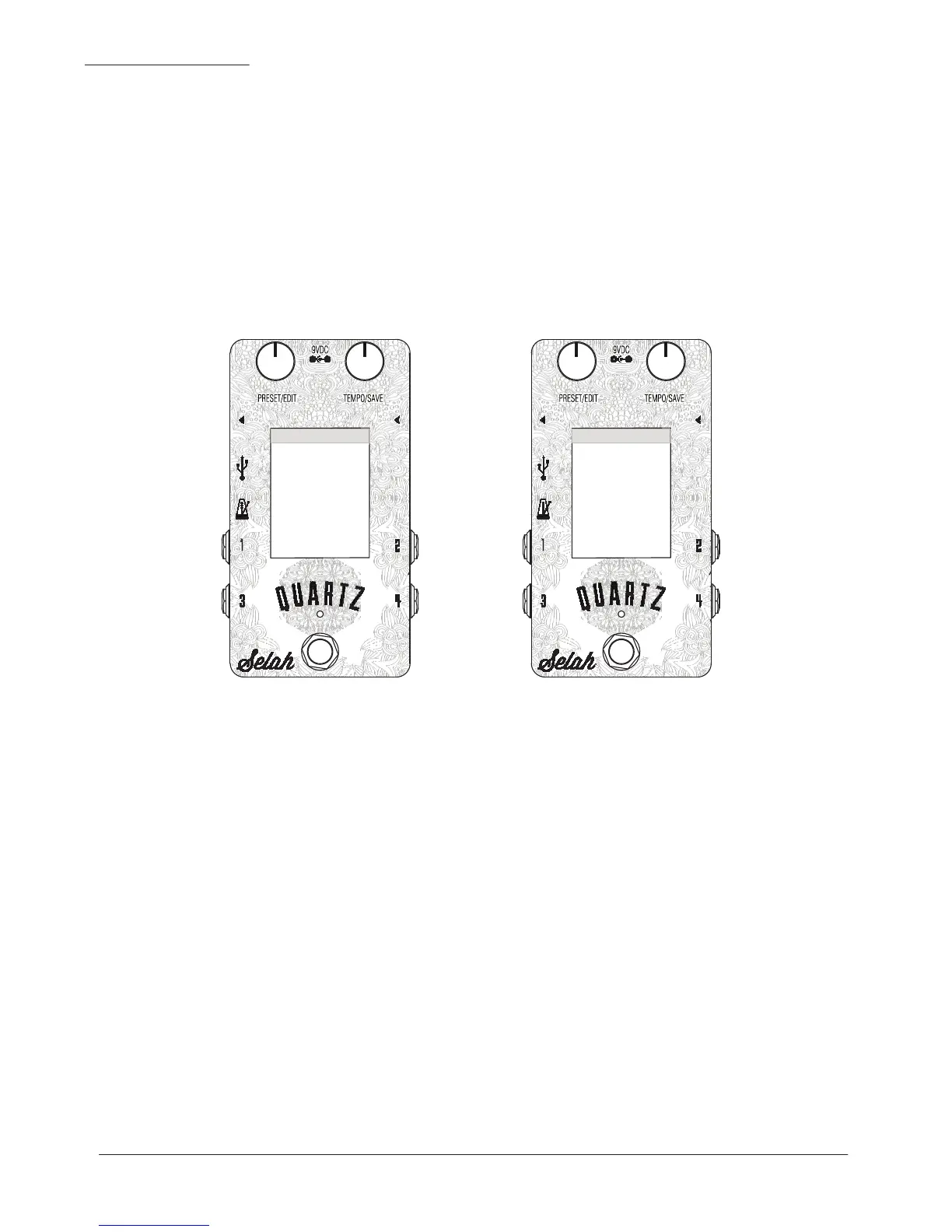
5) Turn the Preset/Edit knob to select a value, and Tempo/Save knob to change the value. A good starting point is
to match the 3 values in the white bar to the Lower Threshold, Starting Point & Upper Threshold values as
shown on the images above.
6) Now start your metronome and you will see the left and right values in the white bar get larger. You should see a
tempo displayed below also. If this tempo is incorrect, play with the values until it is accurate.
7) Once your tempo is correct you can restart your pedal normally and your settings will be saved.
Experiment with different click sounds and volumes to find what works the best for your situation. We cannot test all
metronomes, but we have done our best to accommodate as many different sounds and signal strengths as possible. The
pedal will not be considered faulty if your metronome isn’t compatible.
Metronome Setup Menu
Unmatched Values
Metronome Setup Menu
Matched Values



 To Next Page