TS8000x Programming Guide www.semtech.com 10 of 16
Rev 0.9 Sep 2016 Semtech
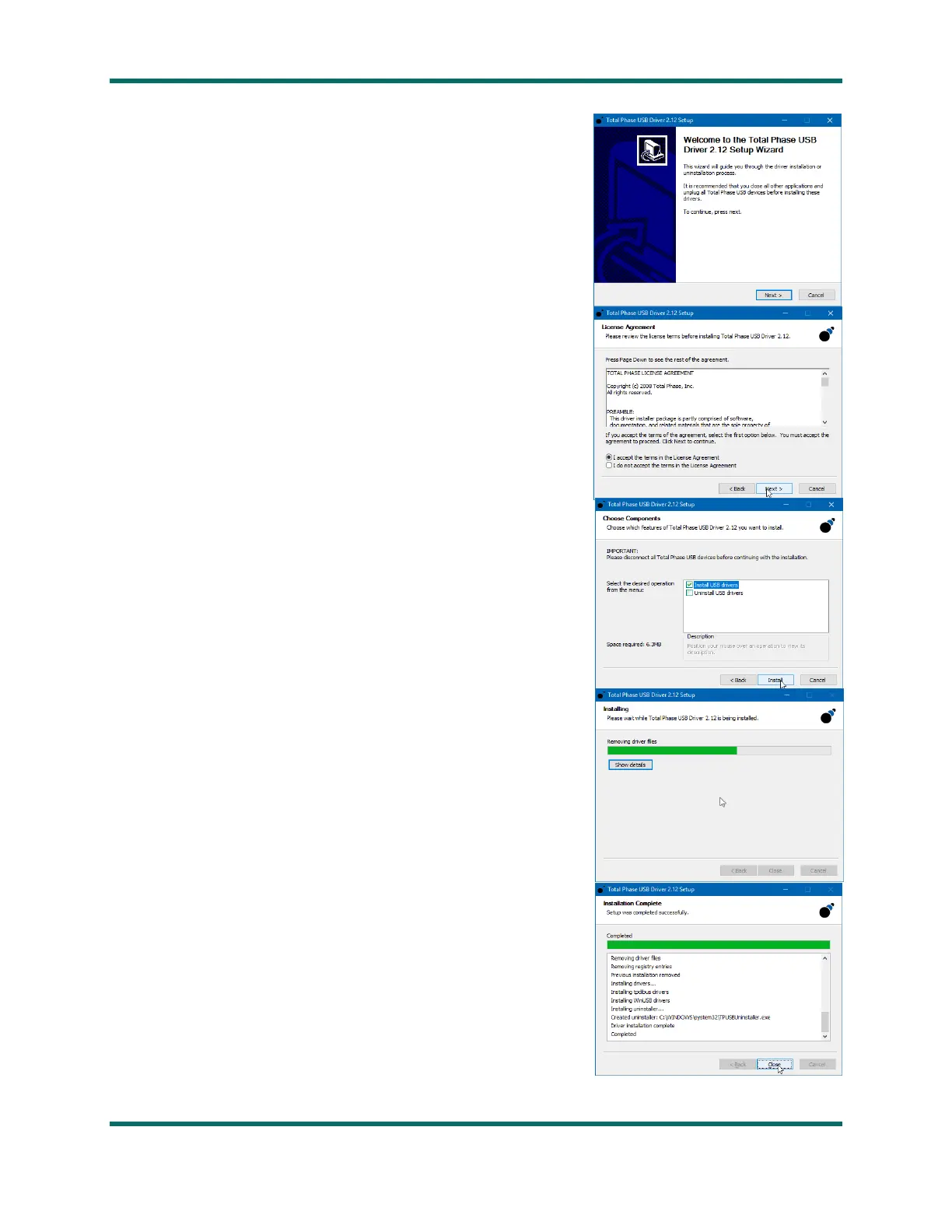
10. Double-click on setup.exe to launch the installation program.
- The “Welcome…” window should open.
- Click Next to proceed.
11. On the “License Agreement” screen:
- Review the license terms.
- Select I Agree.
- Click Next to proceed.
12. The “Choose Components” screen allows the choice
to install or remove the driver.
- Select Install USB Drivers
- Per the reminder on this page, verify the
Aardvark adapter is not connected to the PC
- Click Install to continue.
13. The “Installing” screen indicates the progress of the
driver installation. The installation may take some time to
complete, and might linger at partial completion along
the way, which is normal.
14. When finished, the “Installation Complete” confirmation
screen should appear, indicating successful installation of the
Aardvark driver.
- Click Close to complete the installation process.



 To Next Page