TS8000x Programming Guide www.semtech.com 13 of 16
Rev 0.9 Sep 2016 Semtech
Checklist 1: Semtech USB-I2C Adapter & Wireless Power
GUI
Software Installation
1. At www.semtech.com, keyword search for TS80000. Under Docs & Resources, click TS8000X
GUI to download SemtechWirelessPowerGUI_setup.zip to your PC.
2. Under the Tools and Firmware tab, download image file 160815a_TX_LOW_POWER_TS51223_enc.
3. Extract setup.exe and WirelessPowerGUI_setup.msi from the zip archive.
4. Run setup.exe and follow the prompts to install the Semtech Wireless Power GUI software.
Hardware Preparation
1. Obtain a Semtech USB to I2C adapter board from a TSWITX-EVM
EVM kits can be found at: http://semtech.com/wireless-charging.
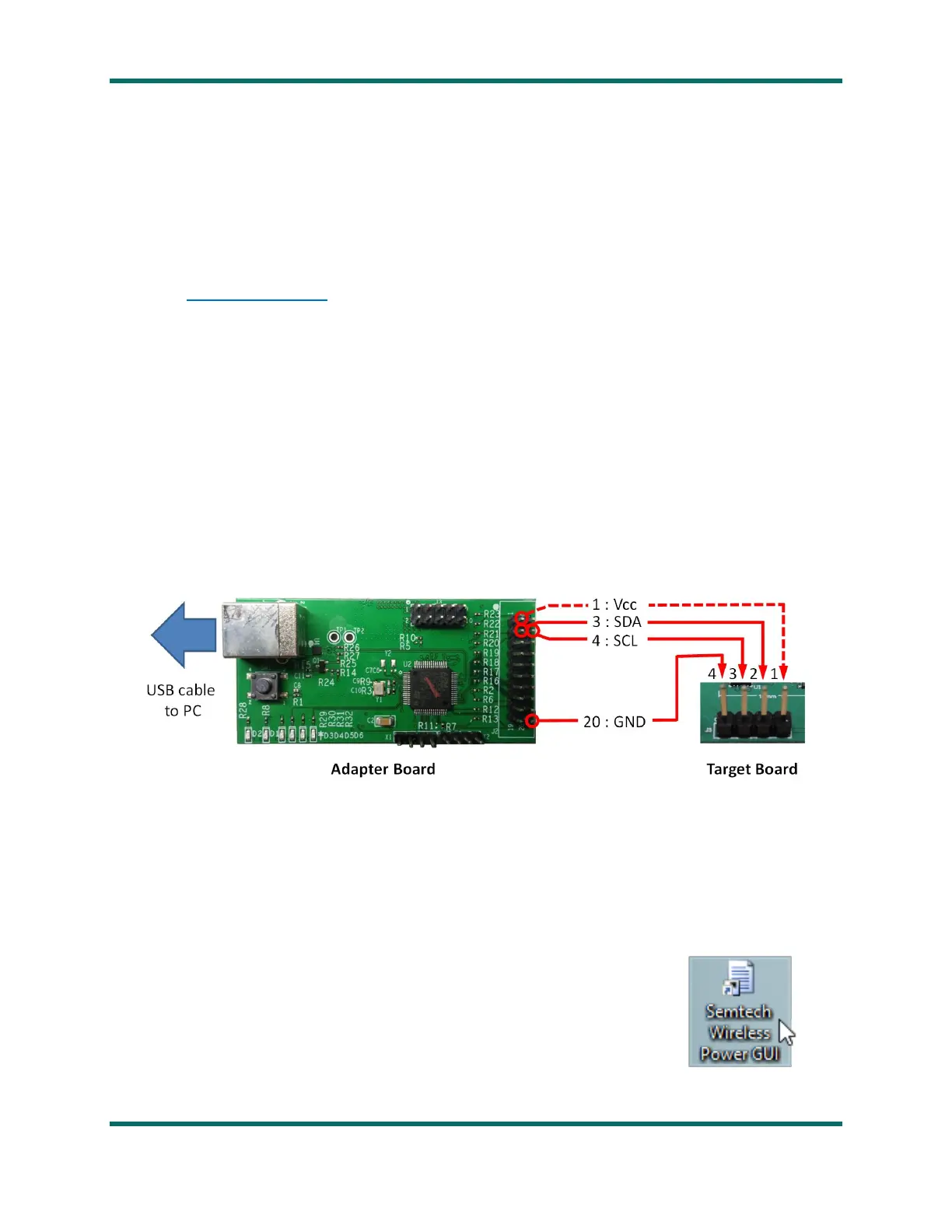
2. Connect I2C serial clock, data, and ground from the adapter board to the target board as shown
below.
Note that Vcc should not be connected if target board is independently powered.
3. To invoke bootloader mode, tie DEBUG to ground on the target board.
4. Powerup the target and plug the adapter board into the USB port on the programming PC.
Programming Sequence
1. Launch the GUI by clicking on the Semtech Wireless Power GUI icon:
2. On the Device tab, select the TS8000x version that matches your
device.
3. Verify the Status indicates the selected TS8000x is Connected.
4. Click on the Firmware tab.
5. Locate the firmware BIN file to be installed via the … button.
6. Click Program to begin the download.
7. Note the green progress bar and verify the download succeeded.
8. Close the GUI, power down the boards and remove the cables.



 To Next Page