Need help?
Do you have a question about the Sena MOMENTUM inc and is the answer not in the manual?
Instructions for powering the device on/off, adjusting volume, and checking battery level.
Details on activating/deactivating Intelligent Noise Control and Ambient Mode.
How to use voice commands and pair devices via Bluetooth.
Manage phone calls and control music playback functions.
Pairing and initiating intercom conversations, including group sessions.
Turn FM radio on/off and scan for stations using seek functions.
Steps for factory reset and fault reset to resolve device problems.
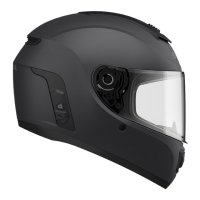
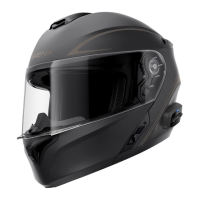
The Sena Momentum INC is an intelligent noise control helmet designed to enhance the riding experience through advanced connectivity and audio features. This helmet integrates Bluetooth technology, allowing riders to stay connected, entertained, and safe on the road.
The primary function of the Sena Momentum INC helmet is to provide an immersive and connected riding experience while prioritizing safety and comfort. It incorporates Intelligent Noise Control (INC) technology, which actively reduces constant low-frequency sounds such as wind noise, allowing riders to hear important high-frequency sounds like face-to-face conversations, car horns, and emergency sirens more clearly. This technology is crucial for maintaining situational awareness while minimizing auditory fatigue during long rides.
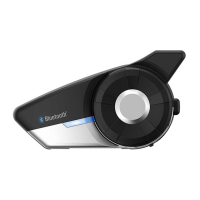
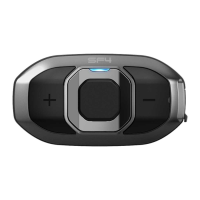
Beyond noise control, the helmet offers comprehensive communication capabilities. It supports eight-way intercom communication, enabling riders to talk with up to seven other riders over a range of up to 1.6 km (1.0 mile). This feature is ideal for group rides, allowing seamless conversation without the need for hand signals or shouting. The intercom system also includes a "Group Intercom" function, which can be configured via the Sena Smartphone App, simplifying communication among pre-defined groups.
For entertainment, the helmet allows riders to blast their favorite tunes through built-in HD speakers. It supports music sharing, so riders can share their audio experience with a buddy. The helmet also features an FM radio with scan and on/off functions. GPS directions can be heard directly through the helmet, ensuring riders stay on track without distractions.
Voice Command functionality is a key aspect of the helmet's design, allowing riders to control various features hands-free. By simply saying "Hello Sena," riders can activate commands for music playback, FM radio control, intercom initiation, and speed dialing, enhancing convenience and safety by keeping hands on the handlebars.
The Sena Momentum INC helmet is designed for intuitive use, with clearly defined buttons and audible prompts to guide the rider.
The Sena Momentum INC helmet is designed for ease of maintenance and updates to ensure optimal performance and longevity.
Sena regularly releases firmware updates to enhance features, improve performance, and fix bugs. Riders can update their helmet's firmware for free using the Sena Device Manager software. This software is available for both PC and Apple computers and can be downloaded from Sena.com/device-manager-download/. Regular firmware updates ensure that the helmet always has the latest advanced features and improvements.
Proper fit of the chinstrap is crucial for safety and comfort. The manual provides clear instructions for adjusting the chinstrap: gently pull the padded chinstrap outward, slide the helmet onto your head, route the chinstrap under your chin, and then thread it through both D-Rings. To fasten securely, thread the chinstrap back through the D-Ring closest to your neck and pull. It is recommended to check the chinstrap's position and tension regularly to ensure a proper and secure fit.
The Sena Smartphone App, available for Android and Apple devices, serves as a comprehensive tool for managing the helmet's settings. After pairing the mobile phone with the helmet via Bluetooth, riders can use the app to configure headset settings, access the full User's Guide, and customize various features such as speed dial presets and FM radio station presets. This app provides a convenient and user-friendly interface for personalizing the helmet experience. The app can be downloaded from Sena.com/headset-app.
Sena offers dedicated customer support through their website (support.sena.com) and email (support@sena.com). Users can also follow Sena on social media platforms like Facebook, YouTube, Twitter, and Instagram for the latest product information, helpful tips, and announcements. This ensures that riders have access to assistance and resources whenever needed.
 General
| Bluetooth Version | Bluetooth 5.0 |
|---|---|
| Volume Control | Yes |
| Certifications | CE, FCC, IC |
| Microphone | Built-in |
| Voice Command Support | Yes |
| Operating Temperature | -10°C to 55°C |
| Charging Temperature | 0°C to 45°C |
| Bluetooth Profile | HFP, A2DP, AVRCP |
| Audio Technology | Advanced Noise Control |


 To Next Page