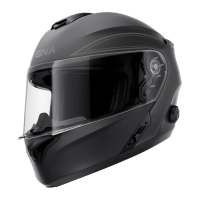
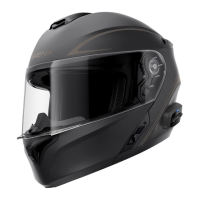
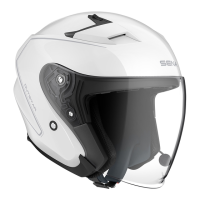
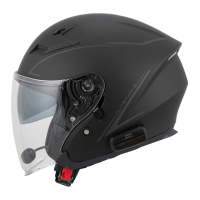
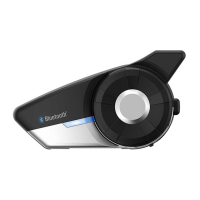
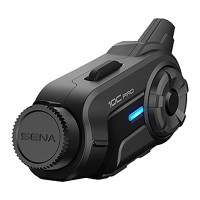
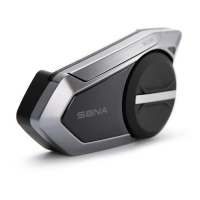
The Sena Outride Bluetooth Helmet is an integrated communication system designed to enhance the riding experience by providing seamless connectivity, audio control, and intercom capabilities within a protective helmet. This quick start guide outlines the basic operations, pairing procedures, and troubleshooting steps for the device.
Function Description
The Sena Outride helmet integrates a Bluetooth communication system directly into the helmet structure, offering a comprehensive solution for riders. The system allows for phone calls, music playback, and intercom conversations with other riders. The helmet itself features essential components for rider comfort and safety, including a shield visor, inner sun visor, breath guard, chin vent, and top and rear vents for ventilation. The Bluetooth system is controlled via a set of buttons located on the side of the helmet, which include a Center Button, (+) Button, and (-) Button, along with a Status LED and Charging LED. A DC Power Charging & Firmware Upgrade Port is also integrated for maintenance and charging.
Usage Features
Helmet Operation:
- Putting on the Helmet: To put on the helmet, first unfasten the chinstrap using the retention system. Expand the helmet opening with your hand and slide your head into the helmet. Finally, fasten the chinstrap as tight as possible without causing discomfort.
- Vents: The helmet includes a Top Vent and Rear Vents for airflow, and a Chin Vent for breathability, ensuring comfort during rides.
- Visors: The Shield Visor provides protection, while the Inner Sun Visor offers shade. The Inner Sun Visor Lever allows for easy adjustment of the sun visor. The Shield Ratchet secures the main visor in place.
- Chinstrap: The Chinstrap, equipped with a Strap Adjuster and a One-touch Buckle, ensures a secure and comfortable fit.
Basic Bluetooth Operations:
- Powering On: To power on the device, press and hold the (+) Button and Center Button for 1 second.
- Powering Off: To power off the device, tap the (+) Button and Center Button once.
- Volume Control: To increase the volume, tap the (+) Button once. To decrease the volume, tap the (-) Button once.
- Battery Level Check: When powering on, the Status LED will indicate the battery level with a series of red and blue blinks.
Phone Pairing and Usage:
- Initial Phone Pairing: When you initially turn on the Bluetooth system, it will enter "Phone pairing" mode, indicated by blinking red and blue lights. From your phone's Bluetooth settings, select "OUTRIDE" from the list of detected devices.
- Answering a Call: To answer an incoming call, tap the Center Button once.
- Ending a Call: To end an ongoing call, press and hold the Center Button for 2 seconds.
- Rejecting a Call: To reject an incoming call, press and hold the Center Button for 2 seconds.
- Voice Dial: To activate voice dial in stand-by mode, press and hold the Center Button for 3 seconds.
Music Control:
- Play/Pause Music: To play or pause music, press and hold the Center Button for 1 second.
- Track Forward: To skip to the next track, press and hold the (+) Button for 1 second.
- Track Backward: To go to the previous track, press and hold the (-) Button for 1 second.
Bluetooth Intercom:
- Intercom Pairing (SIP - Smart Intercom Pairing): This method allows for quick pairing by scanning a QR code using the Sena Utility App.
- Pair your mobile phone with the Bluetooth system.
- Open the Sena Utility App.
- Click the "Smart Intercom Pairing Menu."
- Click the "Add Button" to open the QR scanning screen.
- Scan the QR code displayed on your friend's mobile phone (your friend will display it by opening the Sena Utility App and clicking the "Smart Intercom Pairing Menu").
- Click the "Confirm Button" to verify pairing.
- Repeat for additional intercom friends.
Note: SIP is not compatible with Sena products using Bluetooth 3.0 or below.
- Intercom Pairing (Using the Button):
- Users (You and your friend B) enter "Intercom Pairing" mode by pressing and holding the Center Button for 5 seconds. The device will blink red, and you will hear "Intercom pairing."
- Tap the Center Button on either Bluetooth system. The light will turn blue, confirming that intercoms are paired.
- Repeat these steps to pair with other Bluetooth systems (C and D).
- Last-Come, First-Served Intercom: If multiple Bluetooth systems are paired, the last paired system becomes the first intercom friend.
- Two-way Intercom Conversation:
- Start/End Conversation with First Intercom Friend (D): Tap the Center Button once.
- Start/End Conversation with Second Intercom Friend (C): Tap the Center Button twice.
- Start/End Conversation with Third Intercom Friend (B): Tap the Center Button three times.
- Accessing the Configuration Menu: Press and hold the Center Button for 15 seconds. You will hear "Configuration menu."
- Navigating Menu Options: To move between menu options, tap the (+) Button or (-) Button once.
- Executing Menu Options: To select and execute a menu option, tap the Center Button once.
Maintenance Features
Software and Firmware:
- Sena Utility App: Download the Sena Utility App from Google Play Store or App Store to manage settings and access features.
- Sena Device Manager: Download the Sena Device Manager from sena.com for firmware upgrades and device configuration settings.
- Firmware Upgrades: Regularly update the device firmware to ensure optimal performance and access new features.
Troubleshooting:
- Factory Reset: To perform a factory reset:
- Access the "Configuration menu" by pressing and holding the Center Button for 15 seconds.
- Tap the Center Button twice. You will hear "Factory reset."
- Tap the Center Button once to confirm. You will hear "Headset reset, good-bye." This will restore the device to its factory default settings.
- Fault Reset: If the Bluetooth system is not working properly, a fault reset can be performed. Locate the Pinhole Fault Reset Button (a small pinhole) next to the DC Power Charging & Firmware Upgrade Port. Use a paperclip or similar thin object to press this button.
- Note: The charging LED is not the Pinhole Fault Reset Button; do not press it.
- Note: A fault reset will not restore the Bluetooth system to the factory default settings.
- Customer Support: For further assistance, visit sena.com.
- Online Resources: Follow Sena on Facebook, YouTube, Twitter, and Instagram for the latest information and helpful tips.
- User's Guide: For more detailed information on phone pairing and other features, refer to the comprehensive User's Guide available on sena.com.

 Need help?
 General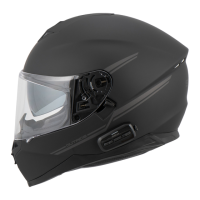

 To Next Page