VP400 Series Video Pro Form7343A Operation Manual
59
SDI/HDSDI Video Resolution Formats
An SDI/HDSDI signal can be one of several different resolutions. The SDI format may be
divided into either a 525 (720x486) @ 59.94i or a 625 (720x576) @ 50i signal resolution. These
are commonly called NTSC and PAL serial digital signals. Both resolutions employ 10 bit data
and a data clock rate of 270 Mb/s.
The HDSDI signal offers multiple resolutions in 720 or 1080 formats. The 720p signal format is
available at frame rates of 60, 59.94 or 50 Hz. The 1080 signal format is available in interlaced,
segmented or progressive scan formats at applicable frame rates of 30, 29.97, 25, 24, or 23.98
Hz. HDSDI employs 10 bit data and a data rate of 1.485 Gb/s.
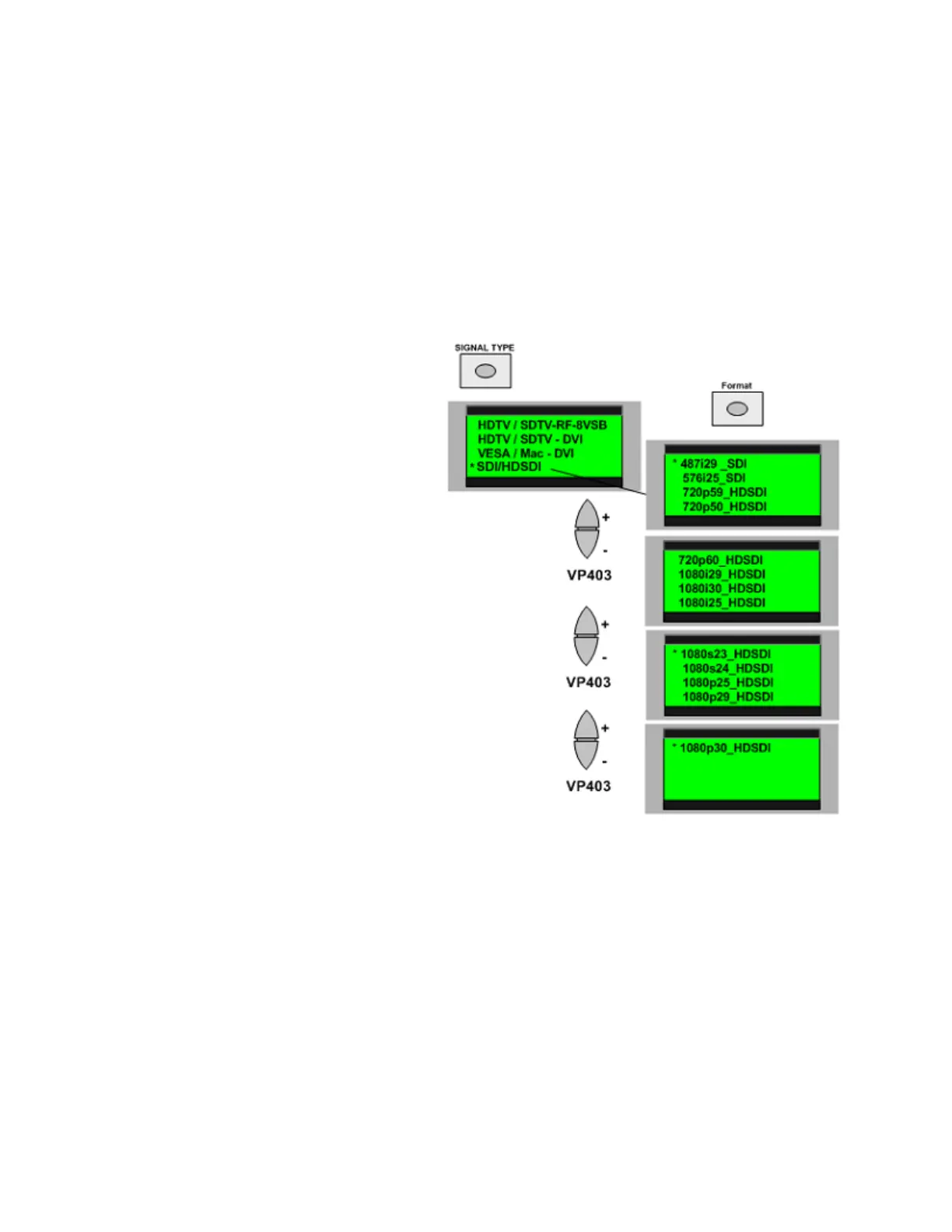
Figure 4. The SD/HDSDI output of the
VideoPro offers two SDI output signal
formats and multiple HDSDI 720 or 1080i
formats.
To output an SDI or HDSDI signal
from the ‘SH’ VideoPro:
1. Connect a BNC cable to the
VideoPro SDI/HDSDI output and
to the SDI/HDSDI input of the
device to be tested. (BNC to BNC
cable – Sencore #39G232)
2. Power the VideoPro ON. Push the “SIGNAL TYPE” pushbutton. Push the large ‘-‘
scroll down pushbutton to increment to the second signal type menu. Press the
pushbutton beside the display choice “HD/SDI”. Note: A format menu appears.
3. Select the desired SDI or HDSDI signal format. Pushing the ‘-‘ scroll down button
moves down to additional menus or formats. Pushing the ‘+’ scroll up pushbutton moves
upwards through the menus. To choose a format and press the pushbutton beside the
display listing of the desired format.
4. Select a video test pattern by pushing the PATTERN pushbutton and again pressing
the pushbutton beside the display indicating the desired pattern. Use the ‘-‘ and ‘+’ scroll
down pushbuttons to see additional menus. Note: Many menus have listings on each side
of the display.



 To Next Page