Configuring the conference system via the central unit
40
Permanent transmission errors must be eliminated immediately in order to ensure
trouble-free operation of your conference system. Follow the steps for error elimi-
nation described under the “System Load” menu item (see page 38). In addition,
check if other electronic devices in the proxim
ity of the conference system might
cause the errors.
You can manually reset the “ ” icon behind “Error Indication” to the default icon
(“ ”) (see page 40).
The error counter (“Break Counter”) incrementally counts all
errors an
d changes in
the conference system (e.g. added conference units). Based on the changes of the
counter’s counts, you can conclude on the error source (e.g. if the counter rapidly
increments when you wiggle the cable, this indicates a faulty cable).
You can manually reset the error counter (“Break Counter”) (see page 40).
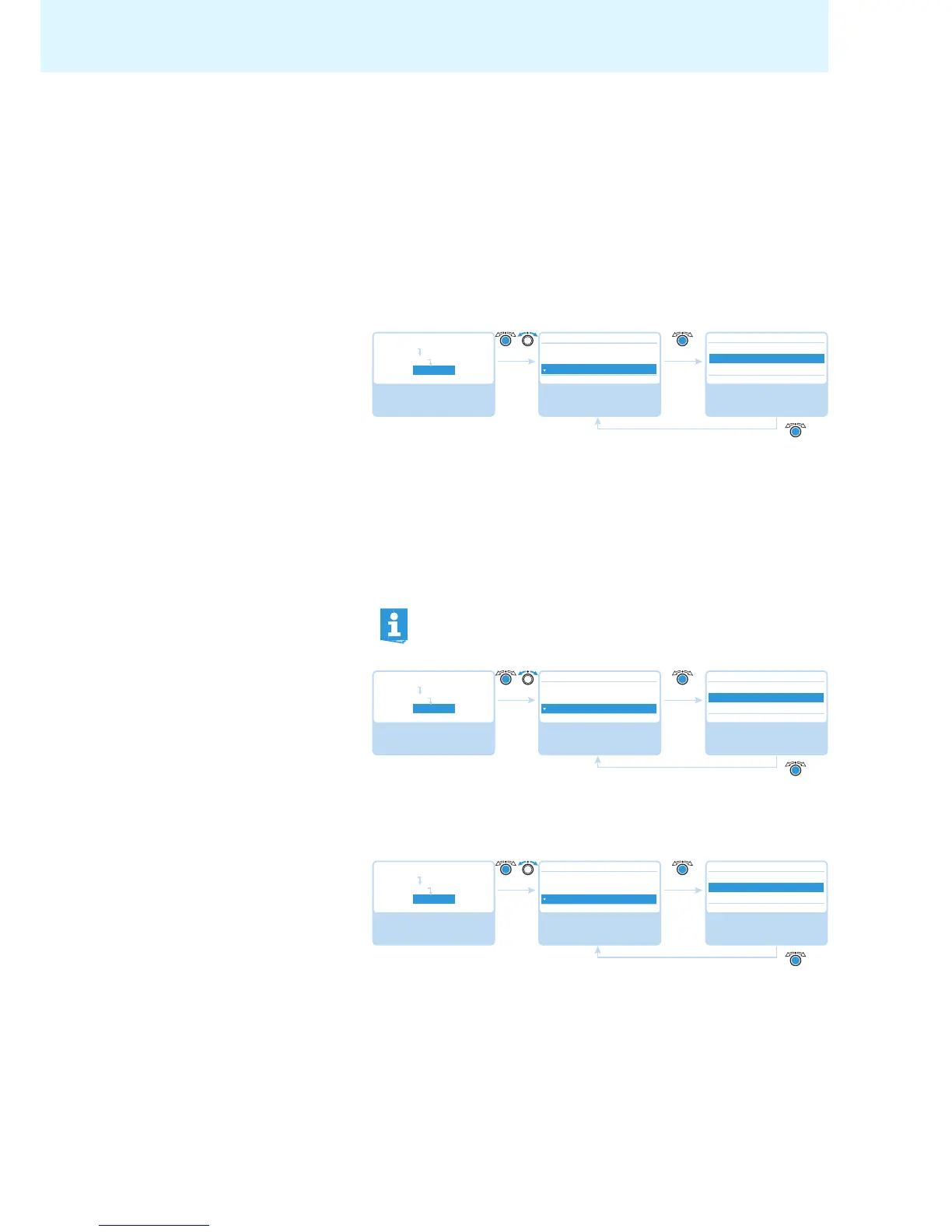
Performing a manual self-test –
“
Start Self-Test”
If the central unit detects errors after swi
tch-on or during operation:
왘 Eliminate these errors (see page 34 and following).
왘 Perform a manual self-t
est by selectin
g “Yes” in the “Start Self-Test” menu
item. The conference is interrupted.
The central unit now checks if a reported error still occurs. If the error is elimi-
nated, the corresponding error icon goes off after the self-test. If the err
or
icon is still displayed, you have to take further steps to eliminate the error
(see page 34 and following).
Resetting the error counter –
“Reset Break Indication”
Possible settings: “Yes” or “No”
This menu item allows you to reset the error counter (“Break Count”) in the “Bus
Statistic” menu item (see page 39).
Resetting the display of
d
a
ta bus errors –
“Reset Error Indication”
Possible settings: “Yes” or “No”
This menu item allows you to manually reset the display of data bus errors (“Error
Indication”) in the “Bus Statistic” menu item to default (see page 39).



 To Next Page