Using the “Conference Manager” software
64
Selecting the language
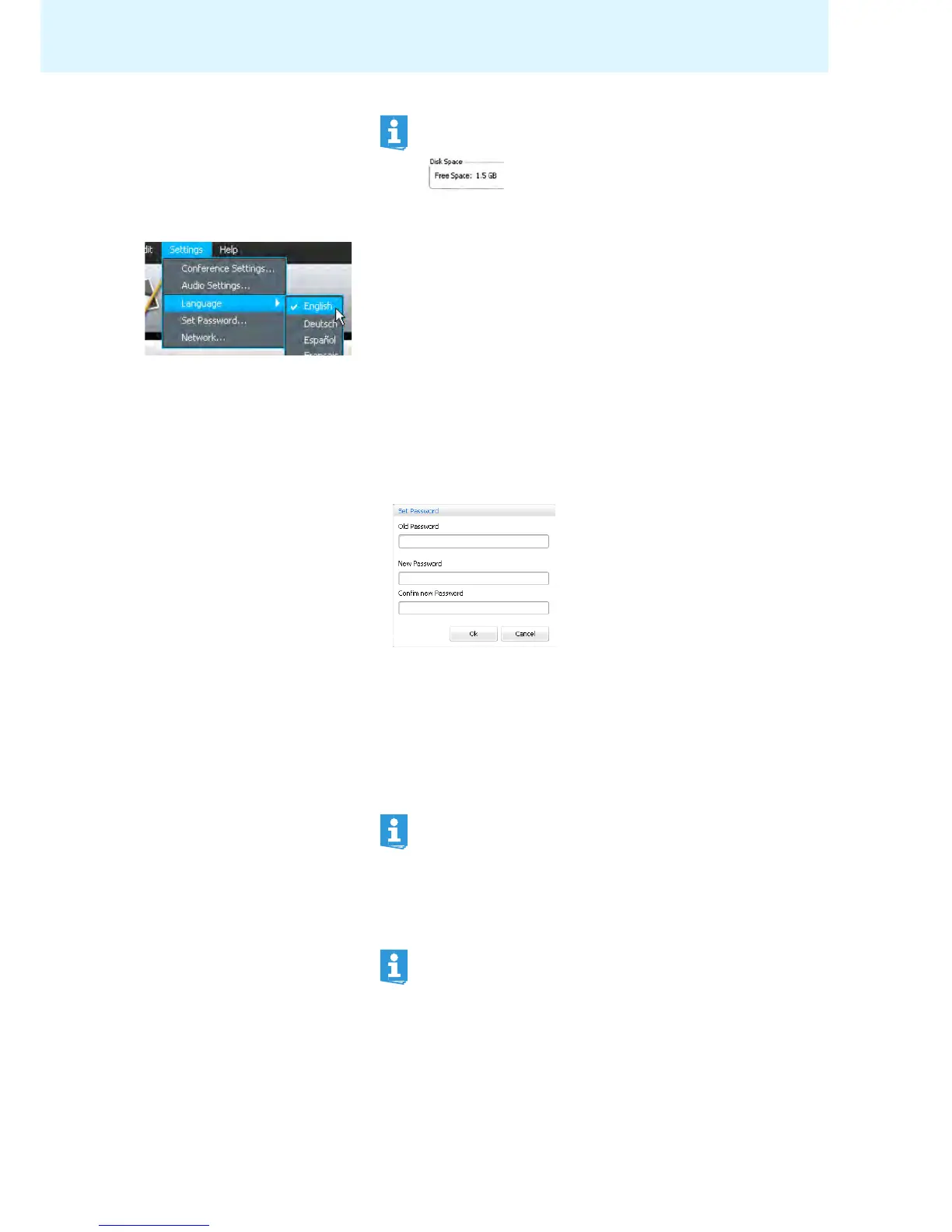
왘 In the menu bar, click “Settings” > “Language”.
A list with the available languages appears.
왘 Click the desired language.
The language of the software is changed.
Using a password
You can use a password to protect existing configurations against unauthorized
change. This means that all settings adjusted in “Setup” operating mode are
locked. However, password-protected configurations can be used in “Live” mode
and settings can be adjusted.
Protecting configurations with a
password and changing a password
왘 In the menu bar, click “Settings” > “Set Password...”.
The “Set Password” window appears.
To enter a new password:
왘 Leave the “Old Password” field empty.
To change an existing password:
왘 Enter the existing password into the “Old Password” field.
왘 Enter the new password into the “New Password” and “Confirm new Password”
fiel
ds.
Th
e password can consist of up to 16 characters.
왘 Click “OK”.
The new password is saved and the configuration i
s password-protected.
Before any changes to the configuration are accepted, you are prompted to
enter the password set.
The “Disk Space” box in the “System Properties” window provides infor-
mation on the free memory available on the central unit.
If you do not want to use a password, leave the “New Password” and
“Confirm new Password” fields empty.
The master key combinatio
n allows you to unlock password-protected
configurations:
왘 Press the key combination “CTRL” + “SHIFT” + “F10”.
An existing password is deleted.



 To Next Page