4.3. Retrieving Logger Data
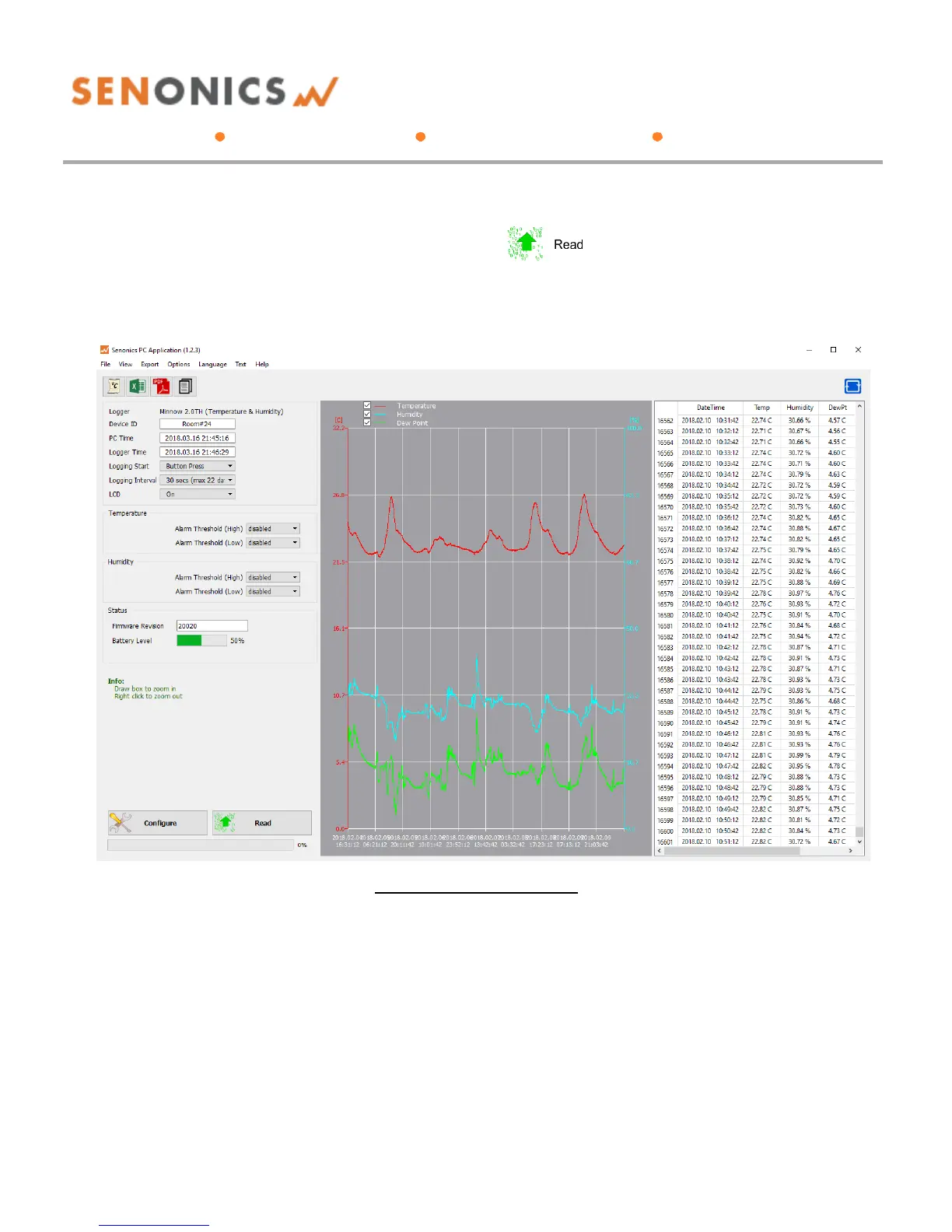
Data can be retrieved from the logger by connecting to
the logger and then pressing the read button at the
bottom left of the GUI. Both the device configuration and
logged data will become uploaded and viewable in the
configuration, graphical and spreadsheet views.
Figure 5: Retrieving Logger Data
4.4. Saving and Opening CSV
Logger data and configuration may be exported to file in
Comma Separated Value (CSV) format. This format can
be edited by third party software such as Microsoft Excel
or read back into the Logger PC application at a later
point.
To write a CSV file navigate File>Save CSV.
To read a CSV file back select File>Open CSV, and
then navigate to the CSV file.



 To Next Page