EasyManua.ls Logo

Sens MicroGenius S4 - User Manual

Default Icon
70 pages
Print Icon
To Next Page IconTo Next Page
Loading...
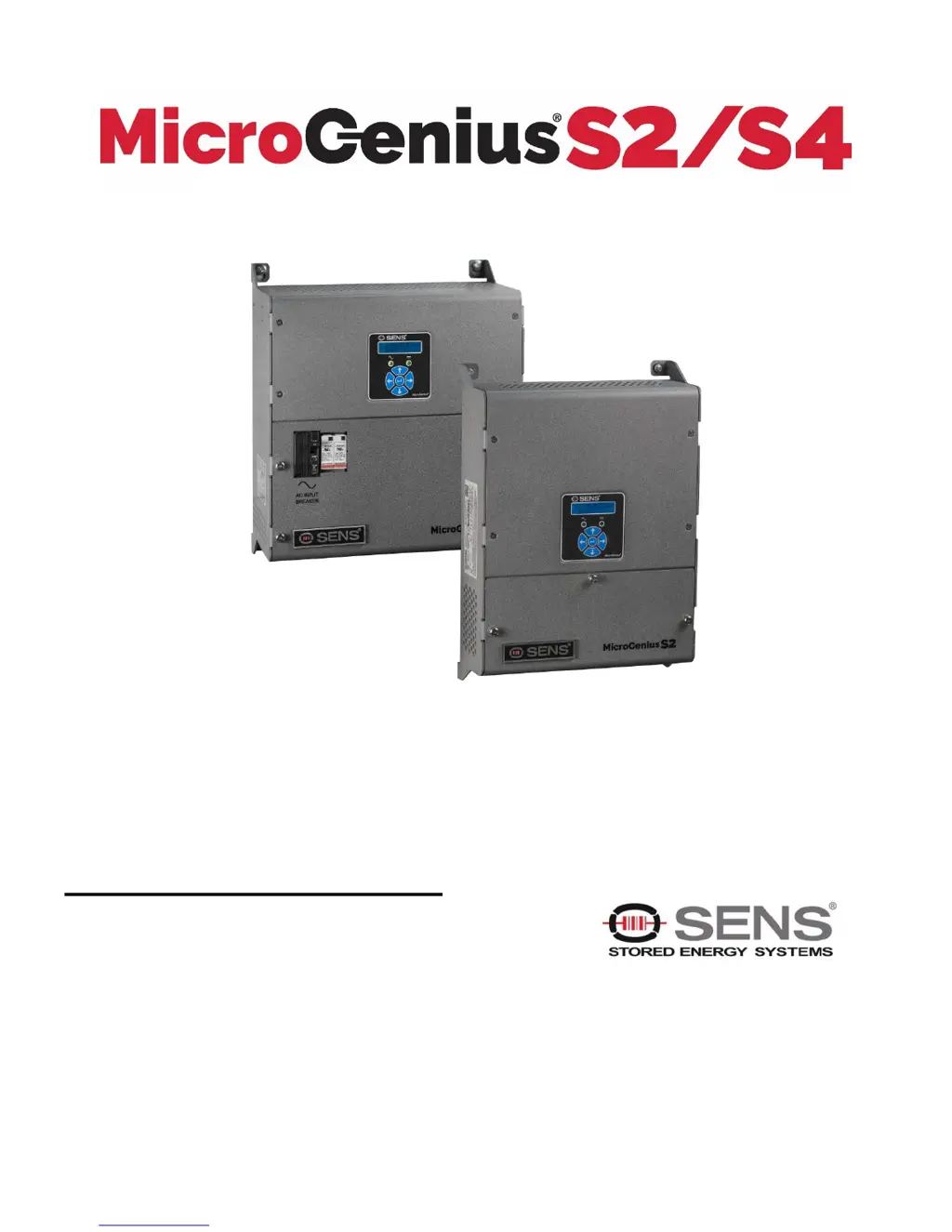
SENS MicroGenius S2/S4 Technical Manual
1
Installation & Operation Manual
PATENTED US 9,270,140; 9,385,556; 9,413,186; 9,509,164;
9,466,995; 9,948,125
Installation or service questions?
Call SENS between 8 a.m. and 5 p.m. (Mountain Time),
Monday through Friday, or visit our website.
Copyright © Stored Energy Systems LLC 2018
The SENS name / logo, MicroGenius, HELIX, and Dynamic Boost are trademarks of Stored Energy Systems LLC
SENS Part Number: 101330
Document Revision: F
DCN Number: 107594
Date: February 22, 2019
1840 Industrial Circle
Longmont, CO 80501
Phone:
303.678.7500
800.742.2326
Fax:
303.678.7504
Email:
service@sens-usa.com
Web:
www.sens-usa.com
Automatic Battery Charger/Power Supply

Questions and Answers

  • C
    Caitlyn WilliamsAug 20, 2025
    What to do if too few charger modules are operating on Sens Battery Charger?
    • N
      Nicole SanchezAug 20, 2025
      If too few charger modules are operating in your Sens Battery Charger, verify all charger output settings using the "Set DC Output" setting in the "Other Settings" menu or the setup utility. Ensure each module is set for the output corresponding to its electrical DC output connection. If needed, install additional modules to meet the required output rating, including those for "N+1" or "N+2" redundant operation. Verify that each output is assigned enough modules to meet the required DC output rating, also considering any extra modules for redundancy. Check for any failed modules (indicated by their LED status), disconnected, or damaged SENSbus data cables, and inspect input and output connections for miswiring, disconnections, or damage.
  • C
    cacevedoAug 25, 2025
    What to do if charger modules are missing in Sens Battery Charger?
    • J
      jeffrey95Aug 25, 2025
      If charger modules are missing from your Sens Battery Charger system, check for a module that has failed (indicated by its LED status) and inspect SENSbus data cables for disconnections or damage. Also, verify the system charger count setting using the "Minimum System Number of Chargers" selection in the "Other Settings" menu or the setup utility. For "N+1" or "N+2" redundant operation, this should be the number of charger modules connected to the SENSbus network. Non-redundant systems typically use a 0 setting (which disables this error check), but may be set if error checking is desired.
  • T
    Tina EatonAug 28, 2025
    What to do if Charger Module is assigned to a disabled output in Sens Battery Charger?
    • D
      Derrick OdonnellAug 28, 2025
      If a charger module is assigned to a disabled output on your Sens Battery Charger, enable the output using the keypad "DC Output #" selection in the "Other Settings" menu or the setup utility. Verify that the DC outputs of all modules assigned to each output are electrically connected to that output. To select a different output, reassign the module to match its actual output connection using the "Set DC Output" setting in the "Other Settings" menu or by using the setup utility. If you want to operate without multiple outputs, disable all outputs using the keypad "DC Output #" selection in the "Other Settings" menu or the setup utility, then assign all chargers to the “Default” DC output using the "Set DC Output" setting.
  • J
    Jonathan MarshallAug 31, 2025
    What to do if no charger modules are assigned to output on Sens Battery Charger?
    • G
      Gregory SilvaSep 1, 2025
      If no charger modules are assigned to an output on your Sens Battery Charger, check for any failed modules (indicated by their LED status). Also, inspect the SENSbus data cables for any disconnections or damage. If the output is not intended to be used, disable it using the keypad "DC Output #" setting in the "Other Settings" menu or the setup utility.
  • D
    Denise WrightSep 5, 2025
    What to do if Invalid output configuration in Sens Battery Charger?
    • R
      Rachel GonzalezSep 5, 2025
      If you have an invalid output configuration on your Sens Battery Charger, enable the output using the keypad "DC Output #" selection in the "Other Settings" menu or the setup utility, if necessary. To select a different output, reassign the module to match its actual output connection using the "Set DC Output" setting in the "Other Settings" menu or by using the setup utility. To operate without multiple outputs, disable all outputs using the keypad "DC Output #" selection in the "Other Settings" menu or the setup utility. Then, assign all modules to the “Default” DC output using the "Set DC Output" setting.
  • S
    Samantha MorrisSep 8, 2025
    How to fix invalid charger position jumper setting for charger module used in multi-module unit in Sens Battery Charger?
    • T
      Tiffany BurchSep 8, 2025
      When using a charger module in a multi-module Sens Battery Charger unit, each module must be set to a different position number. Install one jumper per module to select module positions 1 - 9, or no jumper to select position 0. To operate without multiple outputs, disable all outputs using the keypad "DC Output #" selection in the "Other Settings" menu or the setup utility. Then, assign all modules to the “Default” DC output using the "Set Output" setting.
  • J
    Jennifer WilliamsNov 12, 2025
    What to do if AC and DC LEDs are off but display is on for Sens Battery Charger?
    • A
      Amanda HopkinsNov 12, 2025
      If the AC and DC LEDs are off but the display is on for your Sens Battery Charger, here's what you can check: 1. Ensure a terminator is installed in port 1 or 2 of main power board J901. If it's missing, install it. 2. If the terminator is installed, disconnect one end of the main power board to the accessory display board cable. Check if the main power board AC and DC LEDs are on (any color). If they remain off, the main power board has likely failed, and you should replace the charger. 3. If the power board LEDs are on, ensure there are no jumpers installed in Address 1 or Address 2 on the main power board header JP900. Remove any address jumpers. 4. If the issue persists, unplug the main power board to the accessory display board cable and use an ohmmeter to check for continuity ac...
  • T
    tnelsonNov 16, 2025
    Why are AC and DC LEDs off and display is off on my Sens Battery Charger?
    • B
      Billy McdonaldNov 16, 2025
      If both the AC and DC LEDs are off and the display is off on your Sens Battery Charger, try these steps: 1. Check the AC input voltage and frequency at the AC input terminal block/breaker (should be in the range of 80VAC – 264VAC / 47Hz – 63Hz) and ensure that >8VDC is present at the DC output terminal block/breaker with correct polarity. Correct the charger AC input and DC output voltage as needed. 2. If the issue persists, remove both AC and DC power for 1 minute, then reapply power. 3. If the problem continues, check if the main power board AC and DC LEDs are on (any color) after disconnecting the cable between the accessory display board and the main power board. If the main power board LEDs remain off, the main power board has likely failed, and you should replace the charger. If ...

Sens MicroGenius S4 Specifications

General IconGeneral
BrandSens
ModelMicroGenius S4
CategoryBattery Charger
LanguageEnglish

Related product manuals