©2020 Sentinel Gaming Systems 4 Quick Setup/Operations Guide – Sentinel Mini 4.xx
Operations Guide Summary
Front Panel Operation
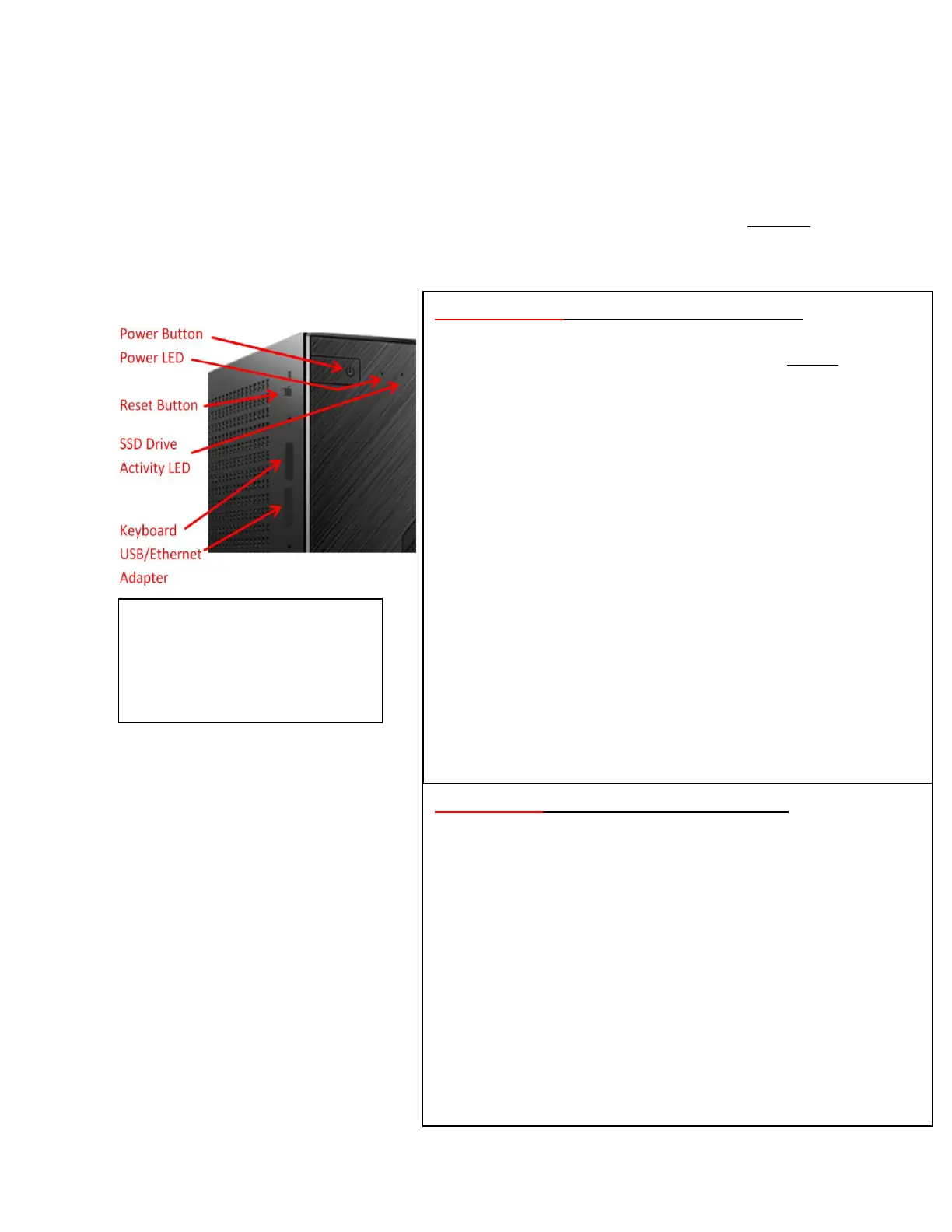
The front /side panel switches (buttons) operate differently than other Windows® computers.
Pressing the Power Button will automatically turn on the Windows computer and attempt to
log in as User 1 depending on the state of the screen and other settings. The Status Screen,
when displayed, will also indicate the functions of these buttons available at that time.
Power Indicator Lamp Status
Off – Windows Off, Logged Out
Flashing Quickly - Logging In
Flashing Slowly – Logging Out
Solid On – Logged In, Windows On
The Power Indicator Lamp will light
when the Windows computer is
powered and will be off when the
computer is off (Standby, Hibernate or
Shut Down). The indicator will flash
when the system is powered to
indicate the login (fast) or logout
(slow) request is being authorized
remotely at the server. The flashing
will stop when confirmed. The pop up
Status Screen and other features
cannot be used until the flashing
stops. The Hard Drive Lamp will flash
indicating hard drive / SSD activity.
Power Button Screen Function
Windows Off
Quick Press Login Screen User 1 Login attempt
Quick Press Screen Saver Restore Sentinel Login Screen
>6 seconds Any Shut down Sentinel Software
Windows On – Gaming and Study Modes
Quick Press Windows Status Screen 7 seconds
2-4 seconds Windows Windows Sleep/Shutdown
>6 seconds Windows Windows Hard Shutdown
Windows On – Gaming Mode Status Screen Displayed
Quick Press < 2mins remain GamePlay+ Extension Request
Quick Press >2mins remain Updated Gaming Mode Login
Windows On – Study Mode/Online Learning Mode Status Screen Displayed
Quick Press From Study Mode Online Learning Mode Request
Quick Press From Online Learning Study Mode Login Request
Windows On – No Video Mode
Quick Press Status Screen Windows Sleep/Shutdown
Windows On – Recovery Mode or Gaming Mode User 8 Only
Quick Press Status Screen Enable/Disable Recovery Drive
Reset Button Screen Function
Windows Off / On All Modes
>6 seconds Any Restart Sentinel Software
Windows On – Gaming or Study Mode
Quick Press Windows Screen Capture, send Email
Windows On - Gaming Mode or Recovery Mode
Quick Press Status Screen No-Video Mode Login Attempt
2-5 seconds Windows Hard Windows System Reset
Windows On – No Video Mode
Quick Press Status Screen Gaming Mode Login Attempt
Windows On - Study Mode
Quick Press Status Screen Gaming Mode Login Attempt


 To Next Page
 Loading...