©2020 Sentinel Gaming Systems 5 Quick Setup/Operations Guide – Sentinel Mini 4.xx
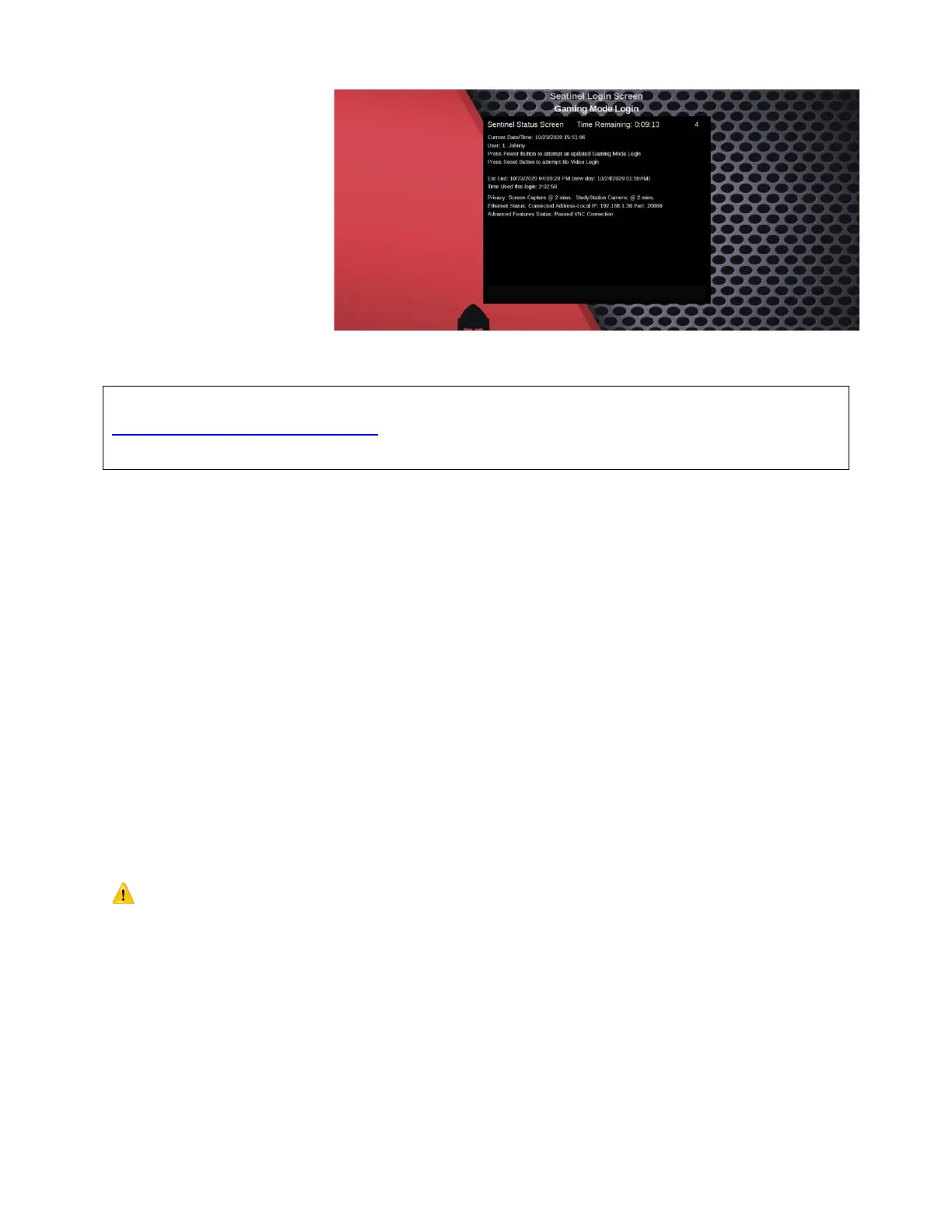
Status Screen
Sentinel Login Operation
Limit and feature settings for the system and users are configured using the remote Web Login:
https://sentinelgamingsystems.net
Use the ID and password provided to you or set by you during initial product registration.
In order to power and use the Windows® computer a user must “Log in” to the Sentinel using
the Sentinel Login Screen. There are three operating modes for general use – Gaming, Study
and No-Video Mode. Each mode has independent settings for when and how long they can be
used on any day of the week. Gaming Mode allows full graphics performance while Study Mode
reduces the screen refresh rate so that watching videos or playing video games is unpleasant or
impossible. No-video mode allows the Windows® system to remain powered with no visible
Windows® display for routine tasks such as updates, downloads or system maintenance.
Press the front panel Power Button to automatically log in and power the system for User 1 in
the currently selected Mode.
Log in
1. Select the desired Mode (optional): “G”=Gaming (default), “S”=Study, “N”=No Video
2. Select a User (as displayed “1”-“8”)
3. Type the password followed by <Enter>. The default password for User 1 is “password”.
If this is the first time the user has logged in or after a User’s password has been changed, a
password error will be displayed and the user will be prompted to enter the password again to
correct or confirm. After the password is entered, the system will wait pending authentication
from the remote server. If the password matches the user’s prior successful login, for
convenience the Windows® system will power up and operate immediately. If time is NOT
allowed, within 30 seconds the Windows® system will shut down and a message will explain
why. Press the <Enter> key to clear the error message. After 2 failed attempts, the system will
not power up immediately until a successful login is achieved.
Pressing the Power Button
while Windows is running
will result in the display of
the Status Screen for
about 7 seconds. This
screen shows time/date,
time used, remaining and
network and self-test
status.


 To Next Page
 Loading...