6
Beat Jump
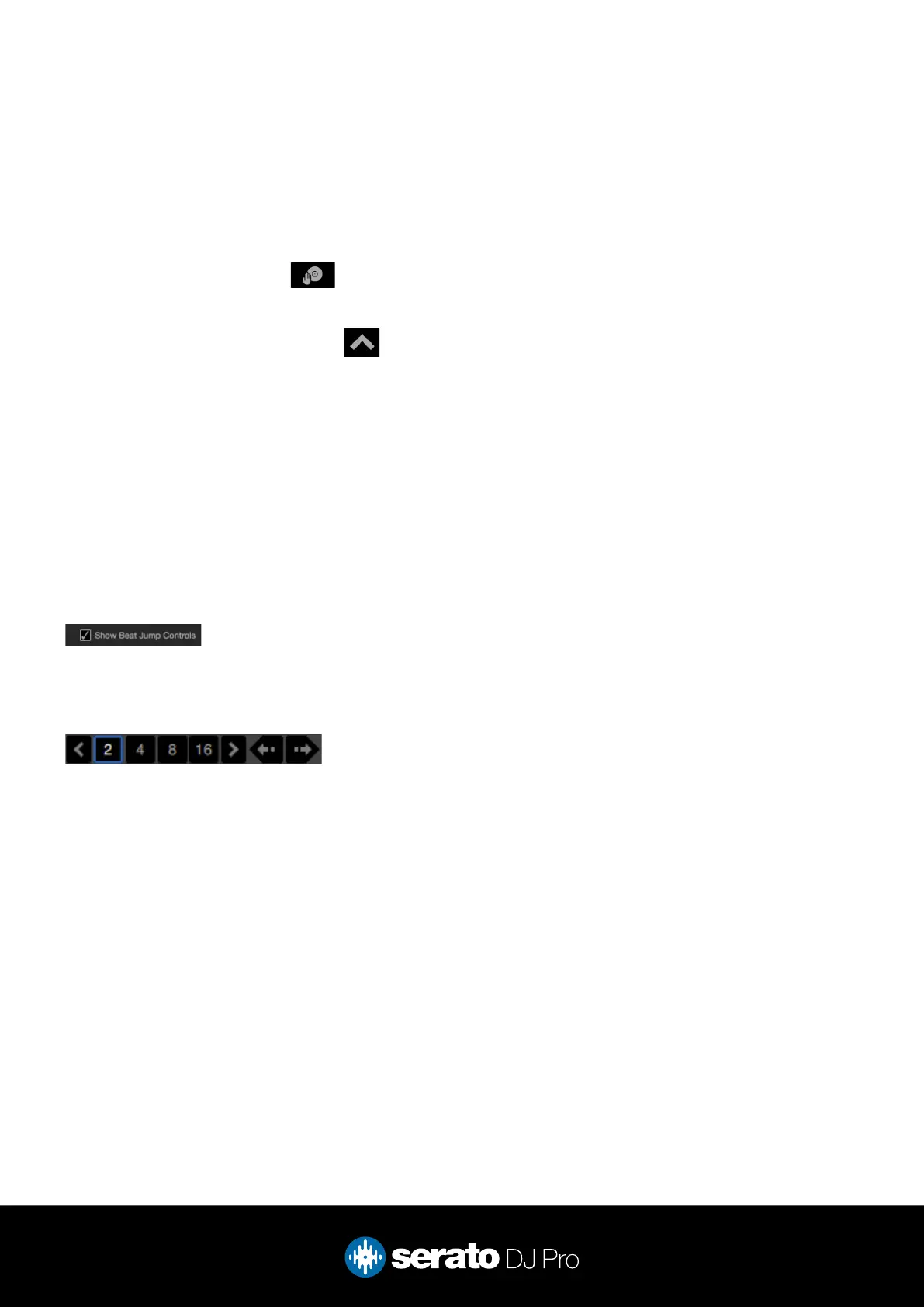
To activate Beat Jump, open the Setup screen and under the DJ preferences tab turn on “Show Beat Jump
Controls”.
When you close the Setup screen you will see Beat Jump controls underneath the existing Auto Loop values on
each deck. Checking this box will turn on Beat Jump features in the deck area and let you control Beat Jump
from on your supported Serato DJ Pro hardware.
When the Beat Jump option is enabled, perfomance pad modes AUTO LOOP or ROLL mode (where applicable)
will use the bottom row of 4 pads (pads 5-8) as Beat Jump controls. This is designed to mirror the change in
deck Auto Loop area (from 8 Auto Loop sizes to 4 Auto Loop sizes + Beat Jump controls).
Scratch Banks
Holding the SHIFT button and pressing the SAMPLE pad mode button on the Numark NS4FX will allow
for use of Scratch Banks. This mode allows you at assign les in your Serato DJ Pro library to a pad. When
a pad is triggered, the le corresponding le will be loaded to deck. The left set of pads will load to deck 1
where as the right will load to deck 2.
Click the Scratch Bank button in the top tool bar of Serato DJ Pro to reveal the Scratch Bank Panel.
In this panel you can load and eject les from the Scratch Banks, as well as chose the preferences you wish
to load to the deck upon triggering the pad. These preference include the start point of the le, Key Lock
on/off and Repeat on/off. Clicking the button in the top left corner of the panel will change between
Advanced and Simple View.
Holding SHIFT and pressing on any Scratch Bank pad will unload the currently loaded Scratch Bank le
and re-load the last track to be loaded to that deck.



 To Next Page