Doc# E149703 V.1.11 QS - 6
Shark® 200 Meter Quickstart
Follow these steps to connect to the meter via RS485:
1. Connect the meter to the PC, using an RS485 cable. EIG offers a RS485 to USB connector, which can
be ordered from EIG’s website: https://www.electroind.com/product/rs485-to-usb-communication-
-converter/.
2. Open CommunicatorPQA
TM
software (see page QS-1 for the download link).
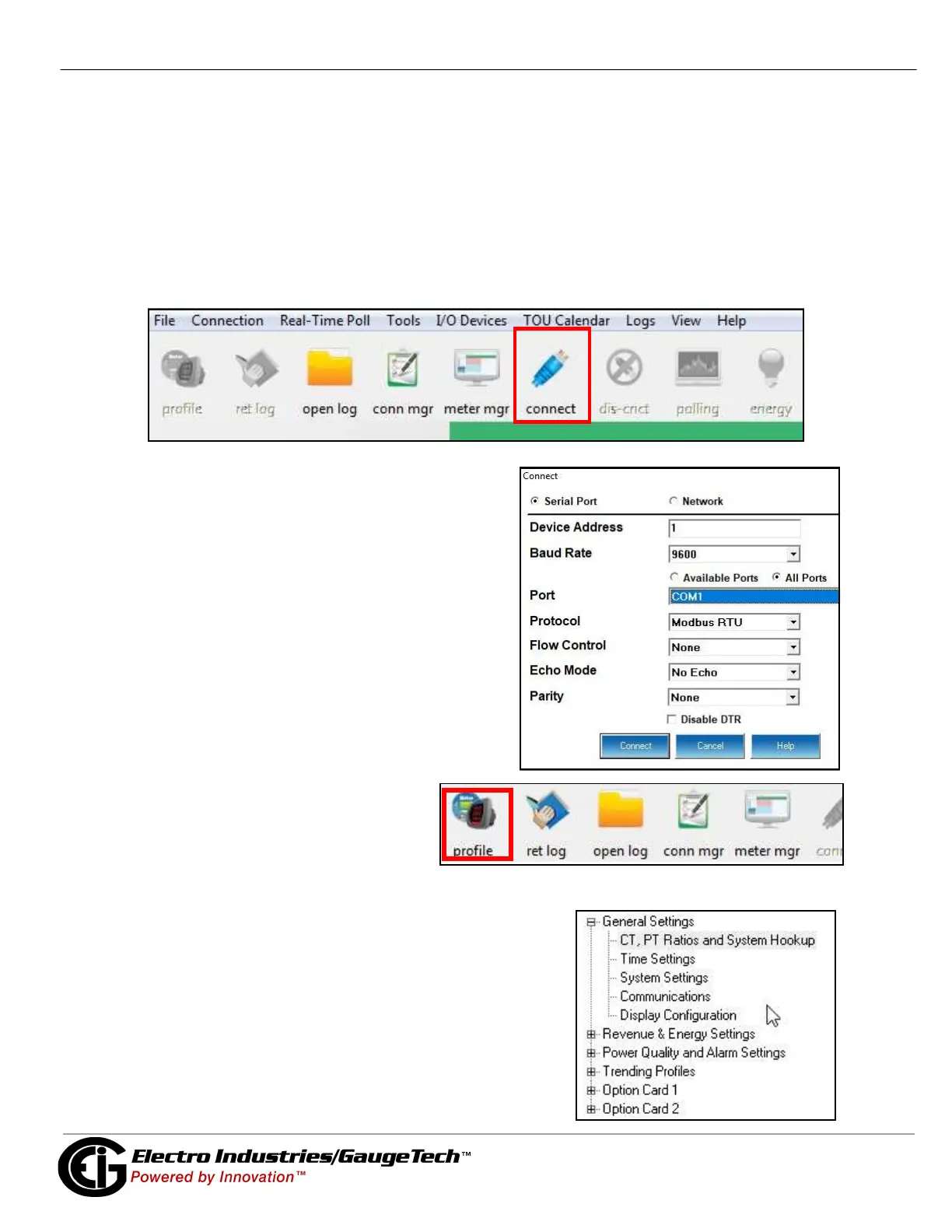
3. Click Connect in the Icon Bar.
4. You will see the Connect screen. Make sure
your settings match the ones shown on the right
(use pull-down menus).
5. Click Connect. The Device Status screen confirms
the connection. Click OK to close the Device Status
screen.
6. Click the Profile button on the Icon bar.
7.The Device Profile screen opens. The Tree menu on the left side of the screen lets you choose setting
screens. Click on a plus sign to view the settings screen
options.


 To Next Page