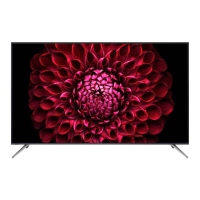
This document serves as an application guide for the SHARP 4K BIG PAD, specifically focusing on its wireless casting capabilities. The BIG PAD is designed to facilitate screen sharing and mutual display between itself and various client devices, provided both are connected to the same network. A router or access point is required for this functionality, and while connections to all devices are not guaranteed, the system supports a wide range of operating systems and devices.
Function Description
The SHARP 4K BIG PAD, through its EShare application, offers a comprehensive suite of wireless casting functions:
- Share Screen: This core feature allows users to share the screen of their client device directly to the BIG PAD. It supports all compatible devices. For Android devices, audio transmission is not supported. Touchback functionality, which enables the BIG PAD to receive touch inputs as if they were made on the client device, is available for Windows and macOS devices.
- Mirroring: Users can mirror the BIG PAD's screen to their client device. It's important to note that external input and media player screens on the BIG PAD cannot be shared through this feature. This function is supported across all compatible devices.
- File Sharing: This enables smart devices to share audio, video, and photo files directly to the BIG PAD. This feature is specifically designed for smart devices.
- Wireless Camera and Microphone: Users can share images or audio from their phone's camera or microphone to the BIG PAD in real-time. This feature is also exclusive to smart devices.
- Multiple Screens: The BIG PAD can simultaneously display screens from multiple client devices, automatically splitting its display to accommodate up to four screens. This enhances collaborative environments by allowing several participants to share their content concurrently. This feature is supported by all compatible devices.
- Display Group: This advanced function allows users to share their screen from a single client device to multiple BIG PADs wirelessly. This is particularly useful for presentations or educational settings where content needs to be broadcast to several displays simultaneously. This feature is supported by all compatible devices.
Usage Features
The BIG PAD's wireless casting system is designed for ease of use and broad compatibility:
- Device Compatibility:
- PC: Supports Windows 8.1/10 and macOS v10.15/v11.0.
- Smart Devices (Smartphone, Tablet PC): Supports Android 8/9/10, iOS 13/14, and iPadOS 13/14.
- While a link for Chrome OS may appear on the client app download page, it is not officially supported.
- Preparation Steps (BIG PAD):
- Network Connection: Connect the BIG PAD to a wireless network by first connecting the supplied wireless adapter to a USB port on the rear panel. Then, navigate to "Settings" from the "Apps" menu on the home screen in APPLICATION mode, select "Network," enable "Wireless LAN," and connect to the desired access point.
- EShareServer: Once connected to the network, the EShareServer application on the BIG PAD will display an IP address that client devices can use to connect.
- Preparation Steps (Client Devices):
- Network Connection: Ensure the client device (Windows PC, macOS PC, Android device, iOS/iPadOS device) is connected to the same wireless network as the BIG PAD.
- EShare Client App Installation:
- Windows/macOS PC: Access the address displayed on the BIG PAD's EShareServer screen from your PC's web browser. Select "EShare for Windows" or "EShare for macOS" and follow the installer instructions to install the EShare client application.
- Android/iOS/iPadOS Device: Similarly, access the EShareServer address from your smart device's browser, select "EShare for Android" or "EShare for iOS," and download/install the app. For iOS/iPadOS, an initial internet connection might be required for wireless connection to the BIG PAD.
- Screen Sharing Operation:
- Launch EShare: Open the EShare client application on your device.
- Select BIG PAD: From the device list, select the BIG PAD you wish to connect to.
- Share Screen: Choose "Share Screen" to display your device's screen on the BIG PAD. To stop sharing, select "Stop Sharing."
- Screen Mirror: Select "Screen Mirror" to display the BIG PAD's screen on your client device. To stop mirroring, click the "x" in the upper right corner of the window (Windows) or the red "●" (macOS).
- Wireless Camera/Microphone Operation (Smart Devices): Select "Camera" within the EShare app. Options include microphone ON/OFF, mobile light ON/OFF, switching between in/out cameras, and a shutter button to capture still images that are saved on the device and displayed on the BIG PAD.
- File Sharing Operation (Smart Devices): Select "Photo," "Music," or "Video" within the EShare app. Choose the file you wish to share from your device. A remote control interface will appear on the screen during file sharing.
- Multi-Screen Display: The BIG PAD can be configured to display 2 or 4 screens simultaneously. When multiple devices transmit, the BIG PAD's screen automatically splits.
- Display Group Settings: This feature allows a single client device to share its screen to multiple BIG PADs. Users can configure a "Host" BIG PAD and "Client" BIG PADs within the same network.
- Touchback Functionality: For Windows and macOS devices, touchback allows users to control their device from the BIG PAD's touchscreen. This requires enabling accessibility features in the client device's system preferences.
Maintenance Features
The application guide also touches upon aspects related to the maintenance and reliability of the wireless casting system:
- Software Updates: The EShare download page will be updated in the future to reflect the latest supported OS versions. Users are advised to use the versions listed in the manual for optimal performance.
- Network Requirements:
- Subnet: EShareServer and EShare Client must be on the same subnet.
- Ports: Specific TCP ports (56789, 25123, 8121, 8000) and UDP ports (48689, 25123) are required to be open.
- DNS: The h1.ee-share.com DNS is used.
- Wi-Fi Router Broadcast: The Wi-Fi router broadcast function should be enabled.
- 5GHz Wi-Fi Band: For a robust user experience, connecting using the 5GHz Wi-Fi band is strongly recommended.
- iOS/iPadOS Specifics:
- Screen Sharing Interruption: If screen sharing is stopped on an iOS/iPadOS device, a dialog indicating "esDisconnect error -1" may appear. This simply confirms that sharing has stopped and is not an actual error.
- Screen Off/Sleep: If the iOS/iPadOS device's screen goes off (sleeps) during screen sharing, the sharing will terminate. To prevent this, users should set the auto-lock to "None" or a longer duration.
- Warning Message: When starting screen sharing on iOS/iPadOS, a warning about recording screen content (including notifications) will appear.
- General Reliability: Due to frequent updates in client operating systems, SHARP cannot always guarantee a fully functional wireless sharing capability. Similarly, changes in Chrome OS's wireless sharing function may affect communication between the Chrome OS client app and the BIG PAD's EShare host app.
- EShareServer Settings (BIG PAD):
- Device Name: The BIG PAD's device name can be changed.
- Screen Sharing Permission: Users can enable a "Share permission confirmation" setting. When active, a confirmation message will appear on the BIG PAD, requiring permission before a screen can be shared.
- Multi-Screen Configuration: The display method for multiple devices can be set to "Disable," "2 Screens," or "4 Screens."
- Audio Control: Audio can be turned on/off. In multi-screen display, turning on audio for one screen automatically turns off audio for others.
- Touchback Control: Touchback can be enabled or disabled.
- Full-Screen Mode: In multi-screen mode, a selected screen can be temporarily switched to full-screen.
- Disconnect: Screen sharing for a selected device can be disconnected.
- Display Group Limitations: Multi-screen transmission is not possible for display groups. Audio can only be played from the Host BIG PAD, and touchback is also only possible on the Host. While there's no limit to the number of groups, actual operation depends on the network environment.

 Need help?
 General

 To Next Page