EasyManua.ls Logo

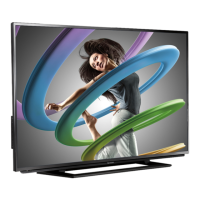
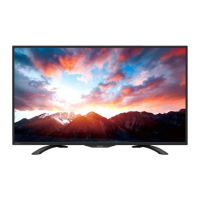
Sharp LC-42LB150U - User Manual

Sharp LC-42LB150U
83 pages
Print Icon
To Next Page IconTo Next Page
Loading...
LC-42LB150U
User Guide
42" LED TV
Before using your new product, please read these instructions to prevent any damage.

Table of Contents

Other manuals for Sharp LC-42LB150U

Questions and Answers

  • M
    michael02Sep 12, 2025
    How do I remove a retail banner from my Sharp LC-42LB150U?
    • L
      lisa19Sep 12, 2025
      If a retail banner is displayed on your Sharp LED TV, you likely selected “Store” mode during the initial setup. To remove it, reset your TV to the factory defaults and then select 'Home' on the 'What is your viewing environment' screen.
  • G
    George HartSep 9, 2025
    Why does my Sharp LC-42LB150U LED TV keep turning off?
    • K
      Kathleen MartinSep 9, 2025
      If your Sharp LED TV keeps turning off, make sure that the sleep timer is not turned on.
  • E
    Emily WoodSep 8, 2025
    Why are the control buttons not working on my Sharp LC-42LB150U?
    • D
      Dustin WaltonSep 8, 2025
      If the control buttons on your Sharp LED TV do not work, ensure that the Button Block option is set to Off. If that doesn't work, unplug the power cord, wait a few seconds, then plug it back in and turn on your TV.
  • P
    phillipsdevinSep 7, 2025
    Why does my Sharp LC-42LB150U have no power?
    • J
      jaytorresSep 7, 2025
      If your Sharp LED TV has no power, make sure that the power cord is correctly connected to both the TV and a power outlet. If it's connected, unplug the power cord, wait 60 seconds, then plug it back in and turn on your TV. Also, other devices (for example, a surround sound receiver, external speakers, fans, or hair dryers) may be interfering with your TV; try turning them off one at a time to see if that resolves the issue.
  • S
    Steven HigginsAug 23, 2025
    Why is my Sharp LC-42LB150U LED TV remote control not working?
    • W
      William TravisAug 23, 2025
      If your Sharp LED TV remote control isn't working, first ensure the power cord of your TV is properly connected to both the TV and the power outlet. Then, check for any obstructions between the remote and the sensor on the front of the TV. Make sure you're pointing the remote directly at the sensor. Verify that the plastic wrapping has been removed from the batteries and that the batteries are correctly installed. If problems persist, replace the batteries with new ones.
  • G
    Grace BrownSep 5, 2025
    How to improve color on Sharp LED TV with good sound?
    • J
      Joy TranSep 5, 2025
      If your Sharp LED TV has good sound but poor color, adjust the contrast, color, and brightness settings.
  • K
    Kelsey BrownSep 4, 2025
    Why is the picture quality poor on my Sharp LED TV?
    • C
      Christopher PearsonSep 4, 2025
      If your Sharp LED TV has a poor picture, make sure the room isn't too bright, as light reflecting off the screen can make the picture difficult to see. If an S-VHS camera or camcorder is connected while another device is on, it may cause a poor picture; try turning off one or more devices.
  • L
    Lance MooreSep 3, 2025
    Why is there no sound from one speaker on my Sharp LC-42LB150U LED TV?
    • J
      Jason PierceSep 3, 2025
      If there's no output from one of the speakers on your Sharp LED TV, try adjusting the audio balance in the settings. Also, ensure that the audio cables are connected correctly and securely to your TV.
  • M
    Mark BurchSep 2, 2025
    How do I resolve double images on my Sharp LC-42LB150U?
    • A
      Ann DrakeSep 2, 2025
      If you are experiencing double images on your Sharp LED TV, use a highly directional outdoor antenna, cable TV, or satellite TV.
  • J
    Jessica MeyerAug 31, 2025
    How to fix dotted lines or stripes on Sharp LC-42LB150U LED TV screen?
    • S
      Shannon KennedySep 1, 2025
      If you see dotted lines or stripes on the screen of your Sharp LED TV, ensure the antenna or cable TV is connected correctly and securely. If using an antenna, the digital channel signal may be low, so adjust the antenna or use a highly directional outdoor or set-top antenna with a built-in amplifier. Also, ensure the video cables are securely connected, and try a new set if necessary. Other devices like surround sound receivers, external speakers, fans, or hair dryers may be causing interference; try turning them off one by one to identify the source, then move it further away from the TV.

Summary

CHILD SAFETY

Important Safety Instructions

Essential safety guidelines for proper product usage.

TV Installation

Installing the Stand or Wall-Mount Bracket

Instructions for attaching the stand or wall-mount bracket.

Connecting Devices

Connecting a Cable or Satellite Box

Guide to connecting cable/satellite boxes via various methods.

Computer and Audio Connections

Connecting a Computer

Guide for connecting computers via VGA, HDMI, or DVI.

Basic TV Operation

Using the Remote Control

Covers battery installation and remote operation.

Initial TV Setup (EZ SETUP)

Guides through first-time setup: language, time, source.

Advanced Features and Settings

Using CEC Control

Manage CEC features for connected devices.

Troubleshooting Common Issues

Guides for resolving common problems.

CHILD SAFETY

Tune into safety

Safety tips for TV placement and usage around children.

Wall mounting

Guidelines for safely mounting the TV to a wall.

Important Safety Instructions

Servicing and Electrical Safety

Information on electrical hazards and service requirements.

Safety Information

Servicing Precautions

Warnings for qualified service personnel.

Installing the Stand

Securing the Stand Column

Steps to attach the stand column to the TV.

Installing a Wall-Mount Bracket

Wall Mount Warning

Warning about using UL listed mounts and secure installation.

Removing the TV Stand

Detaching the Stand

Steps to remove the TV stand from the TV.

TV Components

Remote Control Sensor and Power Indicator

Explains the function of the remote sensor and power LED.

Side Panel Connectors

HDMI 3;DVI Jack

Connect HDMI or DVI devices.

Back Panel Connectors

COMPONENT;AV Jacks

Connect component or composite video/audio devices.

Remote Control Buttons

POWER, INPUT, SOUND MODE, CC Buttons

Basic TV control buttons.

Connection Types Overview

Video Quality and Cable Connectors

Compares video quality for HDMI, Component, Composite, Coaxial.

Connecting a Cable or Satellite Box

Using HDMI (best)

Step-by-step guide for HDMI connection.

Connecting a Cable or Satellite Box

Using component video (better)

Step-by-step guide for component video connection.

Connecting a Cable or Satellite Box

Connecting an Antenna or Cable TV (No Box)

Connecting a DVD or Blu-ray Player

Connecting a DVD or Blu-ray Player

Connecting an MHL-enabled Device

Connecting a Game Console

Connecting a Game Console

Connecting a Computer

Connecting a Computer

Connecting a basic home theater system

Connecting power

Using the remote control

Turning on your TV for the first time

EZ SETUP Wizard Guide

Steps to guide through initial TV setup.

Basic TV Operations

Picture Settings

Adjusting the TV Picture

Explains how to adjust picture quality and modes.

Sound Settings

Adjusting Sound Settings

Covers sound modes, balance, and audio output options.

Sound Settings

Computer Image Settings

Channel Settings

Parental Controls

Parental Controls

Setting Parental Control Levels

How to set parental control levels for US/Canada.

Parental Controls and Rating Information

Setting US V-CHIP; Canada V-CHIP

How to set rating levels for US/Canada.

Closed Captioning

Parental Controls

Setting or Changing the Password

How to set or change the parental control password.

Time Settings

CEC Control

Turning CEC Control On or Off

How to enable/disable CEC control.

CEC Control Features

CEC Control Features

MHL-enabled Device or Roku Streaming Stick

Roku Streaming Stick

Troubleshooting

Restoring Settings to Defaults

How to reset all TV settings to factory defaults.

Video and Audio Troubleshooting

Picture Not Filling Screen

Solutions for black bars or aspect ratio issues.

Good Picture, No Sound

Solutions when there's a picture but no sound.

No Picture or Sound Issues

Troubleshooting when the TV has no picture or sound.

Dark;Poor Picture with Sound

Solutions for dark or poor picture quality.

Video and Audio Troubleshooting

Remote Control and General Troubleshooting

Remote Control Not Working

Troubleshooting steps for a non-functional remote.

No Power Issue

Solutions for the TV not turning on.

Troubleshooting Specific Issues

No Signal Error Message

Solutions for the "No signal" error.

Lost Password Issue

How to reset a lost parental control password.

Troubleshooting Device Connections

CEC Device Video Issues

Troubleshooting video display from CEC devices.

CEC Device Audio Issues

Troubleshooting audio playback from CEC devices.

Sharp LC-42LB150U Specifications

General IconGeneral
BrandSharp
ModelLC-42LB150U
CategoryLED TV
LanguageEnglish

Related product manuals