EasyManua.ls Logo

Sharp MX-C300PE - User Manual

Sharp MX-C300PE
108 pages
Print Icon
To Next Page IconTo Next Page
Loading...
MODEL: MX-C300P
MX-C300PE
MX-C300PL
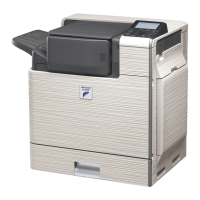
DIGITAL FULL COLOUR PRINTER
OPERATION GUIDE

Table of Contents

Other manuals for Sharp MX-C300PE

Questions and Answers

  • J
    James BryanAug 13, 2025
    What to do if Sharp MX-C300PE Printer does not print and ONLINE indicator is off?
    • J
      Jorge LopezAug 13, 2025
      If your Sharp Printer is not printing, and the ONLINE indicator is not blinking, first ensure the printer is not in off-line mode by pressing the [SPECIAL FUNCTION] key and selecting "Online/Offline". Then, check the printer cable connections at both ends, and try a different cable to rule out cable issues. Also, verify that you've selected the correct "SHARP MX-XXXX" printer in the print dialog box of your application. Finally, ensure the printer driver is correctly installed; if not, reinstall it.
  • C
    Charles RileyAug 17, 2025
    Why is my Sharp MX-C300PE not printing with blinking ONLINE indicator?
    • L
      Laura HarrisonAug 17, 2025
      If your Sharp Printer is not printing and the ONLINE indicator is blinking, ensure that the paper size settings on the printer and in the printer driver are the same. Also, verify that the specified size of paper is loaded in the paper tray.
  • N
    ncooperAug 21, 2025
    How to fix paper misfeed on Sharp MX-C300PE Printer?
    • D
      Douglas BrownAug 21, 2025
      If your Sharp Printer is experiencing paper misfeeds, ensure you are using paper within the specified size and weight range. Also, avoid using curled or damp paper; replace it with dry paper, and store paper in a dark, dry place when not in use. Make sure the paper is correctly loaded in the tray. Remove any pieces of paper inside the machine. Fan the paper before loading it. If the misfeed occurred in the tray, try turning the paper over or around before reloading. Also, ensure that you are not loading too much paper in the tray. Adjust the guides on the bypass tray to match the width of the paper and make sure the bypass tray extension is pulled out when loading paper. Clean the bypass paper feed roller.
  • K
    Kirk StoneAug 25, 2025
    Why is the printed image from my Sharp MX-C300PE dirty?
    • M
      Madison MunozAug 25, 2025
      If the printed image from your Sharp Printer is dirty, ensure you are using paper within the specified size and weight range, and that the paper is not curled or damp. Also, set sufficient margins in the paper settings of your application. If black dots or smudges appear, run fixing cleaning mode.
  • E
    Eric CallahanAug 28, 2025
    How to fix skewed or cut off printed image on Sharp MX-C300PE?
    • S
      Scott KnightAug 28, 2025
      If the printed image from your Sharp Printer is skewed, runs off the paper, or is cut off, verify that the paper loaded in the tray matches the size specified in the printer driver. Also, check the "Image Orientation" setting in the printer driver. Ensure the paper is properly loaded. Finally, check the document margins and paper size settings in your application to ensure they are correctly specified.
  • M
    Michael WebbSep 1, 2025
    Why does my Sharp Printer produce wrinkled prints or missing images?
    • J
      Joshua HicksSep 1, 2025
      If wrinkles appear in the paper or the image disappears in places when using your Sharp Printer, ensure you are using paper within the specified size and weight range, and that the paper is not curled or damp. Also, make sure the fusing unit release levers are returned to their original positions.
  • R
    Richard WhiteSep 4, 2025
    Why is the printed image light and uneven on my Sharp MX-C300PE Printer?
    • T
      Tammy Snow DDSSep 4, 2025
      If the printed image from your Sharp Printer is light and uneven, check if the paper is loaded correctly, ensuring that printing occurs on the front side of the paper. Some paper types have a specific front and back side, and toner may not adhere well if printed on the wrong side.
  • G
    Gina ValenciaSep 8, 2025
    What to do if Sharp Printer does not operate?
    • J
      John JohnsonSep 8, 2025
      If your Sharp Printer does not operate, ensure it is plugged into a grounded outlet and the power switch is turned ON. Allow the printer time to warm up after turning it on. Check that the front or side covers are completely closed. If the printer is in auto power shut-off mode, press the [ENERGY SAVE] key. If a misfeed occurs, see "MISFEED REMOVAL". Finally, make sure the tray is not out of paper; load paper if needed.

Sharp MX-C300PE Specifications

General IconGeneral
BrandSharp
ModelMX-C300PE
CategoryPrinter
LanguageEnglish

Related product manuals