EasyManua.ls Logo

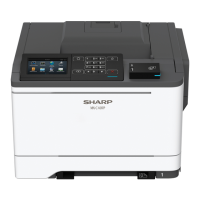
Sharp MX-C300P - User Manual

Sharp MX-C300P
108 pages
Print Icon
To Next Page IconTo Next Page
Loading...
MODEL: MX-C300P
MX-C300PL
DIGITAL FULL COLOR PRINTER
OPERATION GUIDE

Table of Contents

Other manuals for Sharp MX-C300P

Questions and Answers

  • T
    Tina ReynoldsAug 13, 2025
    What to do if Sharp MX-C300P Printer does not print and ONLINE indicator is off?
    • R
      Roger LoweAug 13, 2025
      If your Sharp Printer is not printing, and the ONLINE indicator is not blinking, first ensure the printer is not in off-line mode by pressing the [SPECIAL FUNCTION] key and selecting "Online/Offline". Then, check the printer cable connections at both ends, and try a different cable to rule out cable issues. Also, verify that you've selected the correct "SHARP MX-XXXX" printer in the print dialog box of your application. Finally, ensure the printer driver is correctly installed; if not, reinstall it.
  • P
    Pamela BatesAug 16, 2025
    Why is my Sharp MX-C300P not printing with blinking ONLINE indicator?
    • K
      Kenneth HernandezAug 16, 2025
      If your Sharp Printer is not printing and the ONLINE indicator is blinking, ensure that the paper size settings on the printer and in the printer driver are the same. Also, verify that the specified size of paper is loaded in the paper tray.
  • D
    David RamirezAug 21, 2025
    How to fix paper misfeed on Sharp MX-C300P?
    • T
      Tamara RangelAug 21, 2025
      If your Sharp Printer is experiencing paper misfeeds, ensure you are using paper within the specified size and weight range. Also, avoid using curled or damp paper; replace it with dry paper, and store paper in a dark, dry place when not in use. Make sure the paper is correctly loaded in the tray. Remove any pieces of paper inside the machine. Fan the paper before loading it. If the misfeed occurred in the tray, try turning the paper over or around before reloading. Also, ensure that you are not loading too much paper in the tray. Adjust the guides on the bypass tray to match the width of the paper and make sure the bypass tray extension is pulled out when loading paper. Clean the bypass paper feed roller.
  • T
    Timothy WalkerAug 25, 2025
    Why is the printed image from my Sharp MX-C300P dirty?
    • A
      allenwarrenAug 25, 2025
      If the printed image from your Sharp Printer is dirty, ensure you are using paper within the specified size and weight range, and that the paper is not curled or damp. Also, set sufficient margins in the paper settings of your application. If black dots or smudges appear, run fixing cleaning mode.
  • M
    Michael EstesAug 27, 2025
    How to fix skewed or cut off printed image on Sharp MX-C300P Printer?
    • A
      Alyssa FloresAug 28, 2025
      If the printed image from your Sharp Printer is skewed, runs off the paper, or is cut off, verify that the paper loaded in the tray matches the size specified in the printer driver. Also, check the "Image Orientation" setting in the printer driver. Ensure the paper is properly loaded. Finally, check the document margins and paper size settings in your application to ensure they are correctly specified.
  • D
    delgadogloriaAug 31, 2025
    Why does my Sharp MX-C300P produce wrinkled prints or missing images?
    • H
      harrellmatthewAug 31, 2025
      If wrinkles appear in the paper or the image disappears in places when using your Sharp Printer, ensure you are using paper within the specified size and weight range, and that the paper is not curled or damp. Also, make sure the fusing unit release levers are returned to their original positions.
  • S
    Sara ThompsonSep 5, 2025
    Why is the printed image light and uneven on my Sharp Printer?
    • B
      burtonleahSep 5, 2025
      If the printed image from your Sharp Printer is light and uneven, check if the paper is loaded correctly, ensuring that printing occurs on the front side of the paper. Some paper types have a specific front and back side, and toner may not adhere well if printed on the wrong side.
  • J
    Jennifer HaleySep 8, 2025
    What to do if Sharp MX-C300P does not operate?
    • C
      Catherine OnealSep 8, 2025
      If your Sharp Printer does not operate, ensure it is plugged into a grounded outlet and the power switch is turned ON. Allow the printer time to warm up after turning it on. Check that the front or side covers are completely closed. If the printer is in auto power shut-off mode, press the [ENERGY SAVE] key. If a misfeed occurs, see "MISFEED REMOVAL". Finally, make sure the tray is not out of paper; load paper if needed.

Summary

Introduction to the Operation Manual

Manual Usage Guidance

Notes on model name substitution, screen image variations, and OS compatibility.

Guide to Using the Operation Manual

Overview of Machine Manuals

Lists the Start Guide, Operation Guide, and Software Setup Guide for the machine.

Understanding Manual Conventions

Explains the meaning of warning, caution, and note icons used in the manual.

Differences Between Printer Models

Wireless LAN Feature Comparison

Compares the MX-C300P and MX-C300PL models regarding wireless LAN capability.

Printer Setup and Basic Operation

Printer Component Identification

Identifies and describes the main physical parts of the printer.

Operation Panel Overview

Explains the function of each key and indicator on the printer's control panel.

Display Screen Navigation

Details how to use and interpret the information shown on the machine's display.

Powering the Machine On and Off

Covers starting, stopping, and managing the machine's power-saving modes.

Paper Loading Procedures

Provides instructions for loading paper into the various trays and bypass.

User Authentication Mode

Explains how to use the user authentication feature for tracking print jobs.

Character Input Method

Details how to input text and characters using the operation panel keypad.

Printer Operations and Features

Printing from Windows OS

Details procedures and settings for printing using the Windows operating system.

Printing from Macintosh OS

Details procedures and settings for printing using the Macintosh operating system.

Common Print Functions

Covers color modes, print quality selection, and two-sided printing.

Advanced Print Features

Explains pamphlets, posters, image adjustments, and watermarks.

Troubleshooting Guide

Resolving Network Issues

Addresses problems with the machine connecting to the network.

Common Printing Errors

Covers common printing errors and their resolution steps.

Clearing Paper Jams

Provides step-by-step instructions to clear paper jams from various locations.

Replacing Toner Cartridges

Details the procedure for replacing the toner cartridge.

Replacing Waste Toner Container

Explains how to replace the waste toner collection container.

Routine Maintenance Procedures

Checking Machine Status

How to view total output counts and remaining toner levels.

Printing System Information Lists

How to print various system configuration and status lists.

Cleaning Printer Components

Instructions for cleaning bypass tray rollers, main charger, and laser unit.

Adjusting Display Contrast

How to adjust the contrast level of the machine's display screen.

System Configuration Settings

Administrator Password Setup

How to set or change the administrator password for system access.

Network Configuration

Details settings for wired and wireless network connections.

User Management Settings

Manages user authentication, registration, and print limits.

Operational and Energy Settings

Customizes machine operation panel settings and power saving modes.

Color and Security Settings

Covers color adjustments, tone settings, and security configurations.

Web Interface Management

Accessing and Using Web Pages

Procedure for accessing and navigating the machine's web interface.

Configuring Printer Settings via Web

Details basic printer settings configurable through the web interface.

Network Server Configuration

Sets up SMTP and DNS server parameters for email communication.

Email Notification Setup

Configures status and alert messages sent via email to administrators or dealers.

Trademark Acknowledgments

Sharp MX-C300P Specifications

General IconGeneral
Print TechnologyLaser
Print Speed (Black)30 ppm
Print Speed (Color)30 ppm
Paper Capacity600 sheets
Duplex PrintingYes
Copy Speed (Black)30 cpm
Copy Speed (Color)30 cpm
Copy Resolution600 x 600 dpi
Scan Resolution600 x 600 dpi
ConnectivityUSB, Ethernet
Supported Media SizesA4, A5, B5, Legal, Letter
PDLPCL6, PostScript 3
TypeMultifunction
CategoryColor

Related product manuals