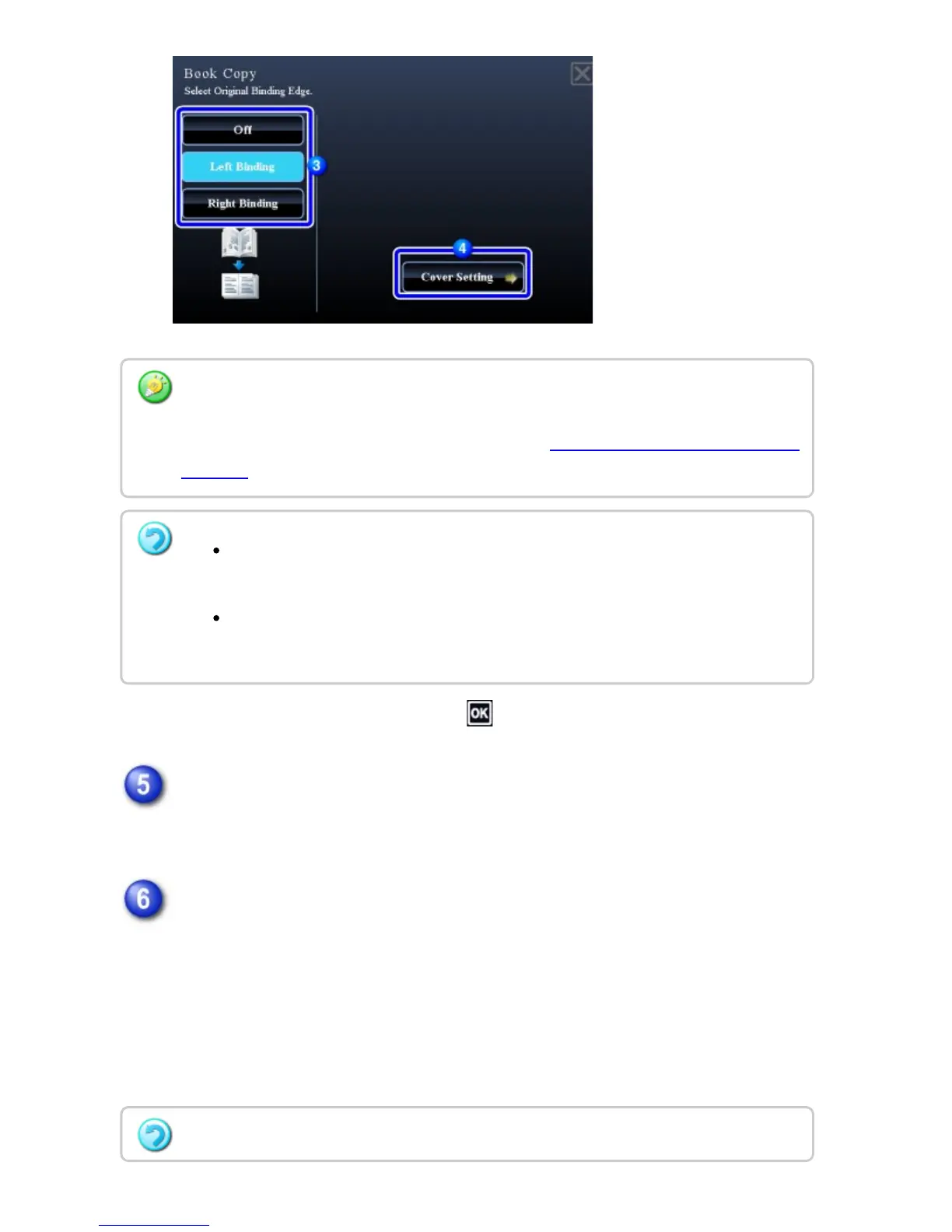
After the settings are completed, tap and [Back] keys in sequence.
Tap the [Preview] key to scan the first original page.
Scanning of the original starts.
Place the next opened original pages, and tap the [Additional Scan] key.
Repeat this step until all original pages have been scanned.
Scan the remaining original pages in the following order:
Inside of the front cover and the 1st page (facing pages)
Inside of the 2nd and 3rd pages (facing pages)
...
Inside of the last page and back cover (facing pages)
To change the cover input tray:
Tap the [Paper Tray] key to display the tray selection screen. Tap the cover input tray on
the tray selection screen. For more information, see "SELECTING THE PAPER TRAY FOR
COPYING".
If the cover will be copied on, label sheets, transparency film, and tab paper
cannot be used.
This setting is not available when the covers/inserts function is disabled in the
setting mode.
Copy settings cannot be changed when scanning additional pages.
USER'S MANUAL | MX-M365N/MX-M465N/MX-M565N USER'S ... http://siica.sharpusa.com/portals/0/downloads/Manuals/MX-M365N-M...
290 of 1441 3/17/2016 7:14 AM


 To Next Page