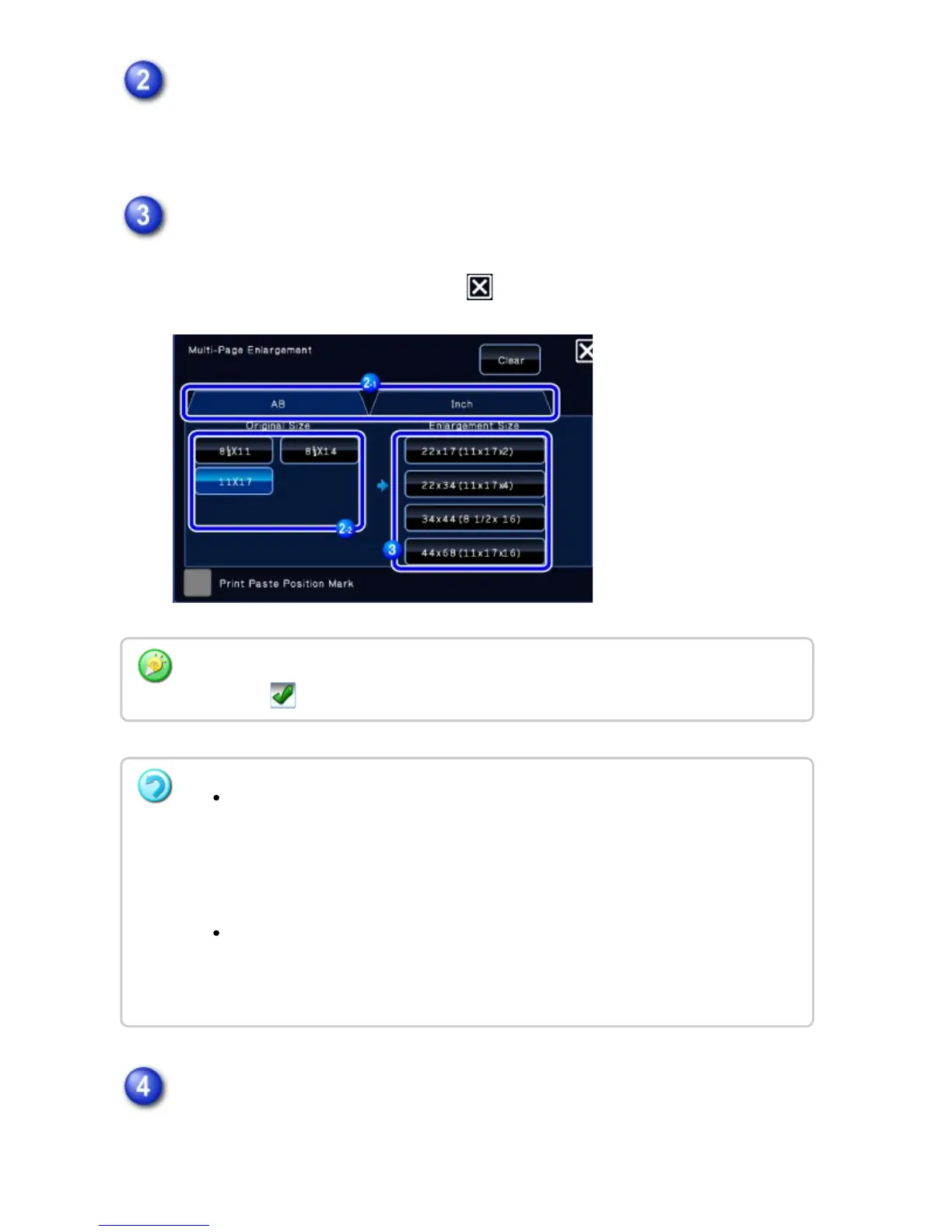
Select the [AB] or [Inch] tab to meet the original size for multi-page
enlargement, and tap the key that meets the original size.
Tapping the key of the original size displays the keys that show the available
enlargement size, copy paper size, and number of sheets.
Tap the key of the size you want to enlarge the original to.
The original orientation appears.
After the settings are completed, tap and [Back] keys in sequence.
Place the original on the document glass based on the orientation displayed
on the screen, and tap the [Preview] key.
When printing the copy image and margin border, set the [Print Paste Position Mark]
checkbox to .
To cancel the multi-page enlargement setting:
Tap the [Clear] key.
Although the multi-page enlargement setting is canceled, the ratio selected
automatically is kept valid.
To return the ratio to 100%:
Tap the [Copy Ratio] key on the base screen to display the ratio menu, and then
tap the [100%] key.
USER'S MANUAL | MX-M365N/MX-M465N/MX-M565N USER'S ... http://siica.sharpusa.com/portals/0/downloads/Manuals/MX-M365N-M...
378 of 1441 3/17/2016 7:14 AM


 To Next Page