15
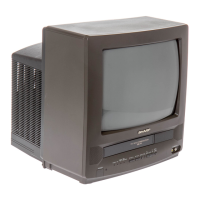
VT-G14
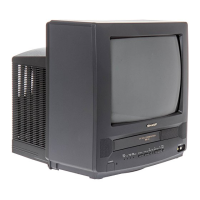
VT-G21
ab
Left Right
Beam landing equally outwards.
Left Right
Beam landing shifted to right.
Left Right
Beam landing shifted to the left.
ËË
ËË
Ë
PURITY ADJUSTMENT
1. PURITY ADJUSTMENT
1. First of all, let a beam current of over 700µA flow
in the set to warm it up for 30 minutes or longer.
(over 400 µA for VT-G14).
2. Keep the purity magnet in the zero magnetic field
in advance. Roughly adjust the static conver-
gence.
3. Receive the green-only colour signal. Adjust the
beam current to about 770 µA. (about 500 µA for
VT-G14)
4. Degauss the cathode ray tube enough with the
degaussing coil.
ADJUSTMENT
Eastward magnetic field specified
1) Observe the beam landings “a” and “b”, as
shown in
Fig. A
, through a microscope. Ad-
just the landings as specified.
2) If the right and left landings are equally out-
ward as shown in
Fig. B
, move the deflection
yoke forward.
3) If the right or left landing is shifted to the right
or to the left, as shown in
Fig. C
and
Fig. D
,
adjust the opening angle of the purity magnet.
4) Make sure the right and left beam landings are
just as specified about the screen center. Now
check the cathode ray tube corners.
Be sure that all the landings are at rank “B”.
5) If any other colour appears on the screen,
move the deflection yoke back and forth.
LANDING ERROR
» Outward: Move the deflection yoke forward.
» Inward: Move the deflection yoke backward.
6) Receive the monoscope pattern signal.
RASTER ROTATION
7) Adjust the raster rotation to “0” eastward.
» Adjustment error : 0 ±2 mm
8) Tighten up the deflection coil screws.
» Tightening torque : 11±2 kg
Note : Each time the single-colour button is
pressed, the screen colour changes as
follows.
Fig. A
Fig. B
Fig. C
Fig. D
Green-only
screen
Red-only
screen
Single-colour
screen cleared
Blue-only
screen



 To Next Page