- 6 -
VOLUME CONTROL
CALL WAITING
LISTENING TO MUSIC
WARNING!
INTERACTIVE GAMING BUTTON
ANSWERING/REJECTING/ENDING A PHONE CALL
• Move the volume dial to the LEFT to INCREASE volume.
• Move the volume dial to the RIGHT to DECREASE volume.
If there is an incoming call while a call is in progress, press the multifunction button quickly to accept the
waiting call and end the current call.
• Once the headset is paired with your smartphone, you can use it to stream music.
• Select the music track and place your smartphone into the headset.
• Press the next track button so skip to the next song.
• Press the previous track button to go back to the previous track.
• Do not wear this device without a smartphone inside it. The powerful lenses may damage your eyes if you
look at the sun or another bright light.
• NEVER LOOK AT THE SUN WHILE WEARING ANY VR HEADSET.
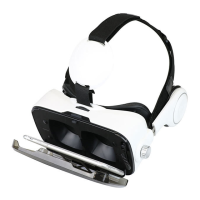
The Bluetooth VR Headset with Earphones has a new and improved interactive gaming button on the bottom
of the headset, opposite the volume button. This button is used for apps that require a button press while
your headset is on. Simply press the button once to execute an action in certain apps.
• If your smartphone rings while you are using the headset, press the multifunction button once to answer
the incoming call.
• To reject an incoming call, press and hold the multifunction button for 2 seconds.
• To end a phone call, press the multifunction button once to hang up and end a phone call.
NOTE: Press the volume button to switch between Bluetooth mode and auxiliary line in mode.
NOTE: This button was recently improved for better performance with iPhone touchscreens, however we
recommend you remove any screen cover / screen sticker from your iPhone.


 To Next Page