Identification of Controls
Remote control unit
17. SEARCH
Go to time point, title or chapter you want in DVD Mode.
15. BUTTON
Press BUTTON to skip back at 5-level speed (X2->X4->X8->
X16->X32-> PLAY), press PLAY button to return to normal playback.-
16. STEP
Step the motion frame by frame in DVD mode.
22. SETUP
Accesses or exits setup menu.
18. SUBTITLE
Press SUBTITLE repeatedly during playback to see different
subtitle languages.
20. TITLE
Return to DVD title menu
21. ENTER
Confirms menu selection..
24. REPEAT
Press REPEAT during playback to select a desired repeat mode.
DVD: you can play select repeat chapter/title/off.
VCD: you can select repeat single/all/off.
CD MP3: you can select repeat single/folder/off.
19. ANGLE
DVD: Pressing ANGLE will change the view angle on DVDs that
support this feature.
25. SLOW
Press Slow button repeatedly to enter slow playback, and cycle
through different speeds. The speeds are 1/2,1/4,1/8,1/16 and
normal.
26. PROGRAM
DVD VCD: The program function enables you to store your
favourite tracks from the disc. Press PROGRAM button and
PROGRAM MENU will appear on screen, now you can use the
number keys to input the title, chapter or track number then
select PLAY option. To resume normal playback, press PROGRAM
and select clear program option on the program menu, press
PROGRAM again to exit program menu.
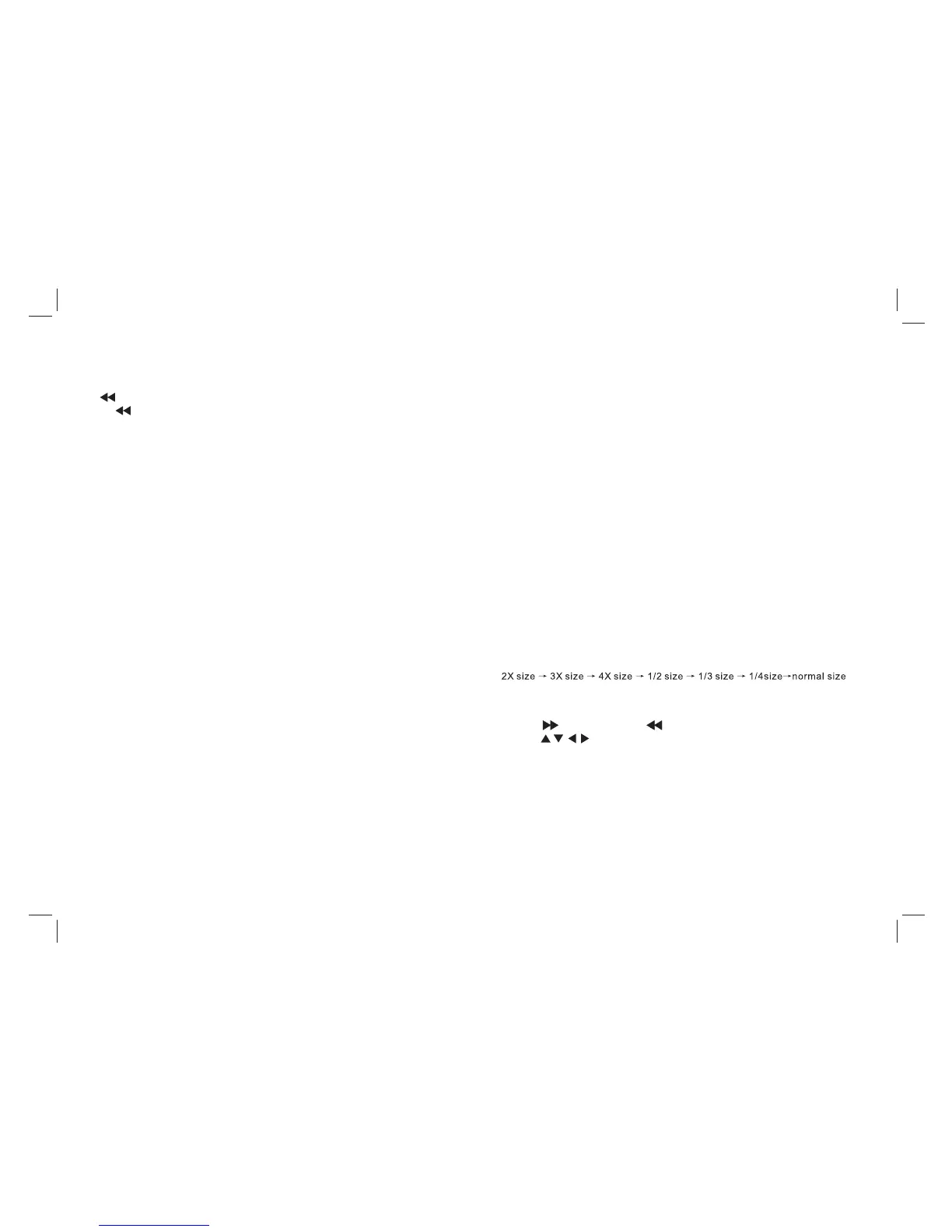
DVD VCD: Use ZOOM to enlarge or shrink the video image.
1.Press ZOOM during playback or still playback to activate the
Zoom function. The square frame appears briefly in the right bottom
of the picture.
2. Each press of the ZOOM button changes the image size in the
following sequence:
JPEG: Use ZOOM to enlarge or shrink the picture.
1. Press 'ZOOM' .
2. Use " " to enlarge,or " " to reduce the image.
Use the buttons to move through the zoomed picture.
27. ZOOM
5


 To Next Page