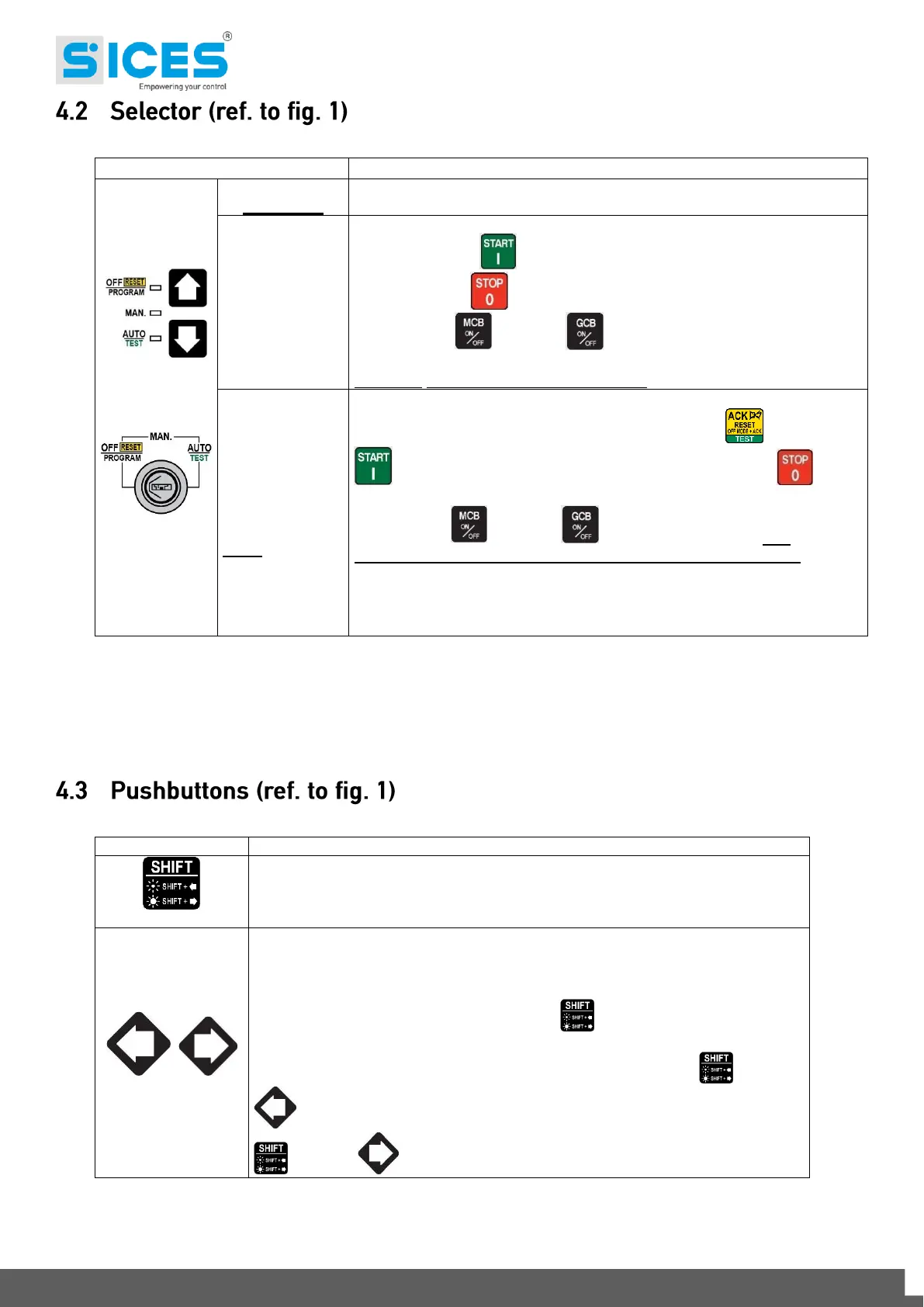
6 DST4602Evolution User’s Manual
The generator is disabled; warnings and lockouts are cancelled.
You can program the parameters.
The Gen-set control module is set for manual gen-set control.
Press the START button to start the engine.
Press the STOP button to stop the engine.
Buttons MCB and GCB are for the manual control of the
commutation/switches in accordance with system SW - HW configuration.
With BUS ON, synchronization is required.
Gen-set is in automatic mode: all the functions are controlled
automatically. The combination of buttons ACK/TEST and START
lets you activate/deactivate the TEST mode; the STOP button
lets you stop the gen-set (with a lockout).
Buttons MCB and GCB let you switch devices (only
inTESTmode and on the basis of the type and plant configuration). The
activation of a suitably configured external input (or receiving a given
command via SMS or from a serial port) can force the starting of the
generator and the load outlet with the network connected or with the
inhibition input on (REMOTE START).
Dead key. If this is pressed with another button, it changes the button function.
When HELP is available on the page, holding this button down displays the HELP
message on the bottom status bar. LCD backlight ON.
Horizontal scrolling buttons. These buttons let you select the previous or next
page on the display in all modes, except in the PROGRAM and HISTORY
LOGS mode.
In PROGRAM mode, they are used to position the cursor when entering the
strings. Used in combination with the SHIFT button, they can be used to
adjust the Brightness.
To lower the Brightness press the combination of buttons SHIFT + LEFT
. To increase the Brightness, press the combination of buttons SHIFT
+ RIGHT



 To Next Page