EasyManua.ls Logo

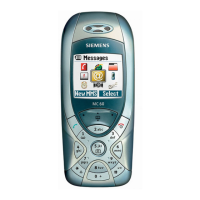
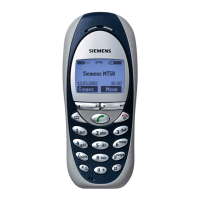
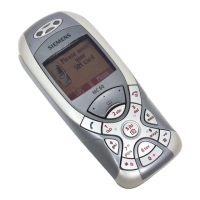
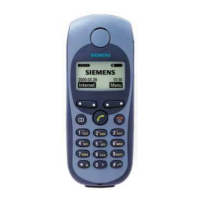
Siemens mobile phone - User Manual

Siemens mobile phone
110 pages
Print Icon
To Next Page IconTo Next Page
Loading...
12.2.02 01-S46 Intro.fm I 37Am Engl, A31008-H5450-A5-1-4A19
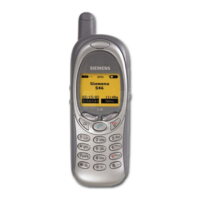
Thank you for buying a Siemens mobile phone.
This user guide is designed to familiarize you with all the functions of your
new phone. While reviewing this guide, please pay particular attention to the
safety and PIN/Security precautions.
The wireless phone described in this guide is approved for use in TDMA 800,
TDMA 1900, GSM 900, and GSM 1900.
FCC/Industry Canada Notice
Your phone may cause TV or radio interference (for example, when using a
telephone in close proximity to receiving equipment). The FCC or Industry
Canada can require you to stop using your telephone if such interference can-
not be eliminated. If you require assistance, please contact your local service
facility.
This device complies with part 15 of the FCC rules. Operation is subject to the
condition that this device does not cause harmful interference.
U2

Table of Contents

Questions and Answers

  • E
    Edwin CoxAug 17, 2025
    How to fix a Siemens Cell Phone that won't turn on?
    • M
      Mr. Charles Davis Jr.Aug 17, 2025
      If your Siemens Cell Phone won't switch on, it could be due to several reasons. First, ensure you press the On/Off key for at least two seconds. If that doesn't work, the battery might be dead, so charge it and check the charging indicator. Also, dirty battery contacts can prevent the phone from turning on; clean the contacts to resolve this.
  • J
    Jeffrey ObrienAug 19, 2025
    What to do if my Siemens Cell Phone has no connection to the network?
    • A
      Andrew LittleAug 19, 2025
      If your Siemens Cell Phone shows no network connection, the signal might be weak. Try moving to a higher elevation, near a window, or an open space. You might also be outside the service range, so check your provider's coverage map. Ensure that the mode is not set to fixed; switch to automatic. The SIM card might not be valid, in which case you should contact your service provider. If it is a new network, it might not be authorized, so try manual selection. Also, check if network barring is set. Finally, the network might be overloaded, so try again later.
  • S
    smithkimberlyAug 22, 2025
    Why is the standby time so short on my Siemens mobile phone?
    • A
      Alison BaileyAug 22, 2025
      If your Siemens Cell Phone's standby time is too short, frequent use of the organizer and games could be the cause; restrict their use if necessary. Also, if fast search is active, deactivate it. A lit display consumes power, so switch off display illumination. Unintentional keystrokes can also drain the battery, so activate the key lock.
  • J
    Jeffrey MitchellAug 25, 2025
    Why are calls not possible on my Siemens Cell Phone?
    • D
      Douglas SmithAug 26, 2025
      If calls are not possible on your Siemens Cell Phone, it could be due to a dialing error. If you have inserted a new SIM card, check for new restrictions. If a charge limit has been reached, reset the A/c limit with PIN 2. You may have used up all your credit, so load more credit. Call restrictions might be set by your service provider. Finally, check the phone number to ensure it has no more than 20 digits.
  • S
    stokesalexAug 27, 2025
    What to do if there is a charging error on my Siemens mobile phone?
    • A
      Audrey LarsonAug 28, 2025
      If you are experiencing a charging error on your Siemens Cell Phone (charge icon not displayed), and the battery is totally discharged, plug in the charger cable, wait approximately 5 - 10 minutes until the charge icon is displayed, then charge for 2 - 3 hours. Ensure the ambient temperature is between 32°F to 104°F (0 °C to 40 °C). Check the power supply and connection to the phone. Also, check the battery contacts and device interface, clean them if necessary, then insert the battery again. Plug the charger into a different socket or check the voltage. Use only original SIEMENS accessories. Finally, the battery may be faulty and need replacement.
  • J
    John MurrayAug 30, 2025
    Why can't I send messages from my Siemens mobile phone?
    • R
      Ronald SandersAug 30, 2025
      If you cannot send messages from your Siemens Cell Phone, some service providers may not support this service, so check with yours. Ensure the service center phone number is correctly set in your phone’s settings. The SIM card contract might not support this service, so contact your service provider. The service center may be overloaded, so retry sending the message. Verify that the addressee has a compatible phone. If there is a PIN error, enter the MASTER PIN (PUK) provided with the SIM. If there is a phone code error, contact Siemens Service. There could also be no authorization for this service, or too few/too many menu items. In all of these cases, contact your service provider.
  • C
    Caroline BrooksSep 2, 2025
    What does 'card error' mean on a Siemens mobile phone Cell Phone?
    • T
      Travis DuncanSep 2, 2025
      A 'card error' on your Siemens Cell Phone could mean the SIM card is not correctly inserted. Make sure it is properly inserted. The SIM card contacts might be dirty, so clean them with a dry cloth. Your SIM card may have the wrong voltage; use 3V SIM cards only. The SIM card may also be damaged, in which case you should return it to your service provider.
  • J
    John SmithSep 5, 2025
    Why does my Siemens mobile phone keep losing network?
    • C
      Christopher MossSep 5, 2025
      If your Siemens Cell Phone keeps losing network, the signal may be too weak. Reconnection to another service provider is automatic. Switching the phone off and on again may speed this up.
  • C
    Courtney PalmerSep 7, 2025
    Why can't I add entries to the address book on my Siemens mobile phone Cell Phone?
    • A
      Angela LopezSep 8, 2025
      If you cannot add entries to the address book on your Siemens Cell Phone, it is likely that the address book is full. Delete some entries to free up space.
  • A
    Anna HessSep 12, 2025
    Why does 'SMS flashes' appear on my Siemens Cell Phone?
    • B
      Barbara YoungSep 12, 2025
      The 'SMS flashes' message on your Siemens Cell Phone indicates that the SMS memory is full. Delete messages to free up memory space.

Summary

Safety Precautions

Please Observe Important Warnings

Important warnings and recommendations regarding phone usage and care.

Safety Information

Device Interference and Medical Precautions

Potential interference between mobile phones and other devices like pacemakers and hearing aids.

Specific Usage Environment Safety

Safety instructions for phones in airplanes, blasting areas, and potentially explosive atmospheres.

Phone Operation and Driving Safety

Instructions for phone use and recommendations for safe driving practices with mobile phones.

Emergency Call Procedures

Instructions on how to make emergency calls using the phone.

SAR (Specific Absorption Rate)

Overview of the Phone

Phone Components and Controls

Identification and description of the phone's physical parts, buttons, and display elements.

Getting Started

Initial Setup Steps

Prerequisite steps and initial setup procedures before using the phone.

SIM Card Installation

Instructions for removing the battery cover and correctly inserting the SIM card.

Battery Insertion and Charging

Procedures for inserting the battery and charging the phone for initial use.

Powering On and PIN Entry

Steps to turn on the phone and enter the PIN if required for security.

Phone Settings and SIM Import

Configuring network, display, and importing SIM card data into the phone's address book.

Making a Call

Basic Call Functions

Instructions on dialing, ending, accepting, and rejecting phone calls.

Call Status and Redialing

Procedures for managing busy signals and redialing numbers.

In-Call Features

Managing call waiting, setting volume, and using voice memo during an active call.

Advanced Call Management

Instructions for swap/conference calls and call transfer functionality.

Call Menu and DTMF Tones

Accessing the call menu for microphone control and sending DTMF tones.

International Calls and Babysitter

Procedures for making international calls and setting up the Babysitter feature.

Address Book

Adding New Contacts

Steps for creating new entries, entering contact information, and saving it.

SIM Phone Book

Voice Control

Text Messaging

Reading and Replying to SMS

How to read incoming messages and access the reply menu for SMS.

Voice Mailbox

WAP

Call Records

Call History Management

Accessing and managing lists of missed, received, and dialed calls.

Call Forward

Call Forwarding Setup

Configuring conditions for forwarding calls to voice mail or other numbers.

Organizer

Profiles

Fast Access Keys

Audio

Setup

Device Settings

Configuring language, display options, greetings, screensaver, and backlight settings.

Key and Input Settings

Managing key functions, auto key lock, key tones, and T9 input preferences.

Security Codes Management

Managing PIN, PIN2, phone codes, and SIM card barring for phone and SIM security.

Network Configuration

Managing network information, choosing networks, and setting preferred service providers.

User Settings and Barrings

Configuring automatic network selection, GSM/TDMA modes, and call barring options.

Connectivity Settings

Configuring GPRS and Circuit Switch Data (CSD) settings for data transmission.

Troubleshooting

Phone Issues and Solutions

Solutions for common phone problems like not switching on, short standby time, and charging errors.

Network and Call Issues

Troubleshooting no network connection, lost network, communication difficulties, and call failures.

U.S. FDA

Ten Driving Safety Tips

Driving Safety Guidelines

Ten essential tips for safe mobile phone use while driving a car.

Siemens mobile phone Specifications

General IconGeneral
BrandSiemens
Modelmobile phone
CategoryCell Phone
LanguageEnglish

Related product manuals