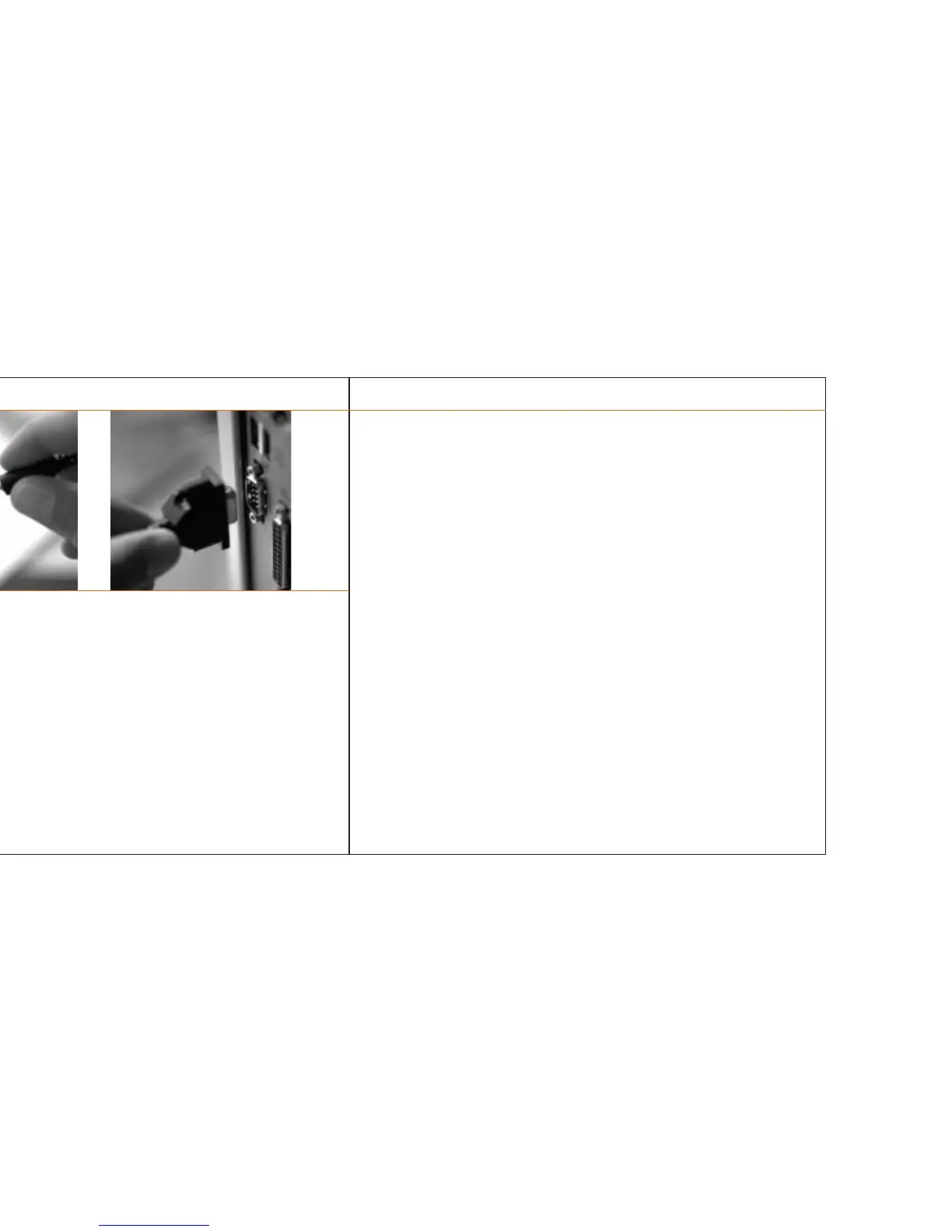
Connecting the Pocket Reader to the PC or Mac™
The PReader software supplied with the Pocket Reader will allow you to:
> Transfer text stored in the Pocket Reader memory to a desktop computer;
> Erase text stored in the Pocket Reader memory; and
> Configure the Pocket Reader from the desktop.
Follow these steps to connect your Pocket Reader to a desktop computer:
> Make sure the Pocket Reader is deactivated.
> Plug the jack end of the connector cable into the plug located at the end of the
pen opposite the head, and ensure that it is firmly seated.
> Insert the 9-pin sub-D plug of the connector cable into the jack of a serial port
(COM 1 or COM 2) on the PC or, using the Mac™ adaptor, connect to the
modem or printer port.
> Activate the Pocket Reader.
Pocket Reader Desktop Software / 16
Pocket Reader Desktop Software / 17
Installing the PReader desktop program
The PReader desktop software runs under Microsoft Windows® 95 or later
versions, Microsoft Windows NT® 4.0 or later versions, and Mac™ OS 7.5 or
later. Other operating system versions of PReader (including Linux, Psion and
Windows® 3.1) are available for download through the Pocket Reader web site at
www.pocketreader.com. The PReader desktop program is installed from the
Tutorial. We recommend that you take a few minutes to run the Tutorial before
you install your PReader program.
To run the Tutorial and/or install your software
For Windows®:
> Make sure to quit from all currently running applications (except your
internet connection).
> For best results, set your monitor color depth to thousands and screen
resolution to 800 x 600.
> Insert the CD-ROM into your CD-ROM drive. The Tutorial will start
automatically.
> If the Tutorial does not begin automatically, select Start / Run / Browse /
Tutorial.Exe / OK.
To Uninstall the Pocket Reader Application.
> Open the PReader application folder and double click on the Uninstall
PReader icon.



 To Next Page