EasyManua.ls Logo

Siemens SpeedStream 4100 - User Manual

Siemens SpeedStream 4100
9 pages
Print Icon
To Next Page IconTo Next Page
Loading...
1
DSL Self-install Kit Instructions
SpeedStream 4100
Cover and installation notes Page 1
1. Verify your system requirements Page 2
2. Verify the contents of your DSL Self-Install kit Page 2
3. Install filters on your telephone jacks Page 3
4. Connect the SpeedStream DSL modem Page 4
5. Configure your system Page 6
6. Configure your connection and email Page 9
Important Notes:
In order to provide you with the best possible connectivity, your DSL circuit must "train" for at
least 10 days when first activated. During this period you must leave the DSL modem plugged in,
turned on and connected at all times. You do not need to leave your computer turned on during
this period- just the DSL modem. For best results, please plug in your DSL modem and turn it on
the day before
your scheduled installation date, and leave it turned on for at least 10 days.
Please follow all instructions carefully. Some computer or network configurations may cause
software windows to appear that are not depicted in this guide. Please read and follow the
instructions on those screens to continue the installation process.
Your Internet Service Provider (ISP) assumes no responsibility for any personal injury or property damage
which may result from your installation of DSL Equipment as discussed in this Guide. Your ISP specifically
disclaims any liability for such injury or damage. By proceeding with this installation, you assume all risk
of personal injury or property damage. Please consult the documentation provided by your PC vendor to
identify any impacts to your warranty.

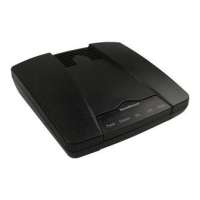
Other manuals for Siemens SpeedStream 4100

Questions and Answers

  • T
    tylerbensonJul 26, 2025
    What to do if the Internet LED is off on my Siemens SpeedStream 4100 Modem?
    • C
      Carol MarshallJul 26, 2025
      If the Internet LED is off, it could be due to no power or no connection to the Internet. Check the Internet connection and ensure the DSL link is active.
  • S
    shawn67Aug 1, 2025
    What to do if the DSL LED is off on my Siemens SpeedStream 4100?
    • D
      donaldbeanAug 1, 2025
      If the DSL LED is off, this may be because power is not applied or the DSL signal is not detected. Verify that the DSL line is connected and check for any service outages in your area.
  • V
    Veronica ParkAug 7, 2025
    Why is the Ethernet LED off on my Siemens SpeedStream 4100 Modem?
    • W
      William WallsAug 7, 2025
      The Ethernet LED might be off because power is not applied or the Ethernet link is not connected. Check that the Ethernet cable is securely connected to both the Siemens Modem and the router.
  • J
    Justin FrancoAug 13, 2025
    How to troubleshoot if the Power LED is off on Siemens Modem?
    • S
      Steven SilvaAug 14, 2025
      If the Power LED is off, the device may not be receiving power. Ensure that the Siemens Modem is properly plugged into a power source.
  • E
    Erika ZamoraAug 19, 2025
    What to do if the Activity LED is off on my Siemens Modem?
    • S
      Steven SharpAug 19, 2025
      If the Activity LED is off, it might be caused by no power or no LAN data activity. Ensure that there are devices connected to the LAN that are generating traffic.

Summary

Minimum Requirements for DSL Installation

Verify Your Self-Install Kit Contents

Install Filters on Your Phone Jacks

Locate Phone Jack for DSL Installation

Instructions for connecting DSL splitter filter to phone jack.

Install Filters for Other Telephones

Filter installation for other telephony devices on the same line.

Connect the SpeedStream 4100 DSL Modem

Configure Your System for IP Address

Windows Vista IP Configuration

Steps to configure IP address automatically in Windows Vista.

Windows 2000;XP IP Configuration

Steps to configure IP address automatically in Windows 2000/XP.

Windows 95;98;ME IP Configuration

Steps to configure IP address automatically in Windows 95/98/ME.

Configure Macintosh System for DSL

Mac OS X IP Configuration

Steps to configure IP address automatically in Mac OS X.

Mac OS 9 and Below IP Configuration

Steps to configure IP address automatically in Mac OS 9 and below.

Configure Your Computer to Connect via DSL

Configure Email Client for DSL Connection

Siemens SpeedStream 4100 Specifications

General IconGeneral
TypeADSL Modem
ConnectivityWired
InterfaceEthernet
DSL StandardADSL
Max Download Speed8 Mbps
Max Upload Speed1 Mbps
WirelessNo
ADSL StandardsG.dmt, G.lite
Operating System CompatibilityWindows, Mac, Linux

Related product manuals