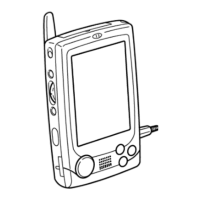
6,(0(166;
4XLFNVWDUWJXLGH
PN441005-001 MO0105-A Printed on recycled paper. Printed in Japan
This qqui ck start guide helps you to get your SX45 up and running.
The following user guides can be found on the Siemens CD:
•PPocket PC hardware manual: General description of the SX45 hardware
and how to use it.
•PPocket PC user guide : The Windows CE basics.
•CCommunications user guide: Description of the communications and
data services (hardware and software).
*HWWLQJVWDUWHG
:KDWnVLQWKHER["
Check to make sure that all the items listed below are included.
*HQHU DOJXLGH
6HWWLQJXS\RXU6;
/RDGWKHPDLQEDWWHU\UHFKDUJHDEOHEDWWHU\SDFN
8VHWKH$&DGDSWHUWRFKDUJHWKHEDWWHU\SDFN
• Connect the AC adapter to the SX45 as shown in the illustration.
• Charging starts automatically as soon as you connect the AC adapter to the
SX45.
• The charge indicator is red while charging is in progress, and turns green
when charging is complete.
• It takes about seven hours to reach full charge.
• The time required to reach full charge may be longer the first time you
charge the battery pack after purchasing it.
Remove the AC adapter from the SX45 after charging is complete.
/RDGWKHEDFNXSEDWWHU\&5
3UHVVWKH>3RZHU@EXWWRQ
• After a few moments the Welcome screen appears.
)ROORZWKHVWHSVLQWKH:HOFRPH:L]DUG
:KHQILQLVKHG\RXnOOVHHWKH7RGD\VFUHHQ
• See “Pocket PC basics” at the back of this quick start guide for information
about the Today screen and other Pocket PC basics.
• You also need to install ActiveSync before you can communicate with a
desktop computer.
,PSRUWDQW
• If the touch panel does not respond when you tap it or if nothing appears
on the display, try performing a full reset. If this does not restore proper op-
eration, remove the main battery and the backup battery and wait for about
five minutes. Reload the main battery first and then the backup battery, and
perform the above procedure again from step 4.
• If the message “A problem with memory contents has been found...” ap-
pears on the display, perform a full reset.
• See the
hardware manual
for information on performing a full reset.
• See the
hardware manual
for important information about replacing batter-
ies.
$GMXVWLQJGLVSOD\FRQWUDVW
/RDGLQJD6,0FDUG
Your SX45 must have a SIM card loaded before you can use it for data commu-
nication and telecommunication. Use the following procedure to load a SIM
card into your SX45.
7 X UQRIIWKH6;DQGUHPR YHWKHEDWWHU\SDFN
:LWKWKHWHUPLQDOVLGHRIWKH6,0FDUGIDFLQJXSZDUGV
VOLGHLWLQWRWKH6,0FDUGVORWZKLFKLVORFDWHGLQVLGHRI
WKH6;EDWWHU\FRPSDUWPHQW
• Gently press the SIM card in until you hear it click into place.
• Never apply too much force when sliding a SIM card into the slot.
• Slide the SIM card in as far as it will go.
5HSODFHWKHEDWWHU\SDFN
7XUQRQ\RXU6;
6OLGHWKH*60VZLWFKWRWKH21SRVLWLRQ
• In response to the message that appears on the display, enter the correct
PIN code.
• See “Input methods” at the back of this document for information about
inputting text.
• Note that you must re-input your PIN code following to a full reset of the
SX45.
'DWDFRPPXQLFDWLRQXVLQJ606WKH
:$3EURZVHU
Information about this can be found in the communications user guide and the
WAP browser description (on the Siemens CD).
$FFHVVYLD4XLFN$FFHVV
$WWDFKLQJWKHKHDGVHW
Plug the headset into the SX45 as shown in the illustration below.
Hardware manual
,
Pocket PC user guide
, and other documentation are in-
cluded in digital form as PDF files on the bundled
CD-ROM
. Make sure that
you read the separate
CD-ROM
and
hardware manual
first.
• Rechargeable battery pack
• Backup battery (CR2032)
•AC adapter
•AC cable
•Protection bag
• Headset
• SX45 USB cable
• Microsoft® ActiveSync® CD-ROM
• Pocket PC applications CD-ROM
• Precautions manual
Stylus (inserted inside SX45)
SX45
*60VZLWFK
Slide to the ON position
to enable the mobile
module and to OFF to
disable.
$QWHQQD
&RPSDFW)ODVK
FDUGVORW
&KDUJHLQGLFDWRUUHGJUHHQ
Lights red when the battery pack is charging
and turns green when full charge is achieved.
6W\OXV
,QGLFDWRUODPSUHG
Alerts you to alarms and
warning.
7RXFKVFUHHQ
Perform operations and input
data by tapping and writing
directly on the screen.
•
4XLFN$FFHVV
•
&RQWDFWV
•
&DOHQGDU
3URJUDPPHEXWWRQV
Press to launch the assigned
programme. The pro-
grammes shown here are
the initial default settings.
+HDGVHWMDFN
Connect the headset here.
6SHDNHU
&XUVRUEXWWRQ
Moves the cursor
around the screen.
0LFURSKRQH
%DFNXSEDWWH U\
WUD\
,QIUDUHGSRUW
5HFRUGEXWWRQ
SURJUDPPHEXW
WRQ
Voice memo recording
is activated as long as
you press this button.
$FWLRQFRQWURO
See “About the [Action]
control” below.
3RZHUEXWWRQ
Turns power on and off.
$ERXWWKH>$FWLRQ@FRQWURO
Operations can be performed by pressing and rotating the [Action] control
button.
Pressing the [Action] control
button performs an operation
similar to the Enter key of a
computer keyboard.
Rotating the [Action] control
button performs operations
similar to the up and down ar-
row keys of a computer key-
board.
See SX45 online help for information about using the [Action] control button
with each application. The text in the online help indicates an [Action] control
press operation as “Action,” and an [Action] control rotate operation as “Up/
Down control.”
6W\OXVRSHUDWLRQ
•
7DS
Touch the screen once with the stylus to open items and select options.
•
'UDJ
Hold the stylus on the screen and drag across the screen to select text and
images. Drag in a list to select multiple items.
•
7DSDQGKROG
Tap and hold the stylus on an item to see a list of actions available for that
item. On the pop-up menu that appears, tap the action you want to perform.
Make sure that you use the AC adapter to charge the battery pack before do-
ing anything else. Your device will not operate correctly if you load the back-
up battery before charging the battery pack.
&RPSDFW)ODVKFDUGORFN
VZLWFK
If the inserted card has a lock, this
switch locks the card in place so it
does not come out accidentally.
([WHUQDODQWHQQDMDFN
5HVHWEXWWRQ
6,0FDUGVORW
(inside battery compartment)
0DLQEDWWHU\
(Rechargeable battery pack)
6HULDOFRQQHFWRU
For connection of the Sync-
Station, the SX45 USB cable,
or the RS-232C cable.
0DLQEDWWHU\ORFNNH\
$&DGDSWHUMDFN
3UHVVWKHVW\OXVLQWR
WKHKROHWRRSHQ6'
00&FDUGVORW
6'00&FDUGVORW
①
Slide the main battery lock
key to the
)5((
position.
• Insert the tip of the stylus
into the lower depression,
and slide up.
• Insert the tip of the stylus
into the upper depression,
and slide up again.
Position the battery pack as shown in
the illustration below, insert it into the
battery compartment.
• Make sure you insert the flat end of the
battery pack first, and then lower the
terminal end into place.
③
Reverse the two-step procedure in
step
①
to slide the main battery lock to
the
/2&.
position.
7RGRWKLV 3 HUIRUPWKLVRSHUDWLRQ
Make contrast darker [Action] + Cursor up
Make contrast lighter [Action] + Cursor down
Increase brightness [Action] + Cursor right
Decrease brightness [Action] + Cursor left
①
Insert the tip of the stylus
under the backup tray, and
pull the tray out.
②
After wiping both
sides of a new lithium
battery (CR2032) with a
dry cloth, place it into the
backup battery tray with
the positive side facing
up (see picture).
③
Replace the backup battery tray into
the SX45.
'RQRW DSSO\H[FHVVLYHIRUFH
7KLVPD\ U HVXOW LQGDPDJHWRWKHWLS
RIWKHVW\OXV
QuickAccess button


 To Next Page
 Need help?
 General